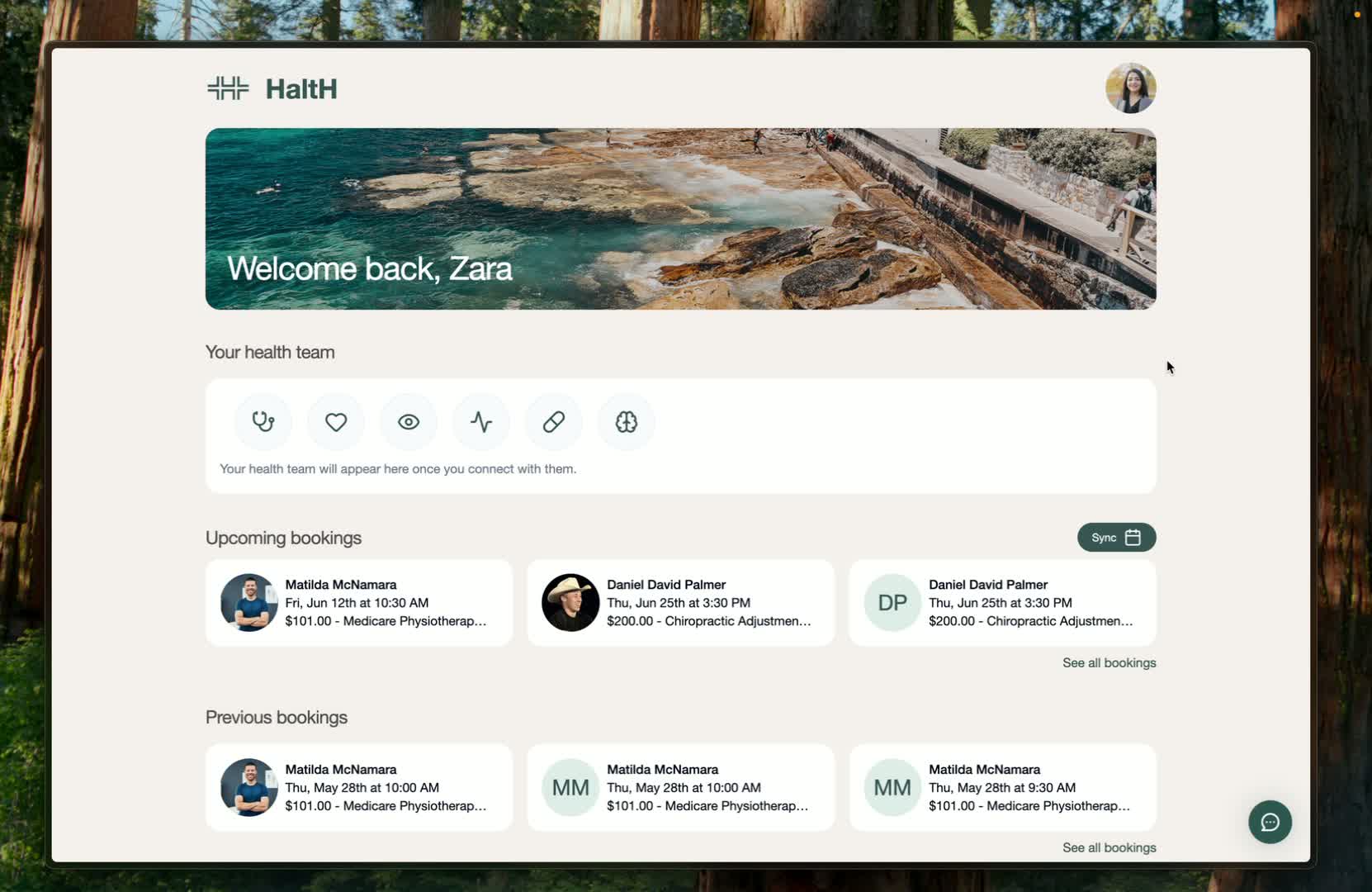
1. Open your profile and go to Wallet 0:00

This guide shows how to add the key account details needed for a smoother appointment process.
The three items covered are:
Payment method
Medicare
Health funding
From the customer side, navigate to:
Profile
Your Profile
Wallet
2. Add a payment method 0:17
In Wallet, select Add new card.
Enter your payment details.
Press Save to store the card in your account.
3. Add health funding details 0:36
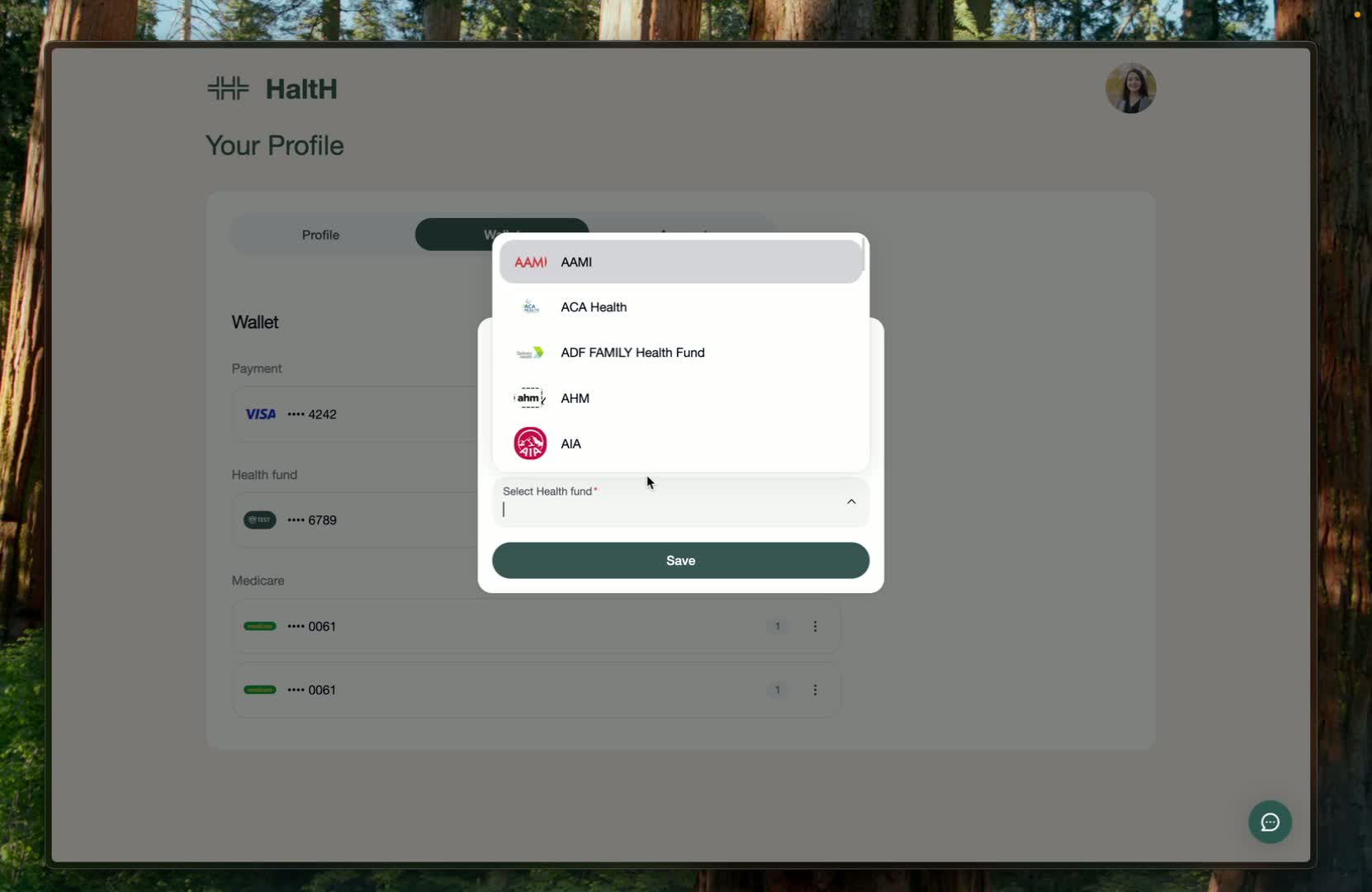
Tap Health funding.
Select Health funding from the list.
You can either scroll to find it or type it in to search.
Enter the required details:
Member number
Card issue number
Reference number
Press Save when finished.
4. Add your Medicare details 0:48
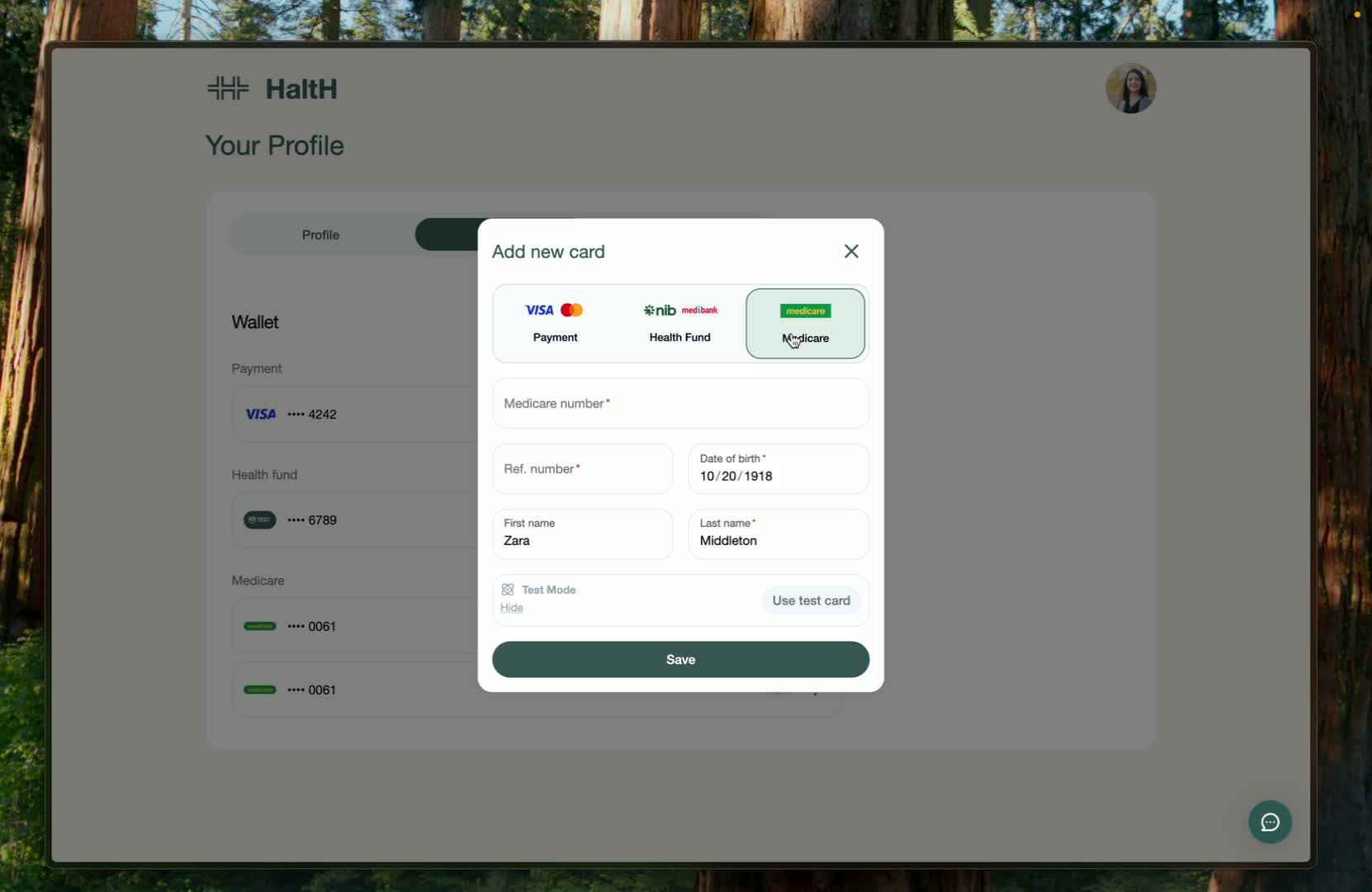
Medicare uses the same general process, with a few extra fields.
Enter the required information:
Medicare number
Reference number
Date of birth
First name
Last name
Press Save to add it to your account
5. Confirm the details are saved to your account 1:06
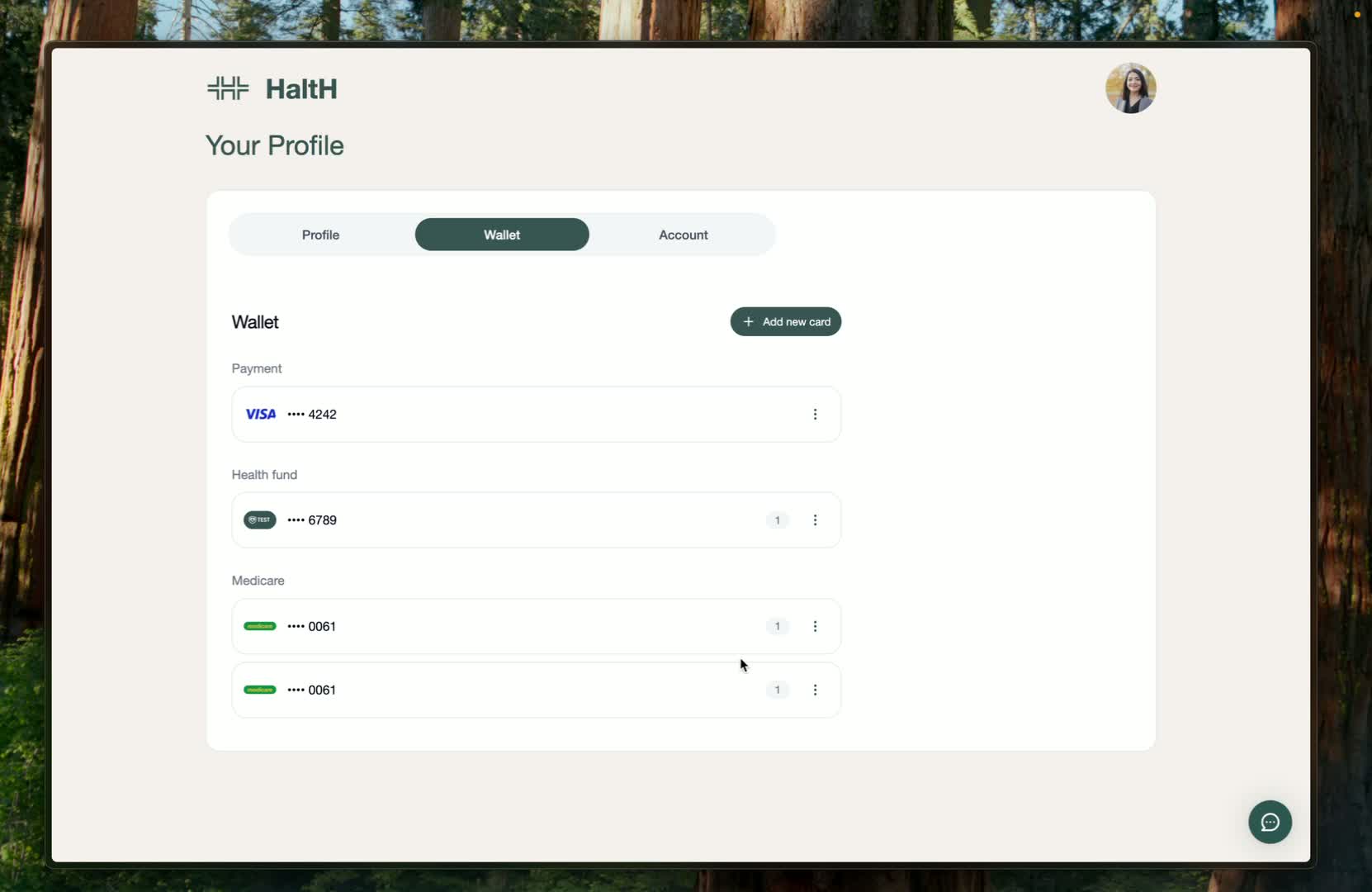
Once you press Save on any of the items, it is automatically added to your account.
Having these details ready makes it easier for your provider to complete your appointment.
This helps create a smoother process for both you and your provider.
