How to Use the Correct Medicare Item Codes in Health
1. Understand why the Medicare item code matters 0:00
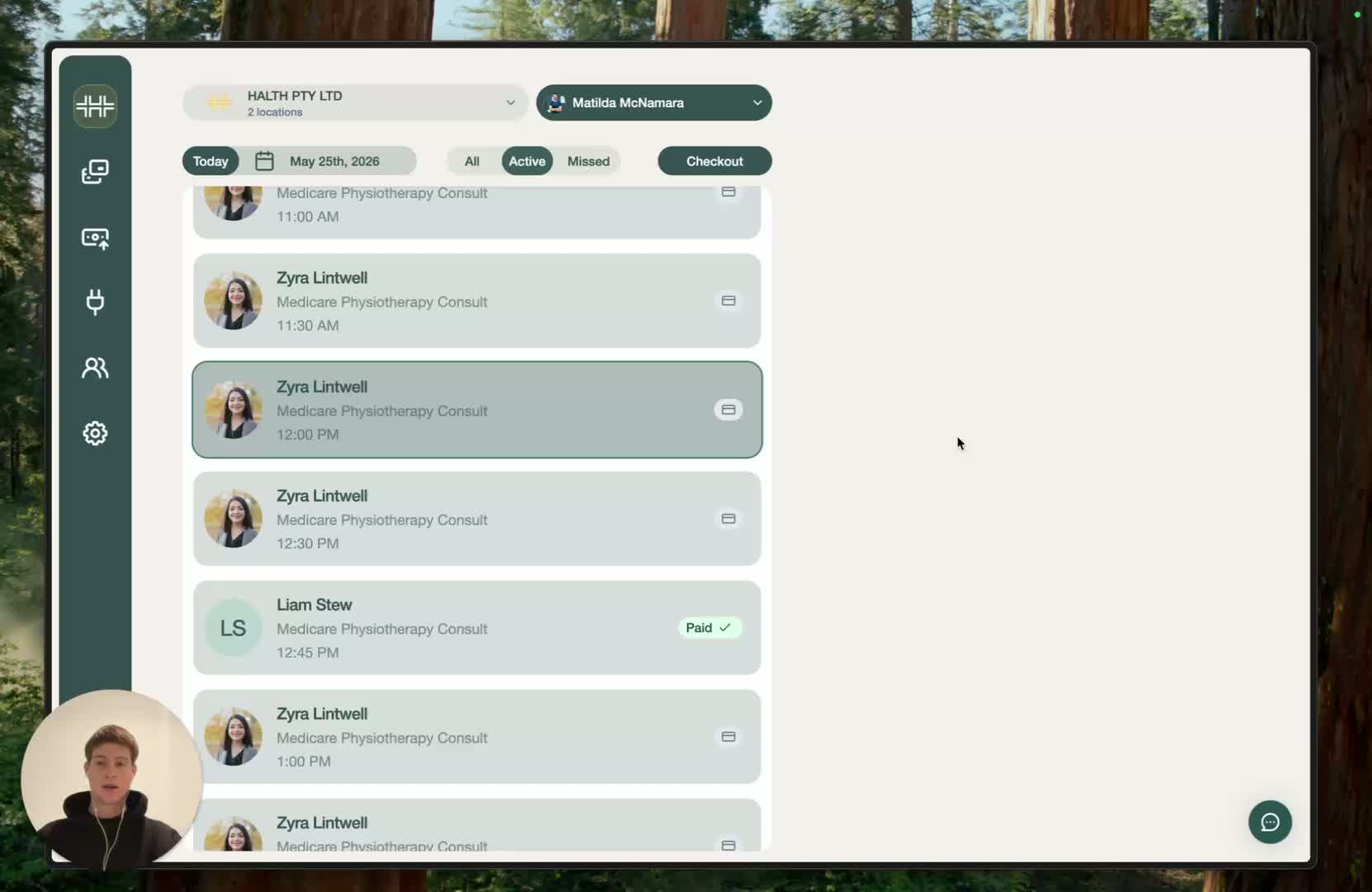
This walkthrough explains how to use Medicare item codes in HaltH.
The main goal is to make sure bookings attached to Medicare can be processed correctly.
Using the wrong item code can cause the rebate to be declined.
2. Check that the item has a Medicare code attached 0:13
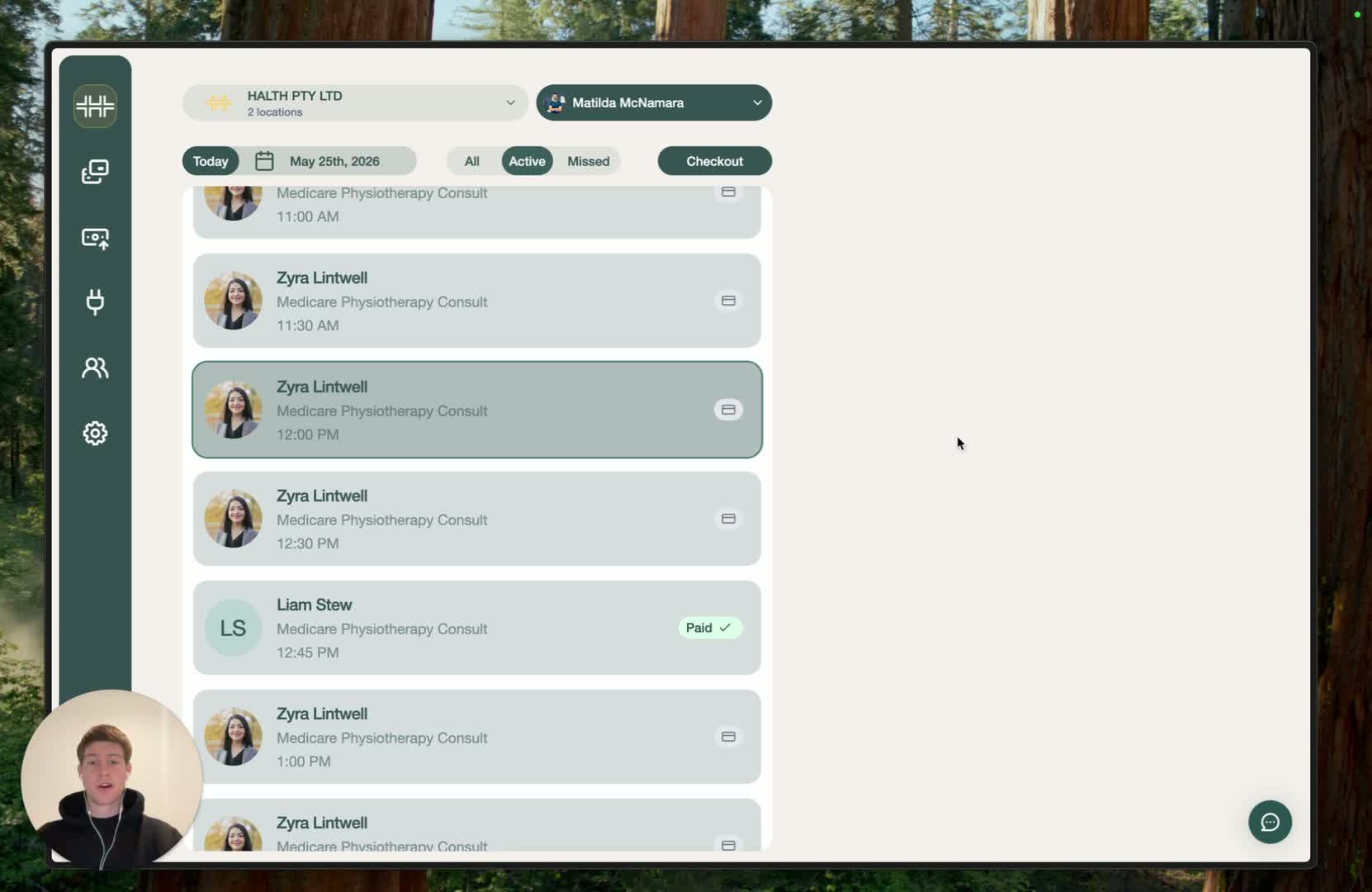
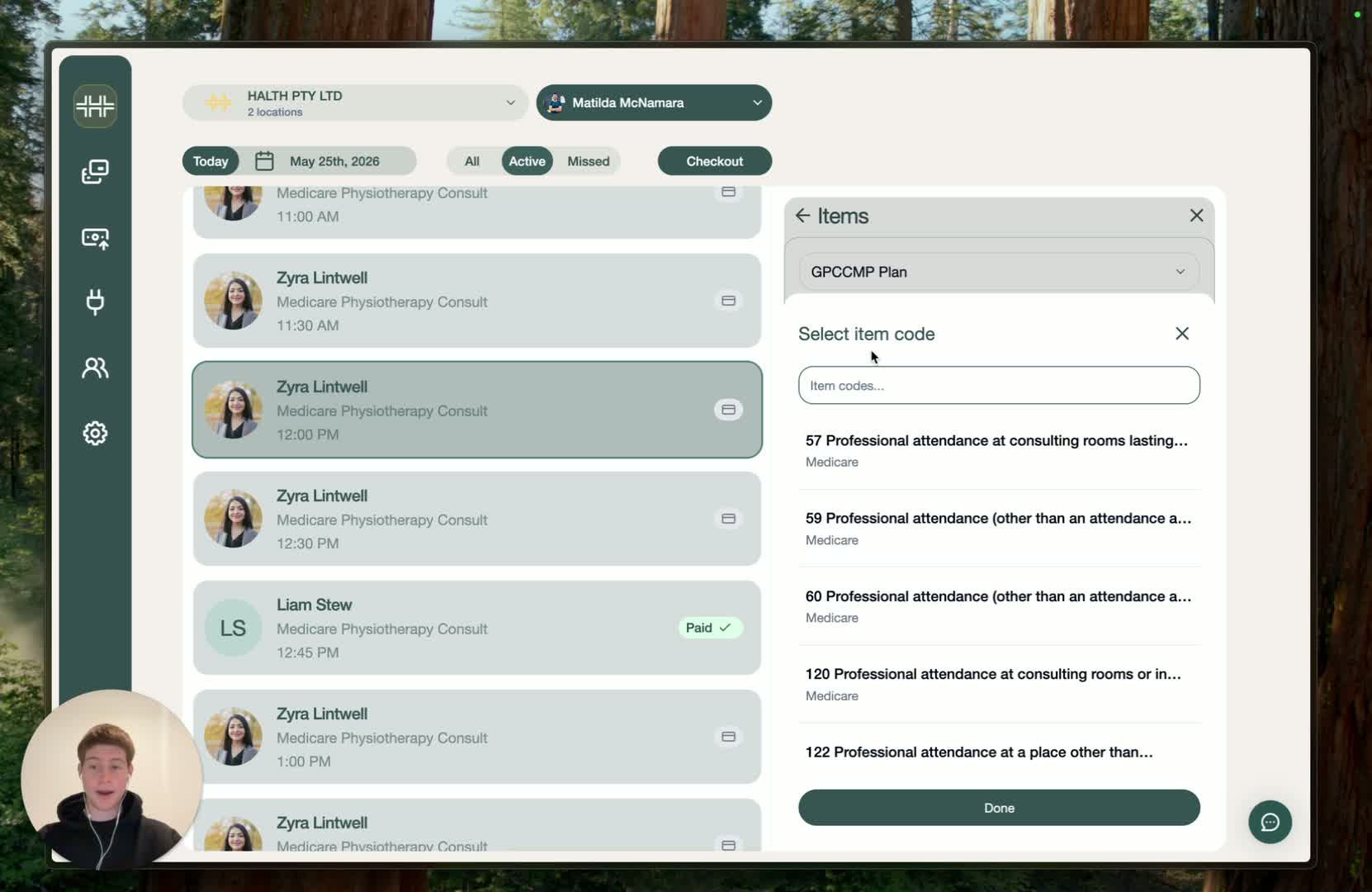
When creating a booking with Medicare attached, go to the Items page.
Make sure the selected item shows Medicare in the bottom.
If an item does not show Medicare (for example, an audiology item), Medicare will not know what rebate to apply.
This can result in the rebate being declined when processed.
3. Watch for the invalid item code warning 0:24
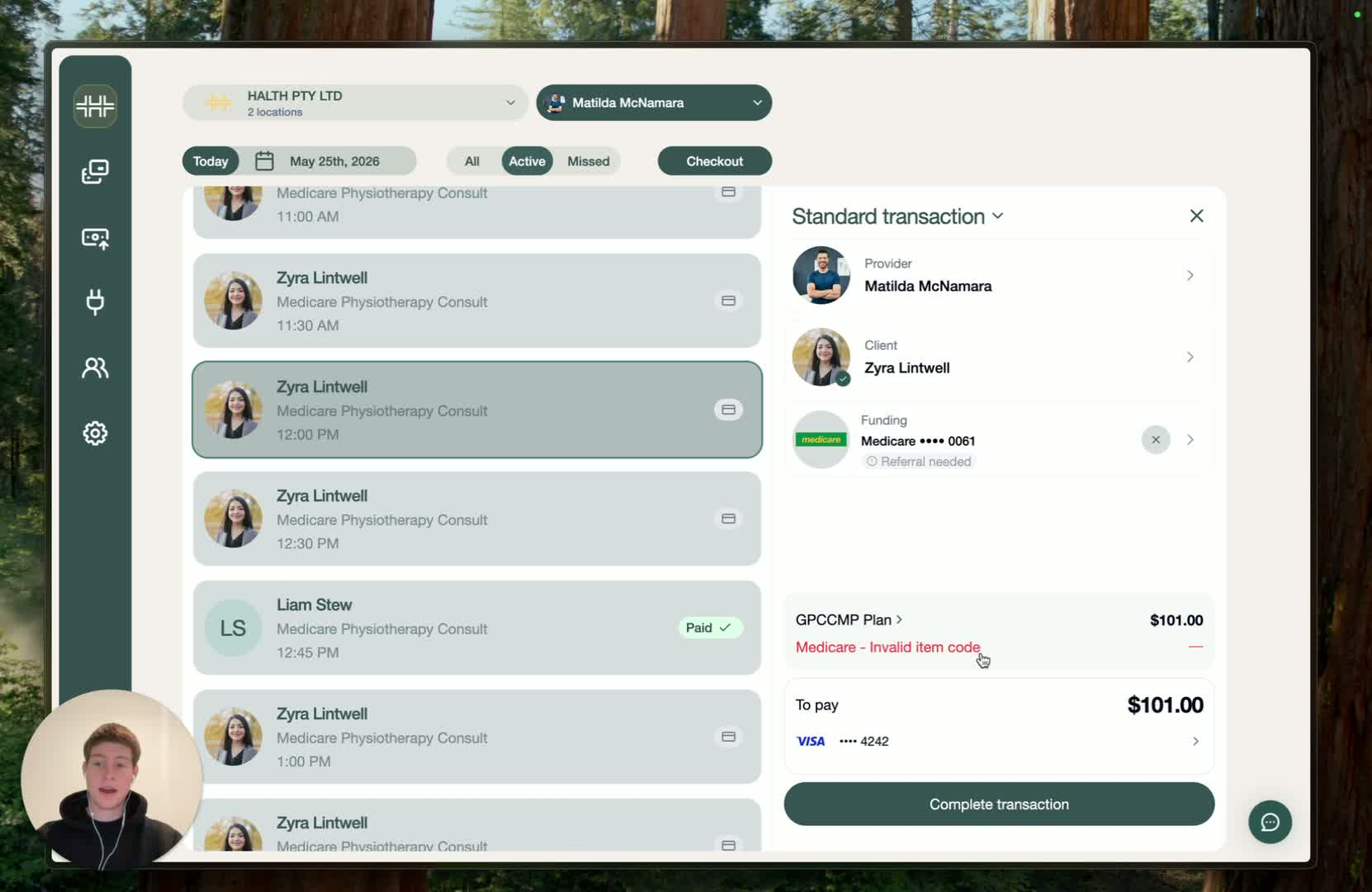
If the item is not a Medicare item, HaltH will display a warning:
"Medicare invalid item code"
This message tells you the item selected cannot be used for a Medicare rebate.
4. Fix the issue by selecting the correct Medicare item 0:46
Go back to the Items page.
Choose an item that clearly has Medicare attached to it.
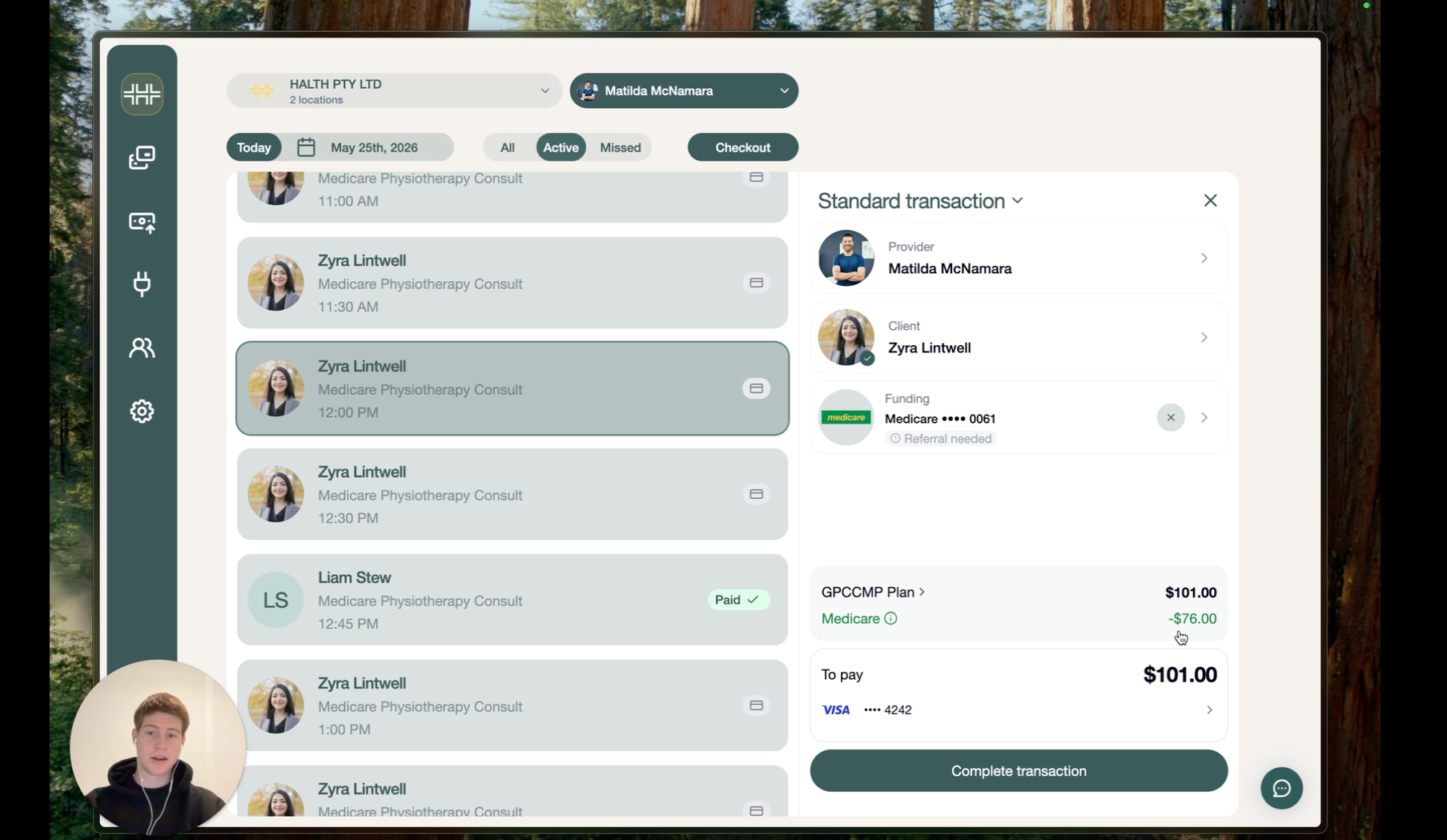
Once the correct item is selected, the invalid item code warning should disappear.
You can then continue processing the transaction
5. Complete the Medicare transaction 1:03
After selecting a valid Medicare item code, the system should show the rebate amount.
You should then be able to process and complete the Medicare transaction successfully.