1. Understand where the GST is coming from 0:00
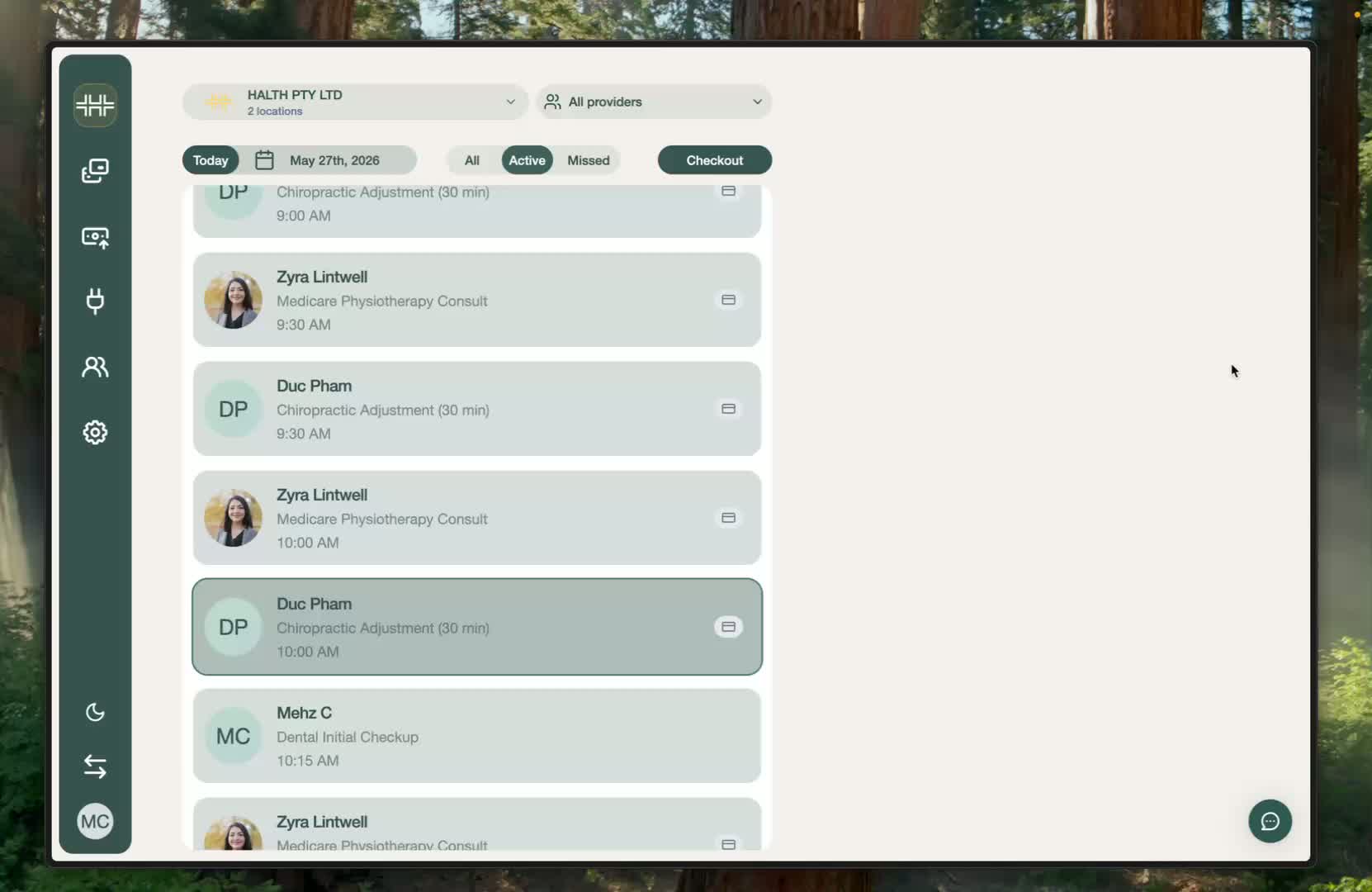
HaltH does not add GST directly to your services.
HaltH instead syncs service data from your PMS (practice management system).
This means if you see GST included in a service price, it is set in your PMS, not in HaltH.
2. Open your PMS and locate the service/item with GST 0:24
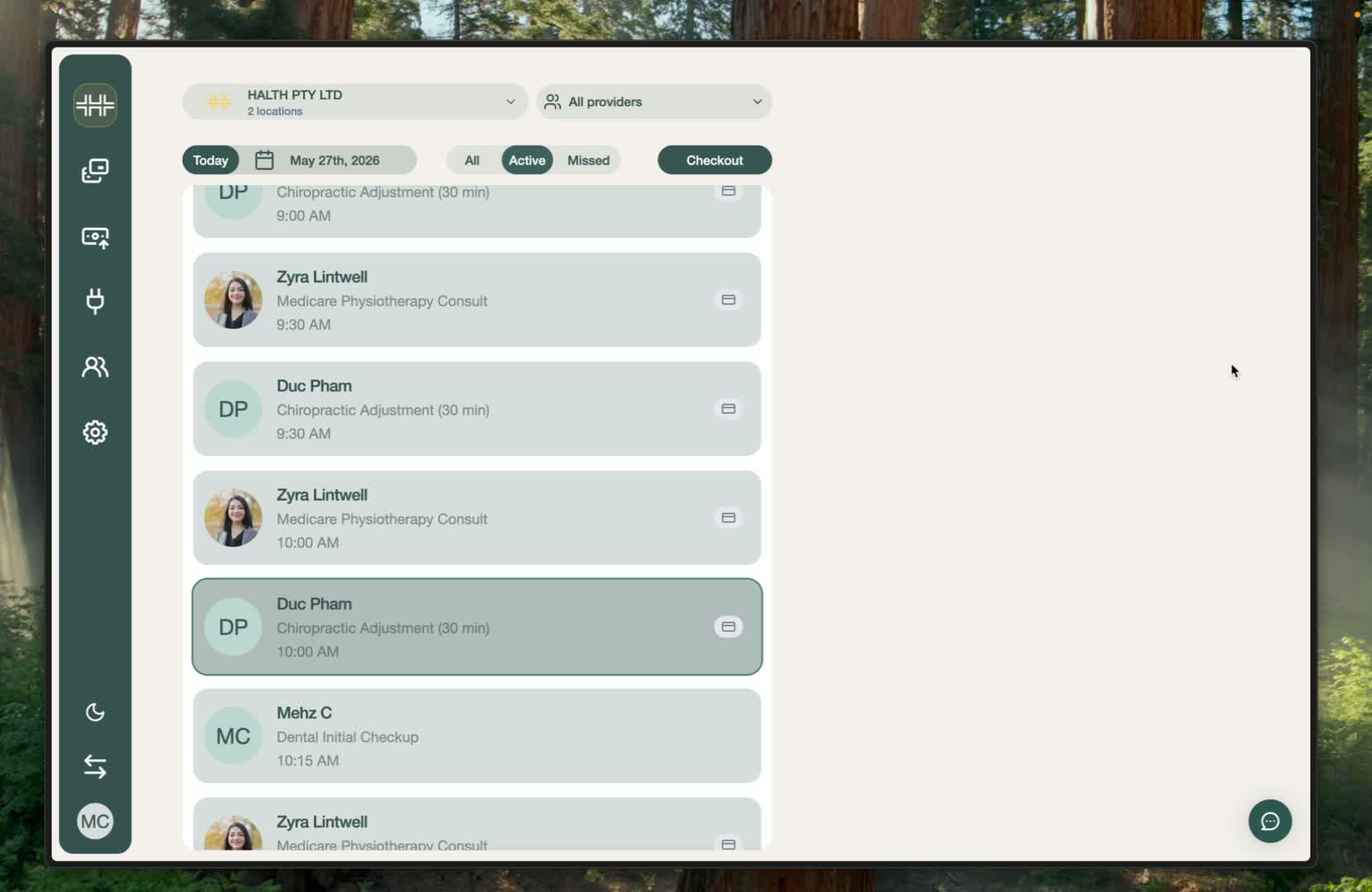
Go to the PMS where the service is managed.
Find the service or billable item that has GST included.
Examples used in this are
Nookal
Cliniko
(All PMS’s do offer this option)
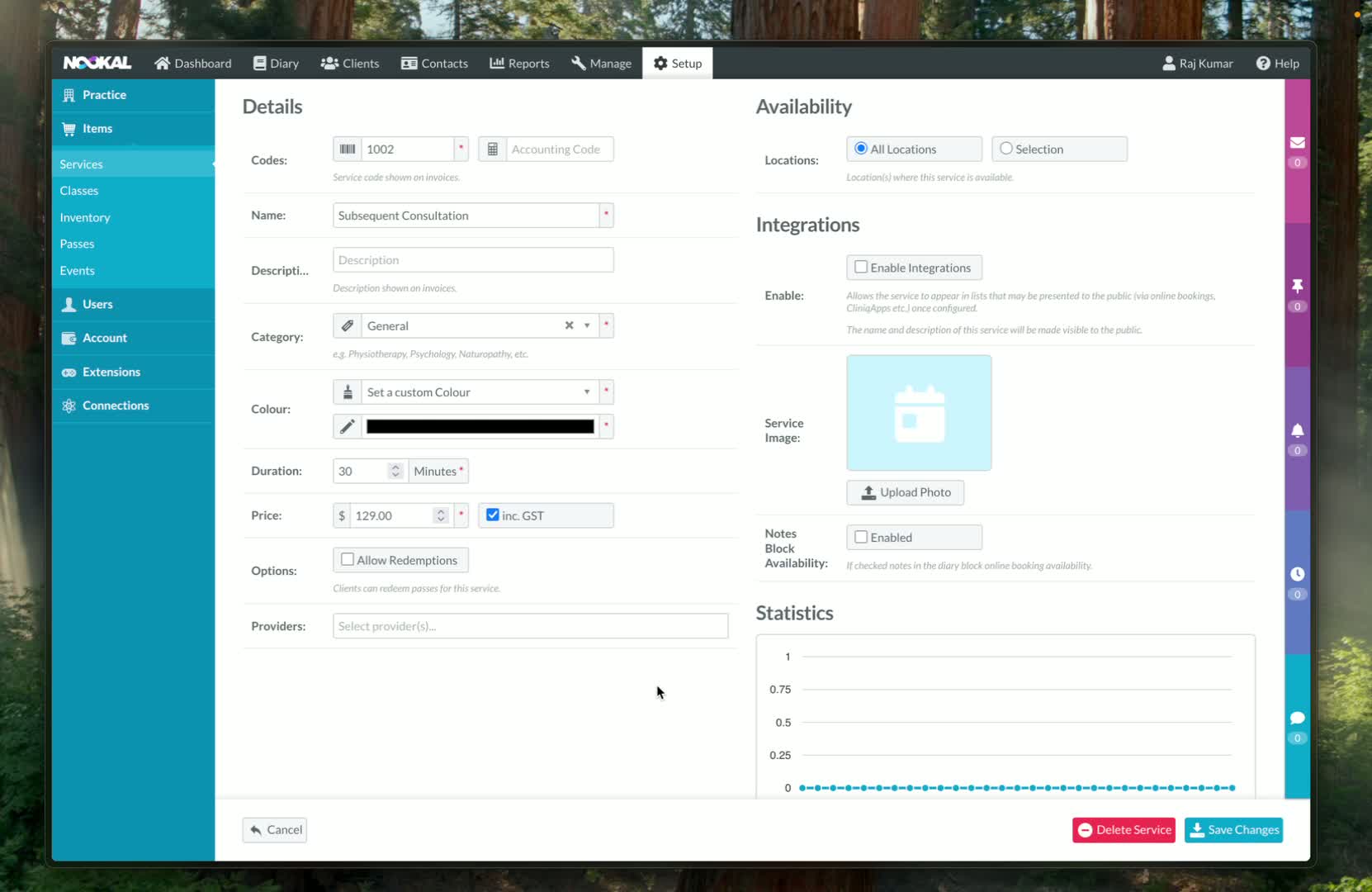
3. Remove GST in Nookal 0:31
In Nookal, go to:
Setup
Services
Find the service item that has GST included.
Deselect GST on that item.
Save the changes.
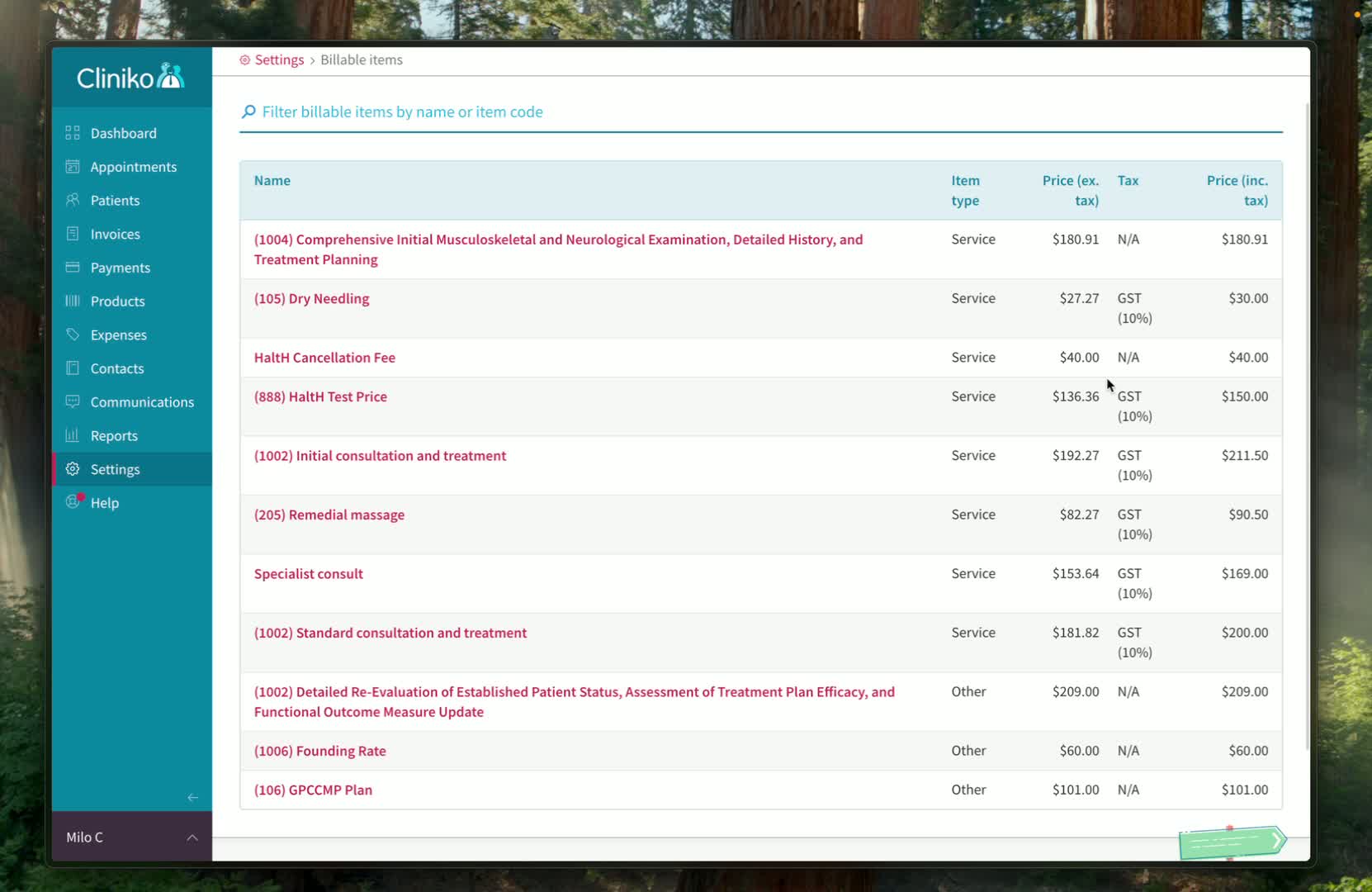
4. Remove GST in Clinico 0:43
In Cliniko, go to:
Settings
Billable Items
Find the billable item you want to change.
If GST is included, update the billable item.
To remove GST, press the GST option and select NA.
Save/update the item so the price changes immediately.
5. Return to Health and allow the sync to update 1:01
After updating the PMS, go back to HaltH.
Allow some time for the changes to sync over.
Once synced, the service should reflect the updated GST setting:
GST included, or
GST removed/deselected