1. Identify the error message 0:09
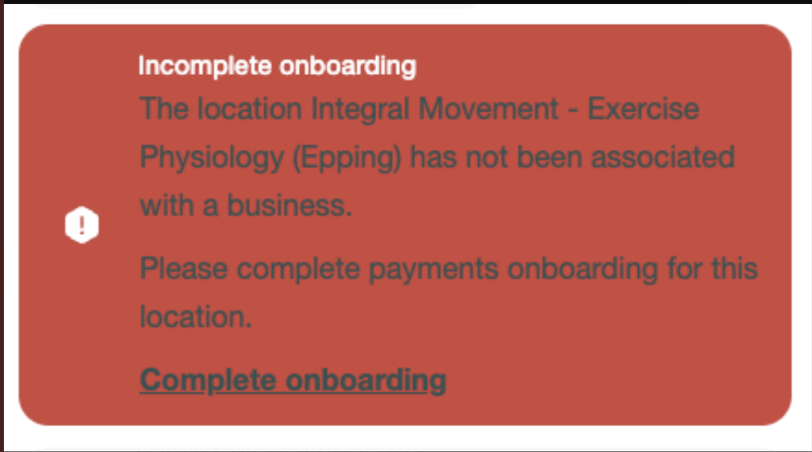
If you get this error saying “The location has not been associated with the business. Please complete payments onboarding for this location.”
A common issue is that completing onboarding may still loop back to the same message.
This indicates the problem is likely not onboarding itself, but the location’s connection status.
2. Go to Settings and open Locations 0:32
From the homepage, open Settings.
Scroll down until you find Locations.
This is where you can check whether the location is properly linked to the business.
3. Check whether the location is connected 0:42
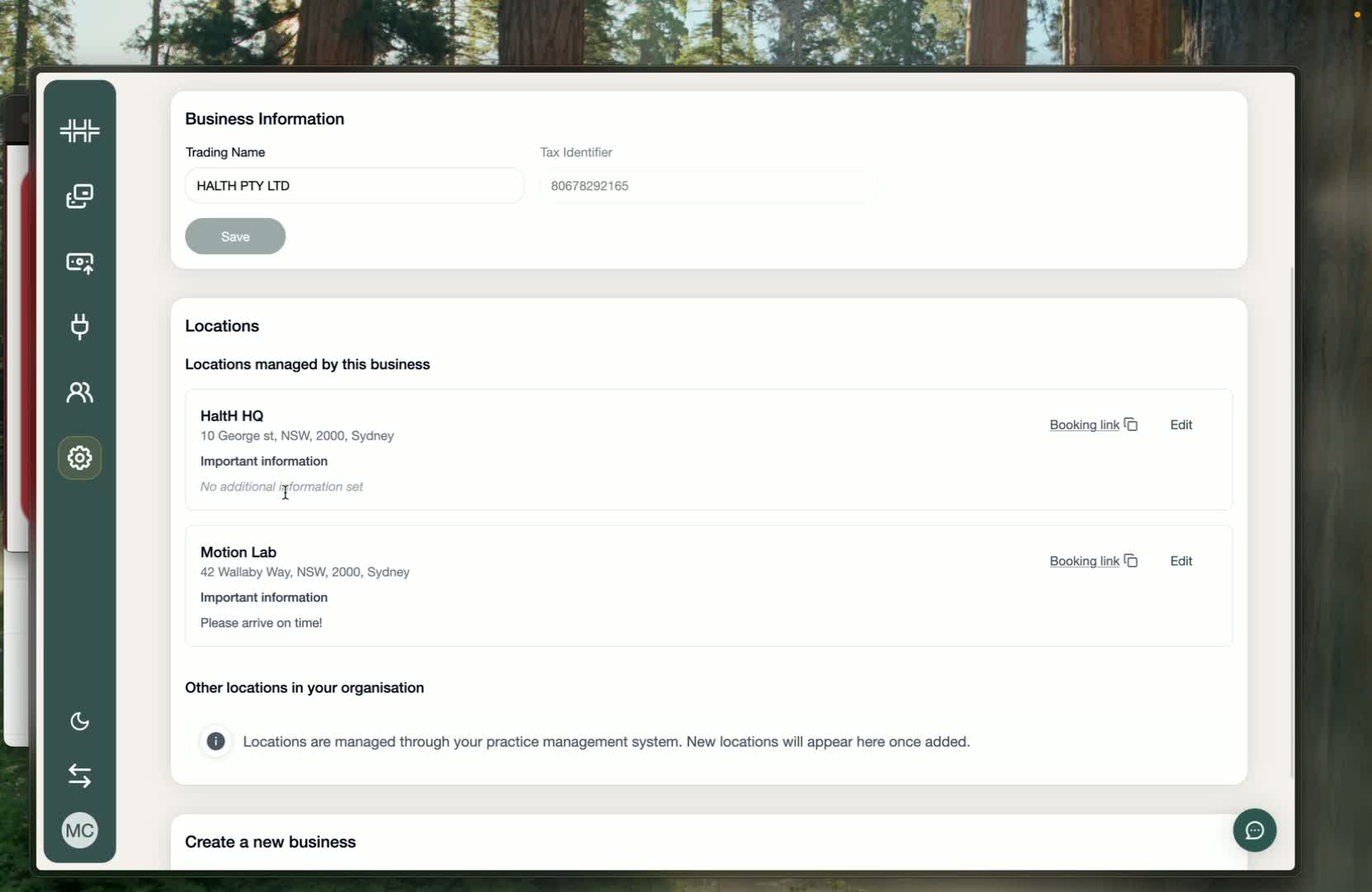
If you see Booking Link and Edit, the location is already connected correctly.
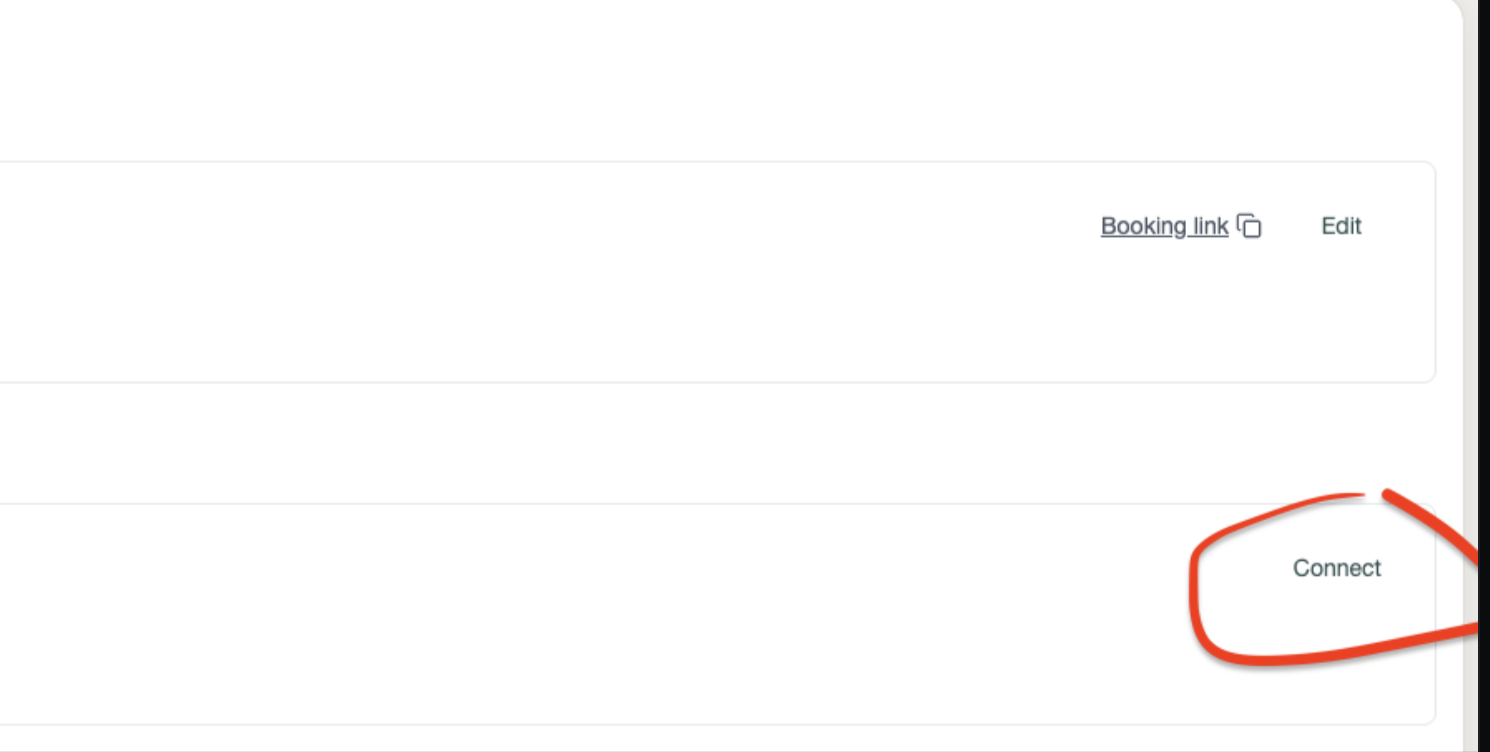
If you see a Connect option instead, the location is not yet connected to a business.
That missing connection is what prevents payments from being processed.
4. Understand why this happens 0:56
This can happen during onboarding if you choose to skip assigning the location for now and finish it later.
In that case, the location remains unlinked.
An unlinked location cannot take payments until it is connected.
5. Connect the location to the business 1:05
Click Connect for the affected location.
Complete the connection so the location is associated with the business.
Once connected, the location should no longer show the onboarding error.
6. Confirm the fix and resume payments 1:14
After connecting, the location should now show Booking Link and Edit instead of Connect.
This confirms the location is properly linked.
You should now be able to process transactions for that location.