
Locations in HaltH come from your practice management software (PMS), so you can't delete them in HaltH. To remove a location, archive or deactivate it in your PMS and HaltH updates automatically.
Where to see your locations in HaltH
Go to Settings → Business. You'll see Locations managed by this business and Other locations in your organisation. Here you can edit a location's important information for clients, copy its booking link, or connect a location to a business. Adding and removing locations is done in your PMS.
Option 1: Cliniko
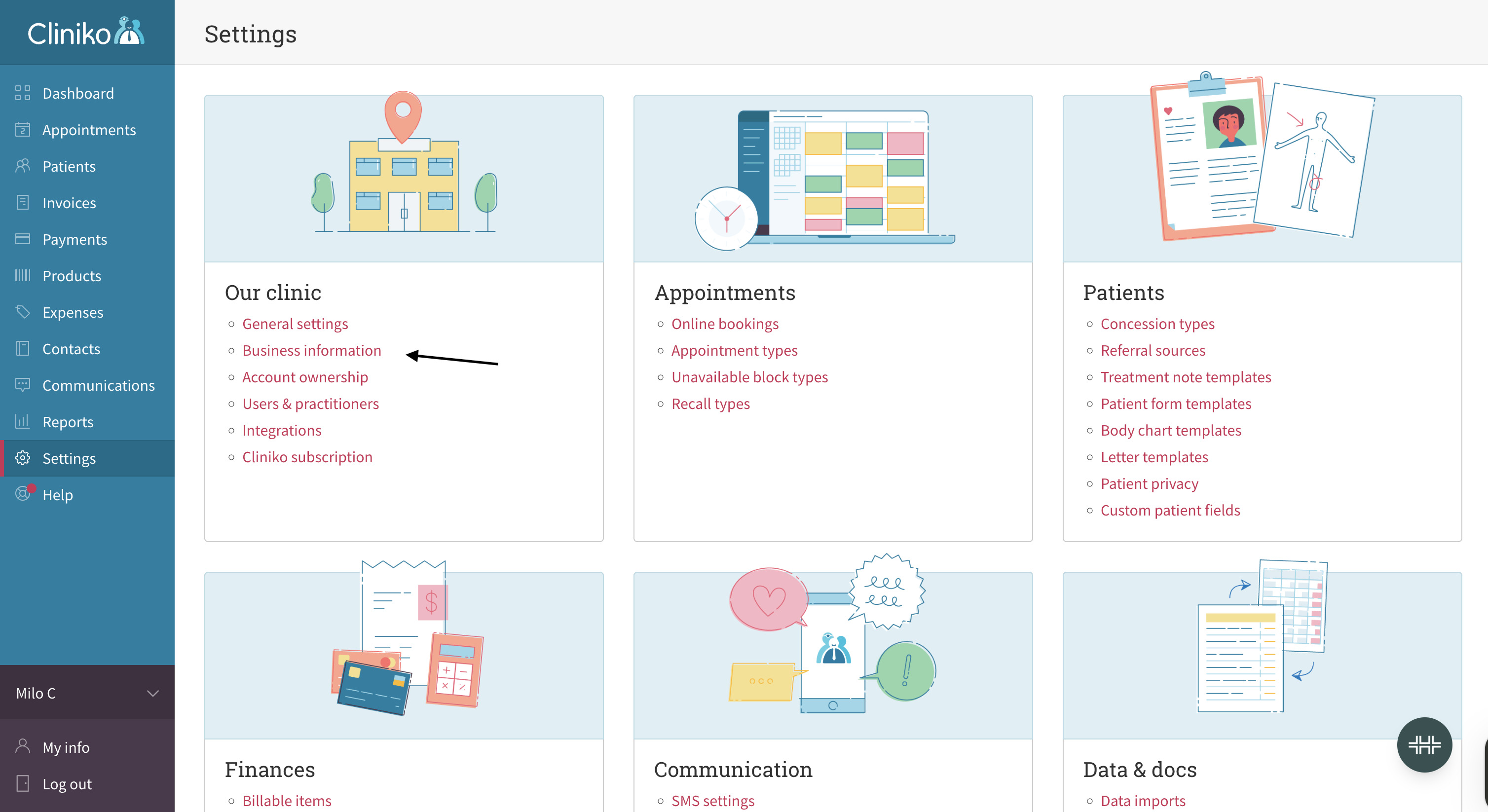
Go to Settings and select Business information.
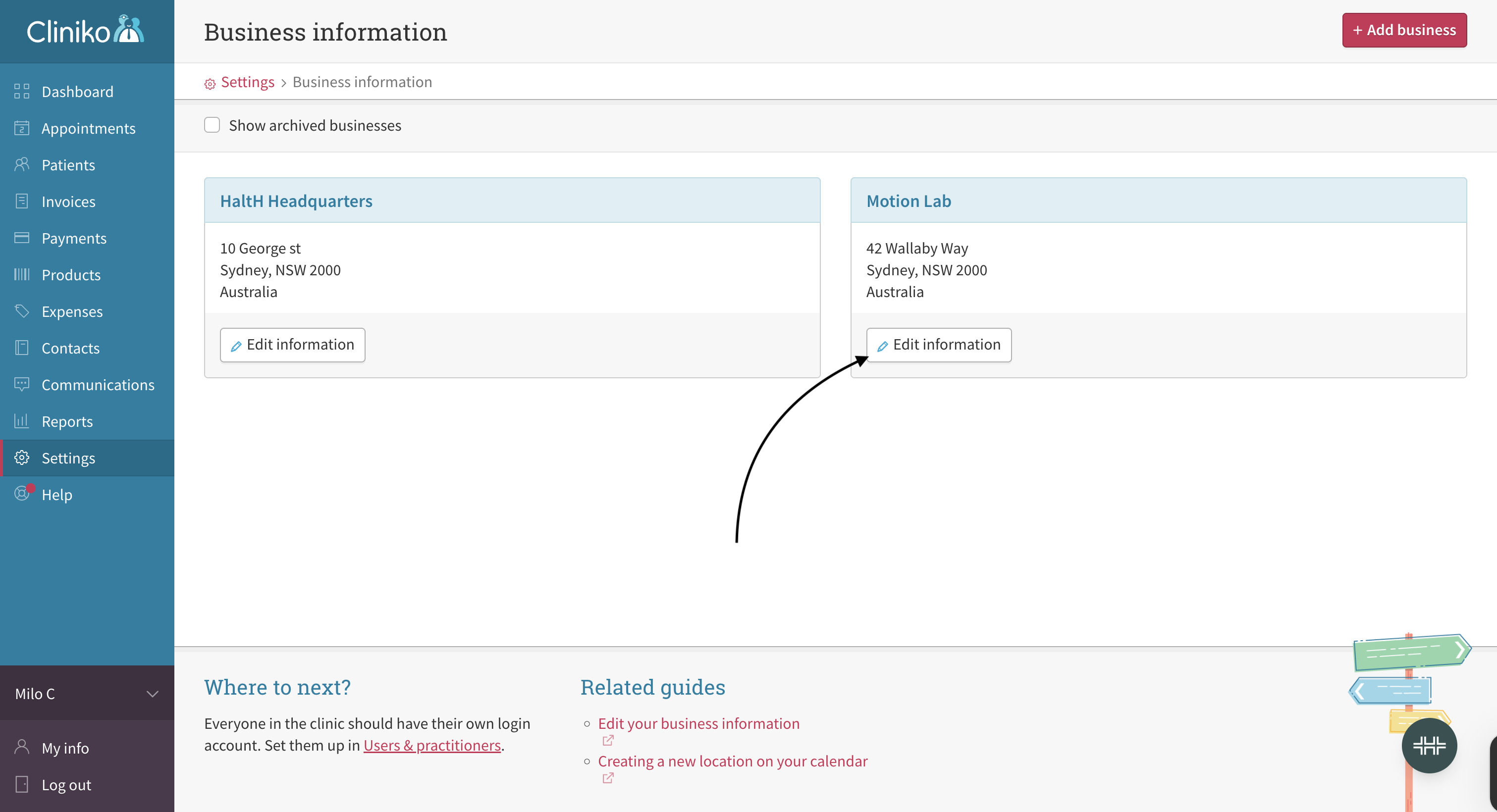
Find the location and select Edit information.
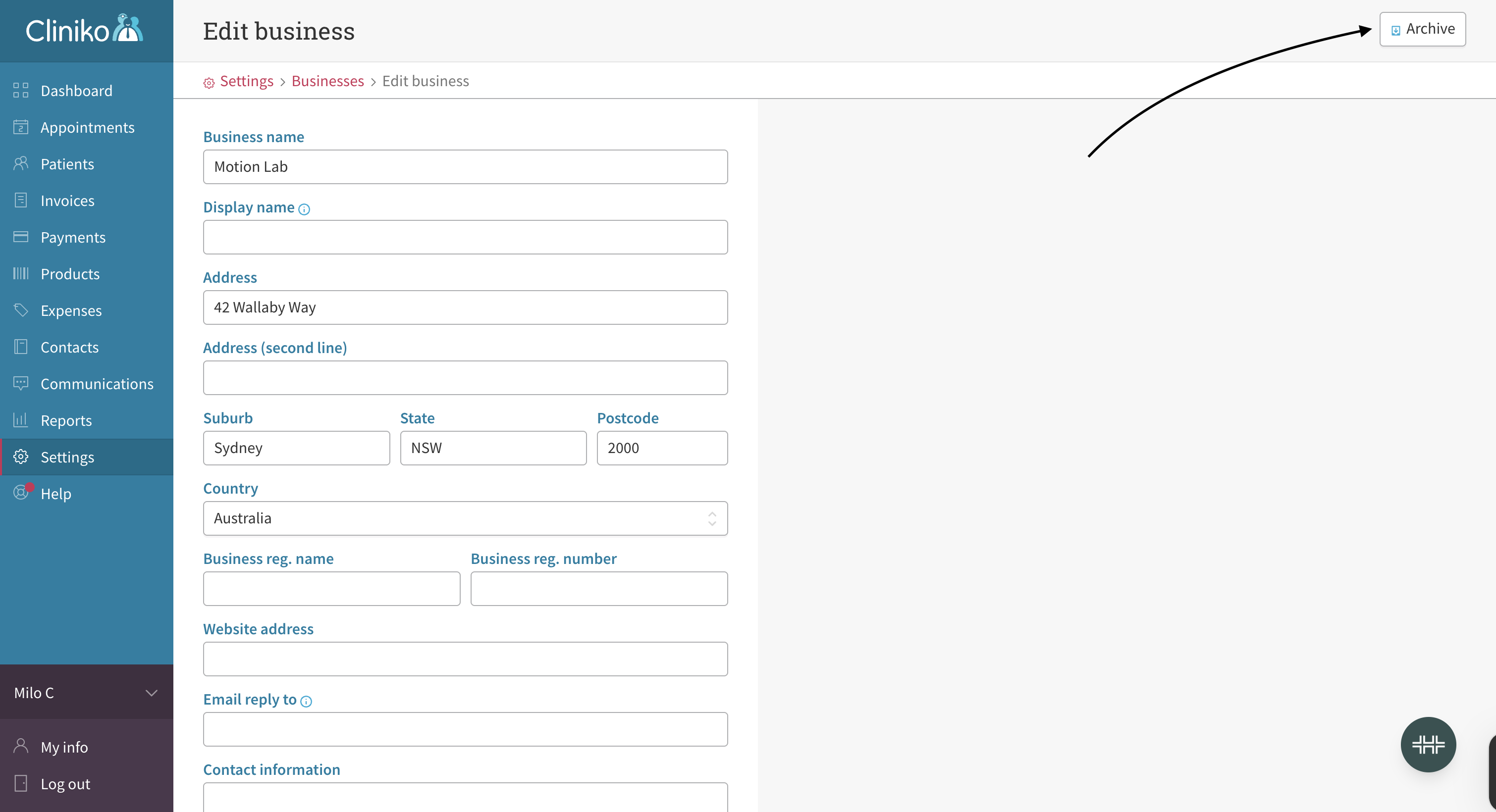
Select Archive in the top-right corner.
Option 2: Nookal
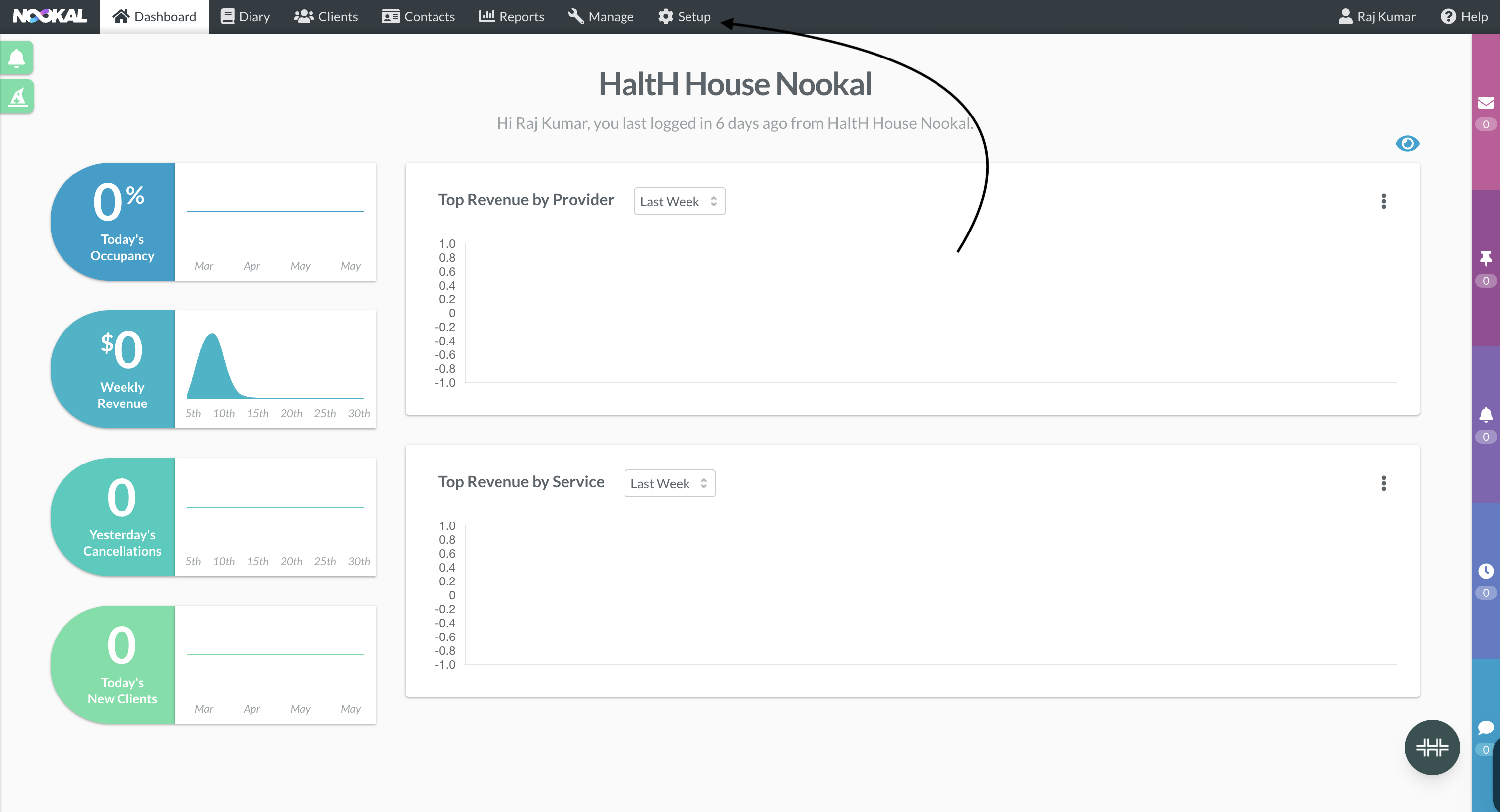
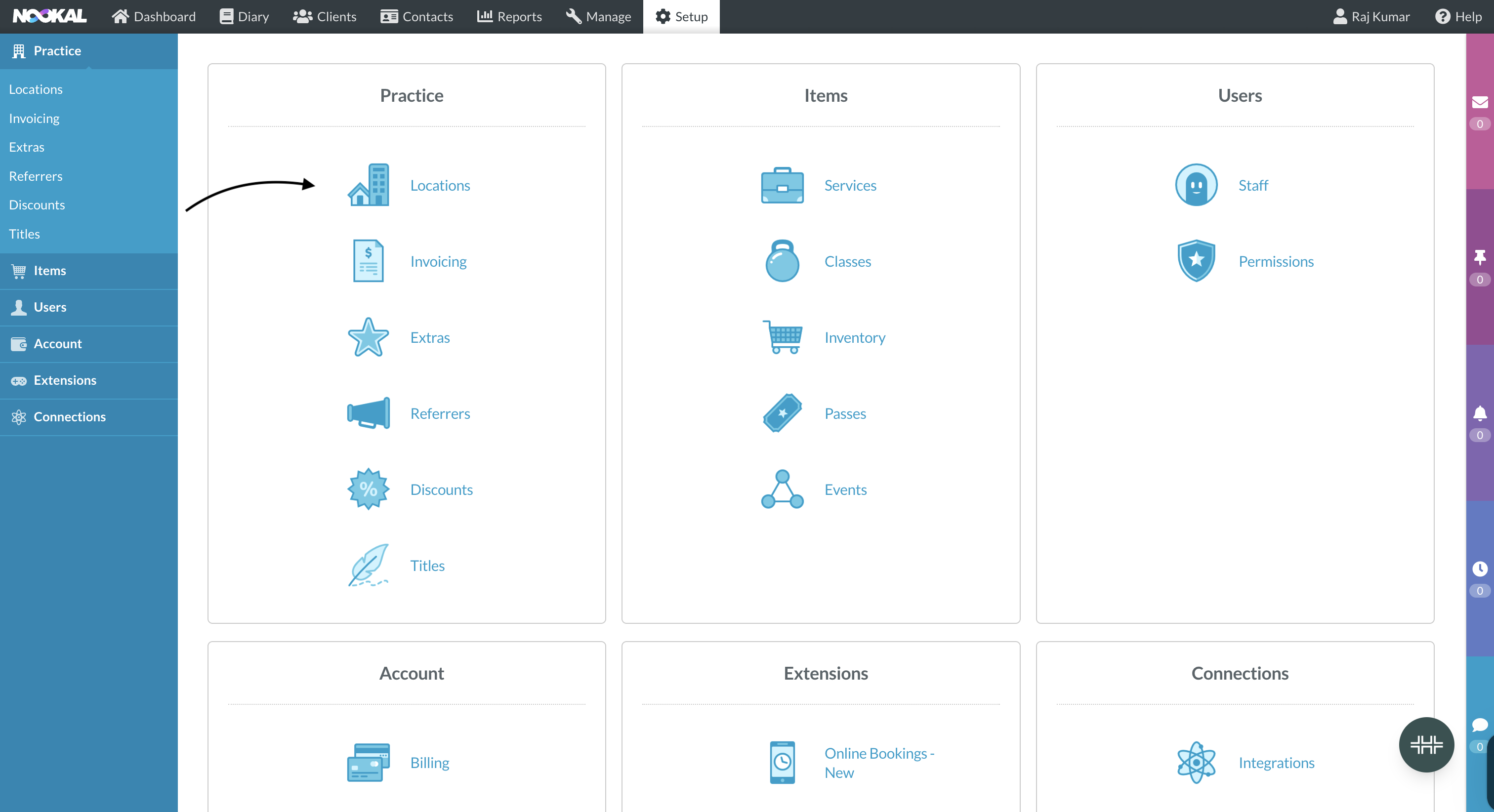
Select Setup in the top menu.
Under Practice, select Locations.
Open the location and change its status from Active to Inactive.
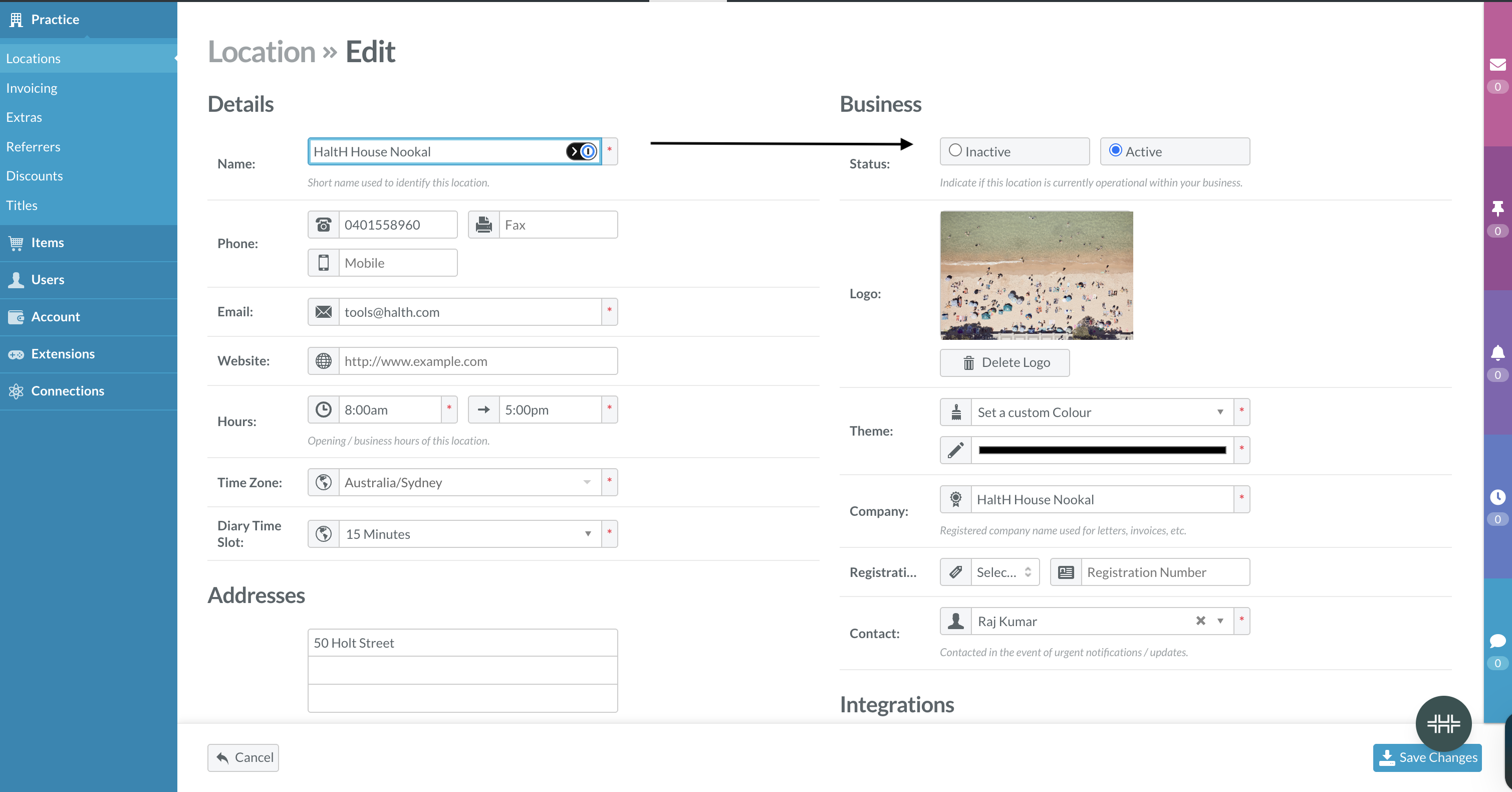
Select Save changes.
Troubleshooting
The location still shows in HaltH. Give it a little time to sync, then refresh. If it's still there the next day, chat with us.
Your PMS isn't listed here. Look for the option to archive or deactivate a location (sometimes called a business or site) in your PMS settings.