To complete a HaltH booking, start on your PMS (For this example, we will use Cliniko) and Press “Pay With HaltH”:
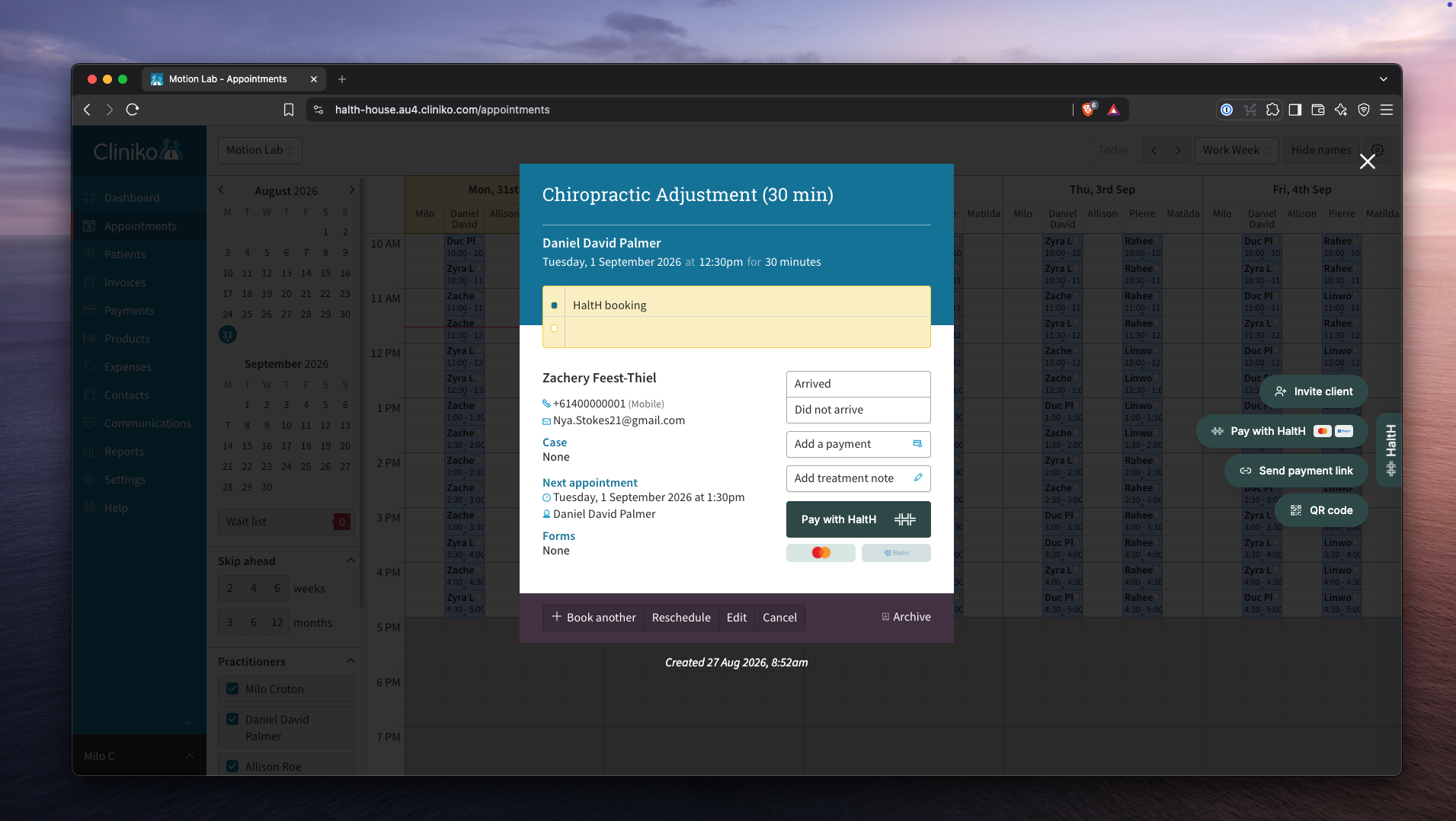
This walkthrough is meant to explain:
what each section does,
how funding works,
how items are added,
and how payment is completed.
2. Review provider, client, and transaction type:
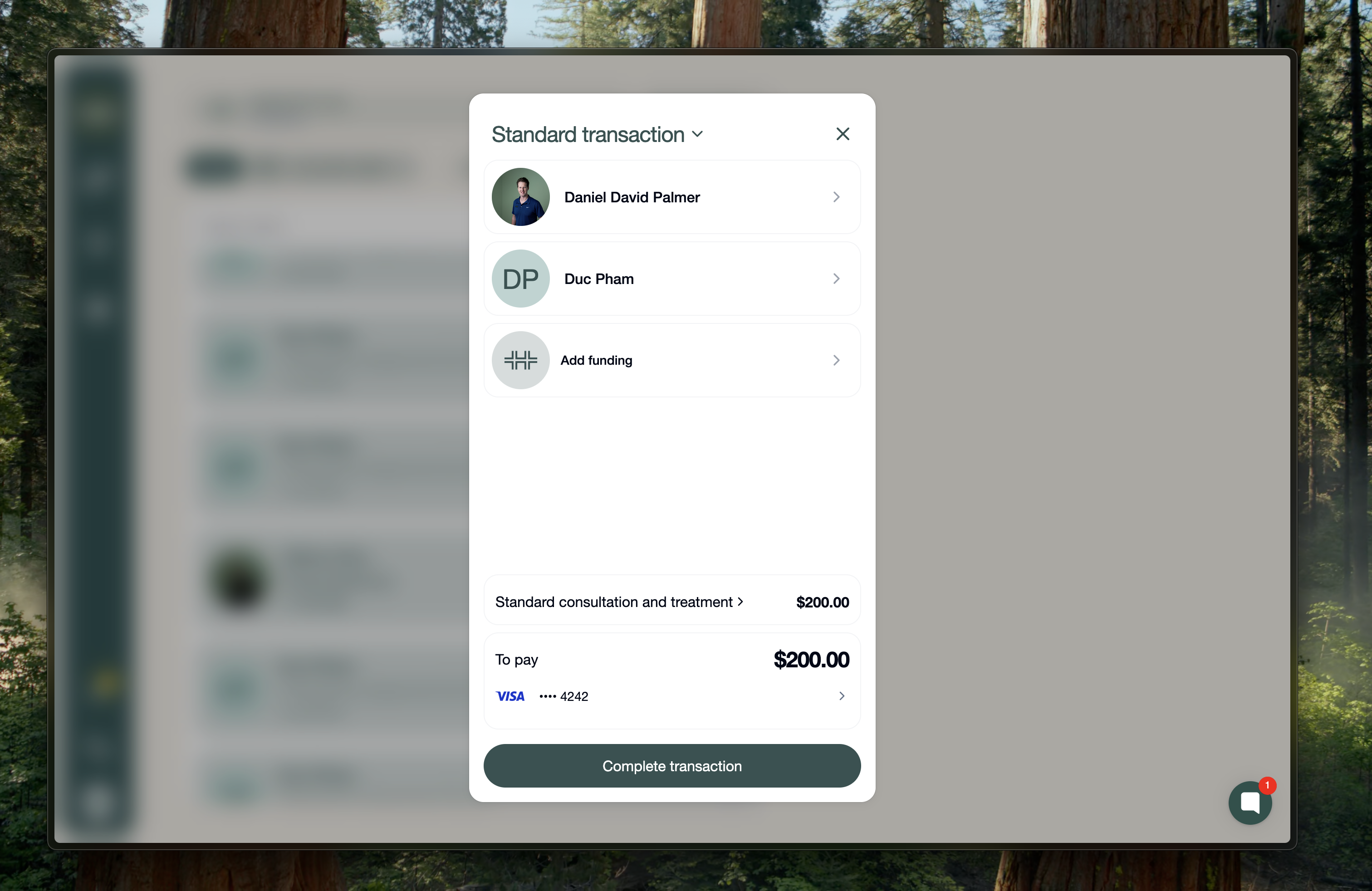
At the top of the checkout, you’ll see:
Provider details
Client details
Standard transaction
You can switch the transaction type to:
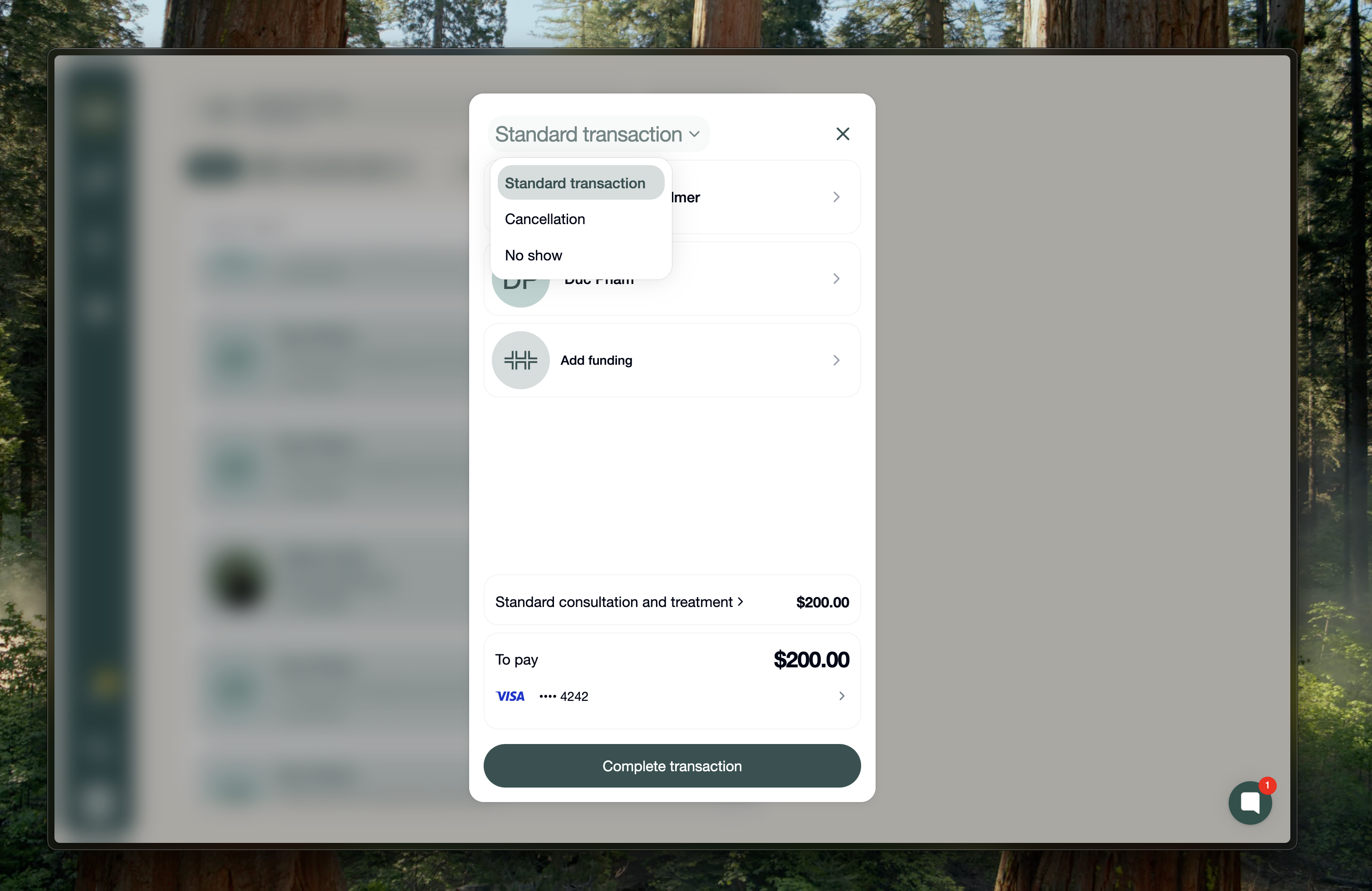
Cancellation to charge a late cancellation fee
No-show to charge a no-show fee
These fee types do not use health funding.
3. Adding health funding if it’s not been added: private health insurance or Medicare:
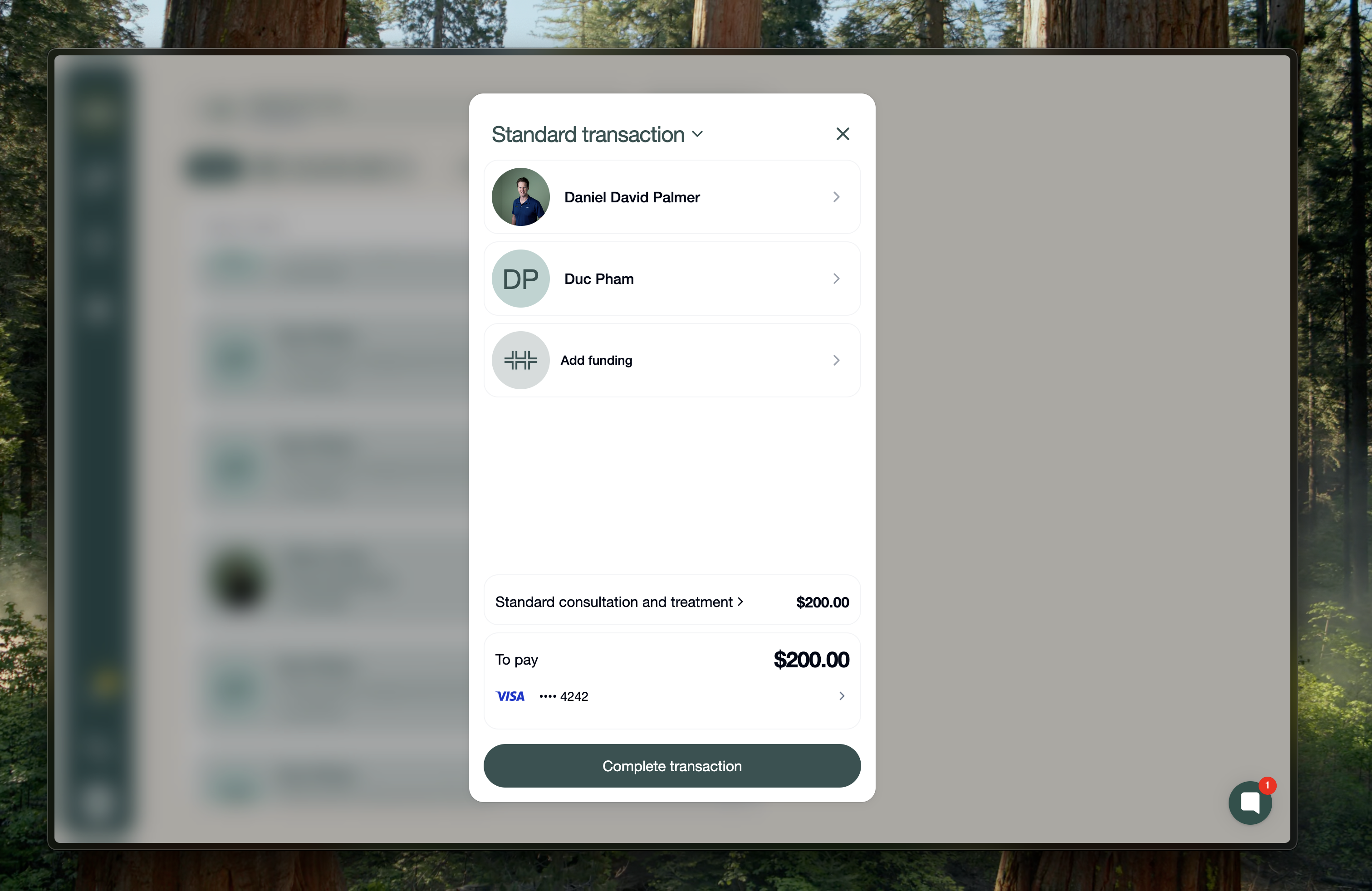
Select Add funding.
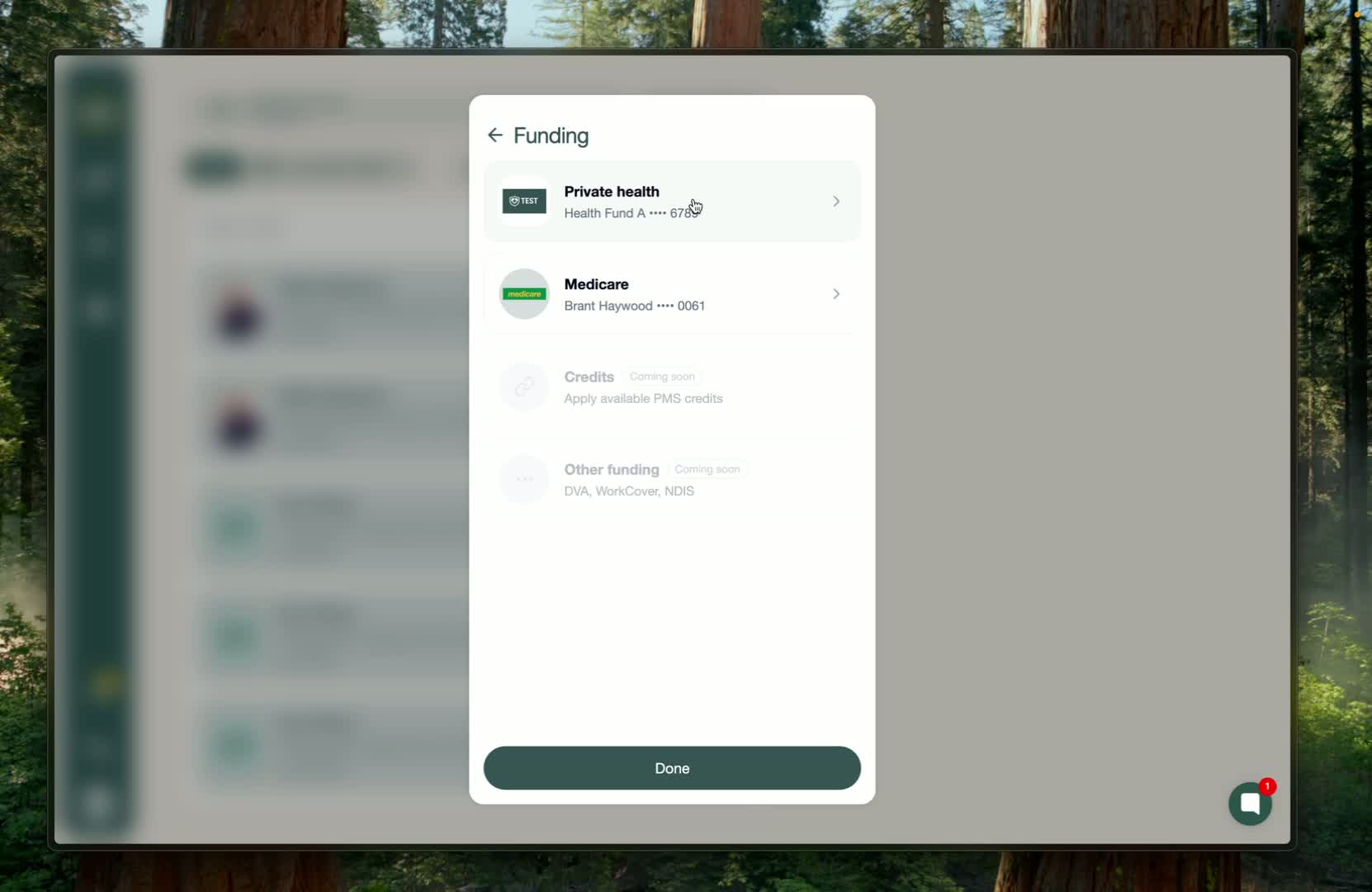
This is where you connect either:
Private health insurance, or
Medicare
Private health insurance:
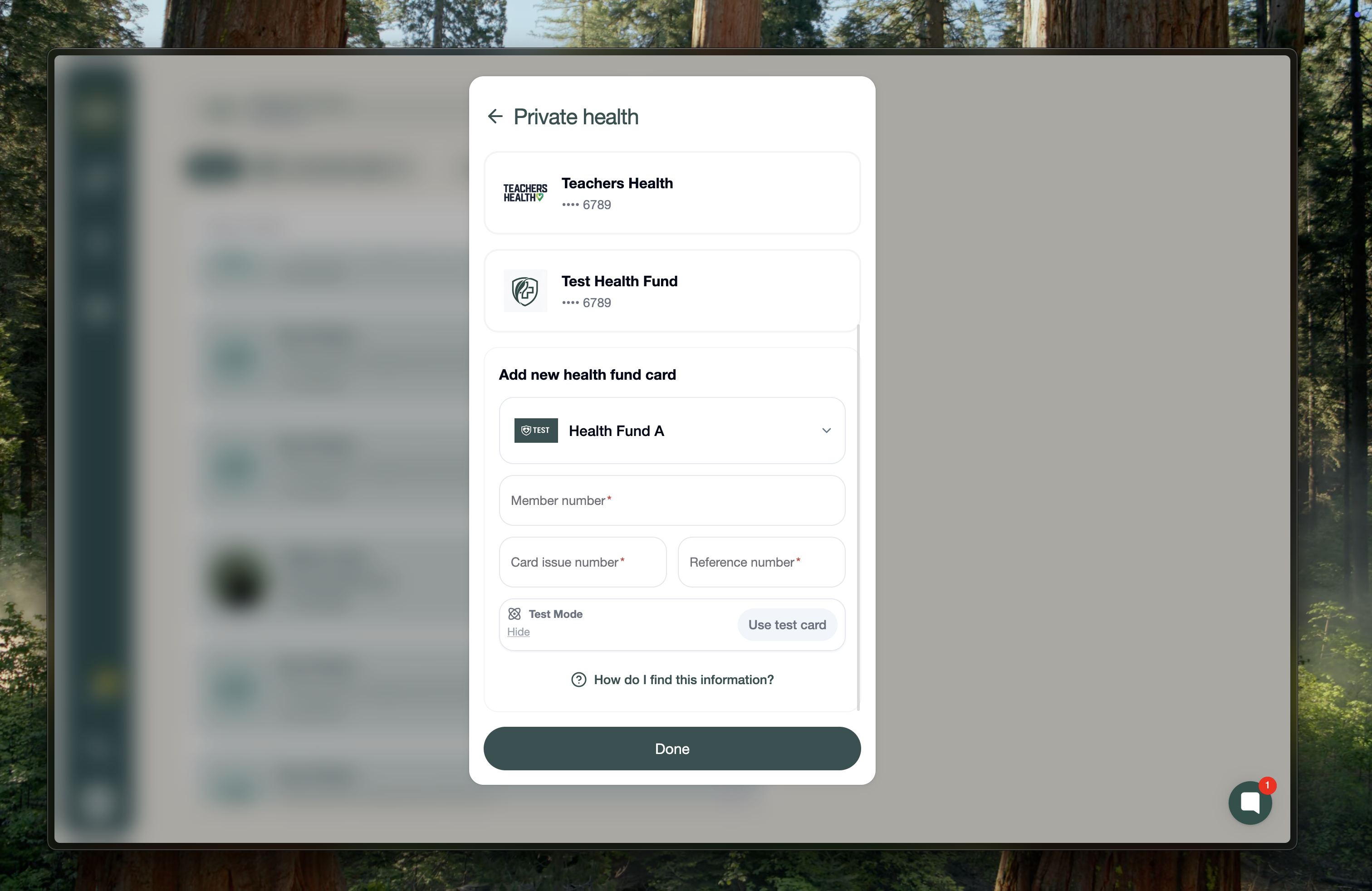
Click Add new card if no card is connected.
Select the insurer from the list or search for it.
Enter:
card issue number
reference number
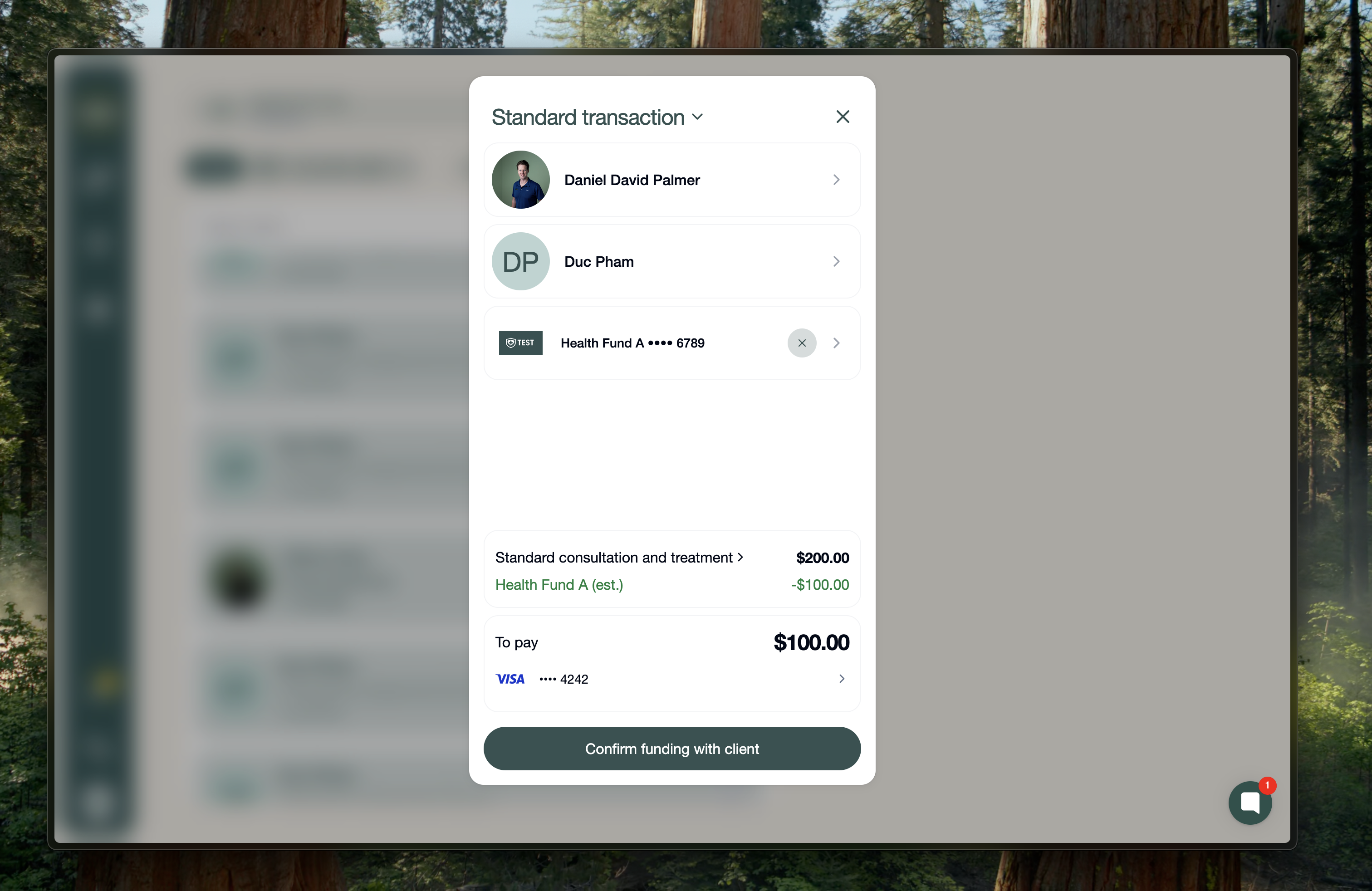
Once added, the system performs a real-time funding lookup!
This updates the amount the client pays out of pocket.
Example:
original amount: $200
after funding: $100 out of pocket
Medicare:
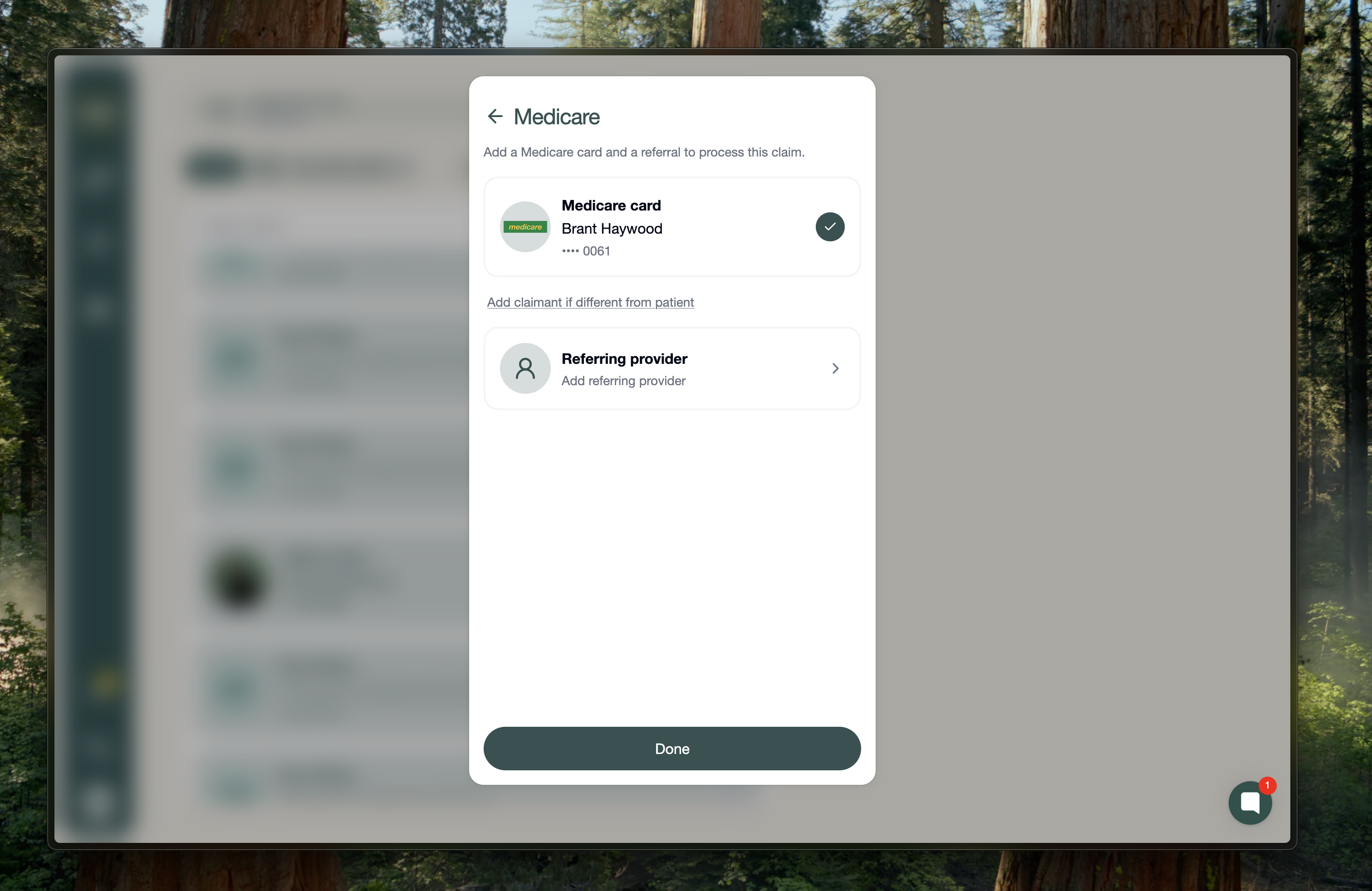
Select Medicare and add a Medicare card if needed.
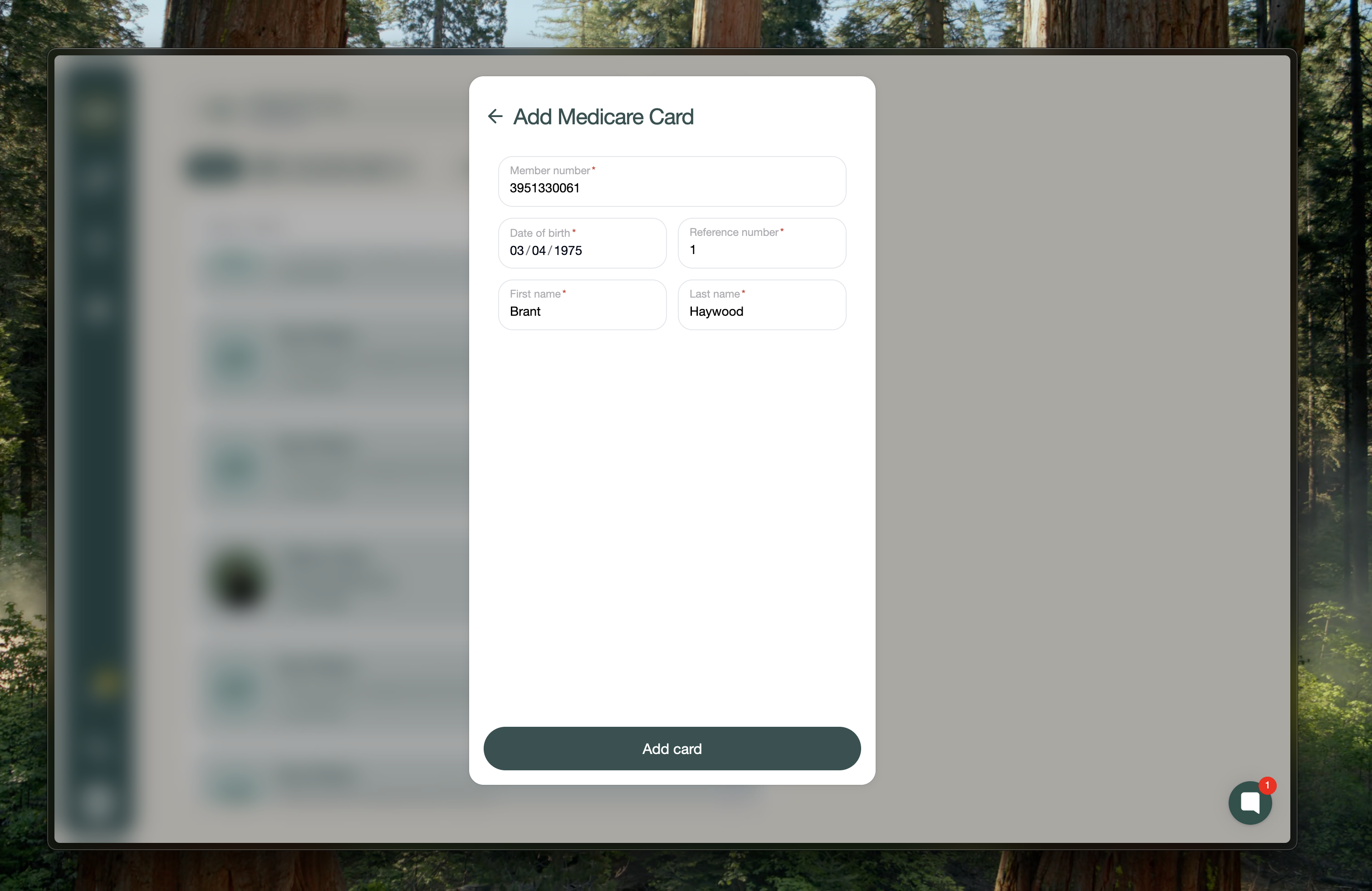
Enter:
member number
date of birth
reference number
first name
last name
Add a referring provider if one is not already connected.
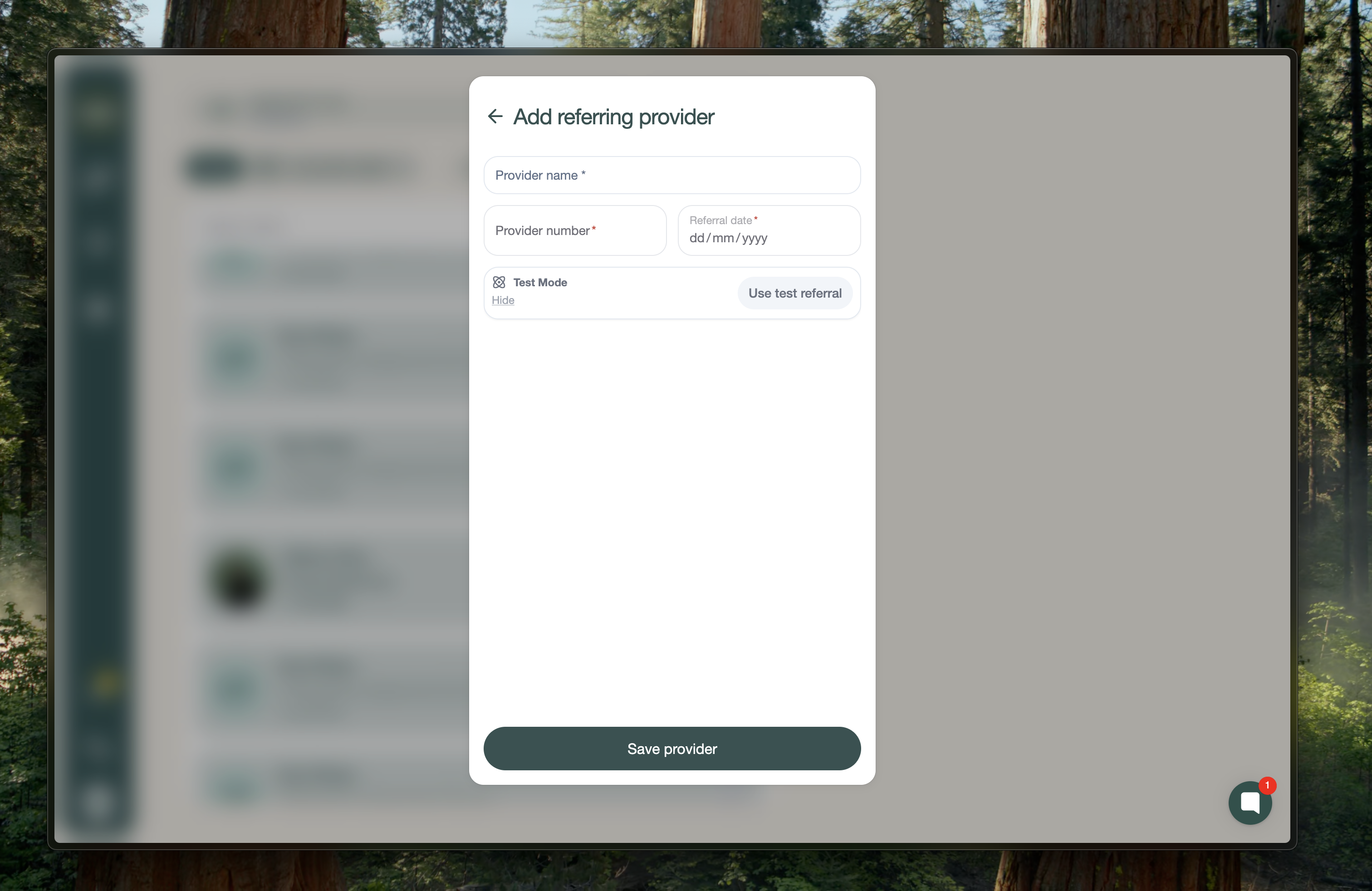
Use Add client referral and choose a test referral if needed.
Save and make sure the correct Medicare code is used.
The system then shows the Medicare rebate amount.
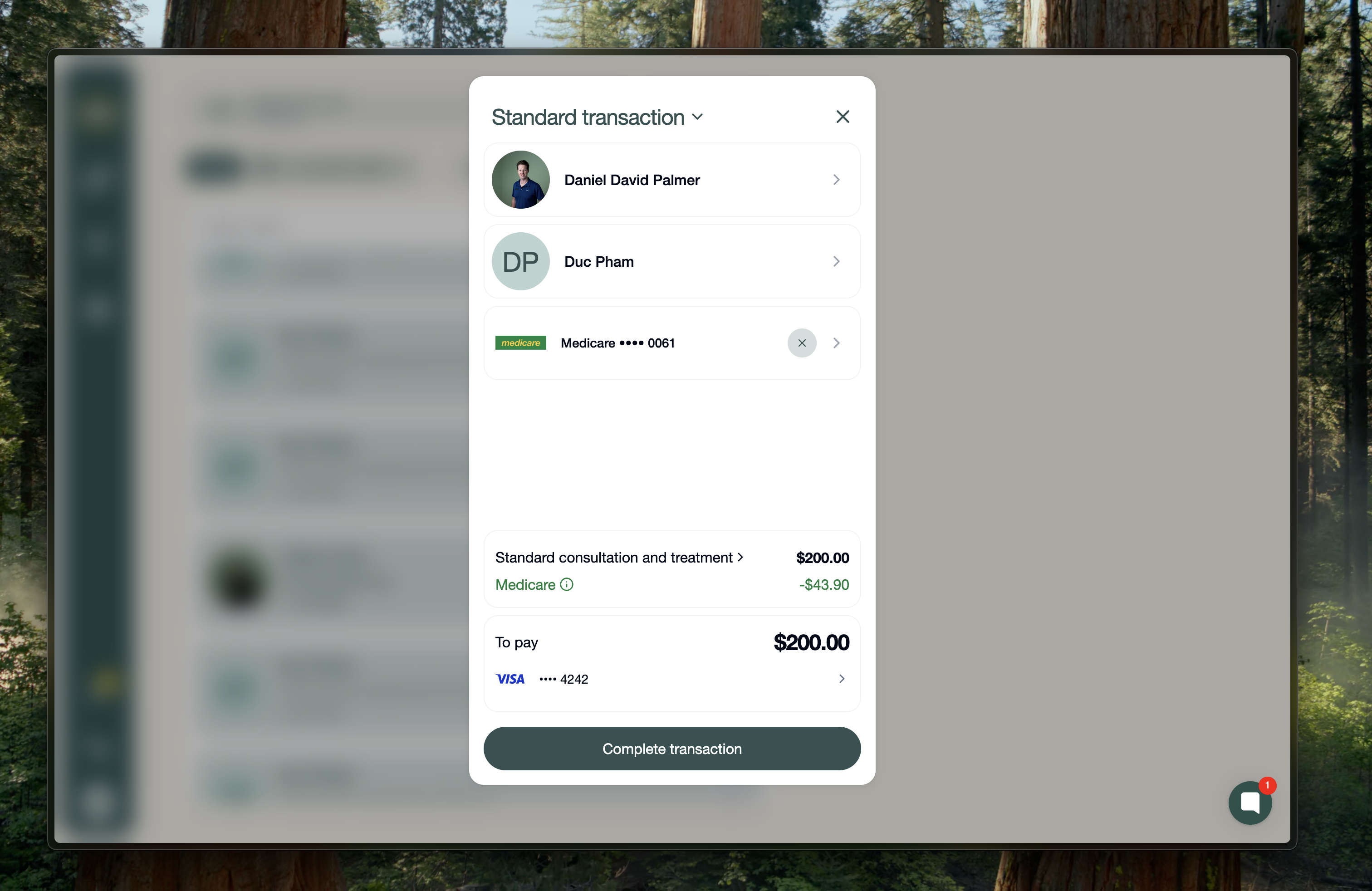
4. Add, edit, and price items:
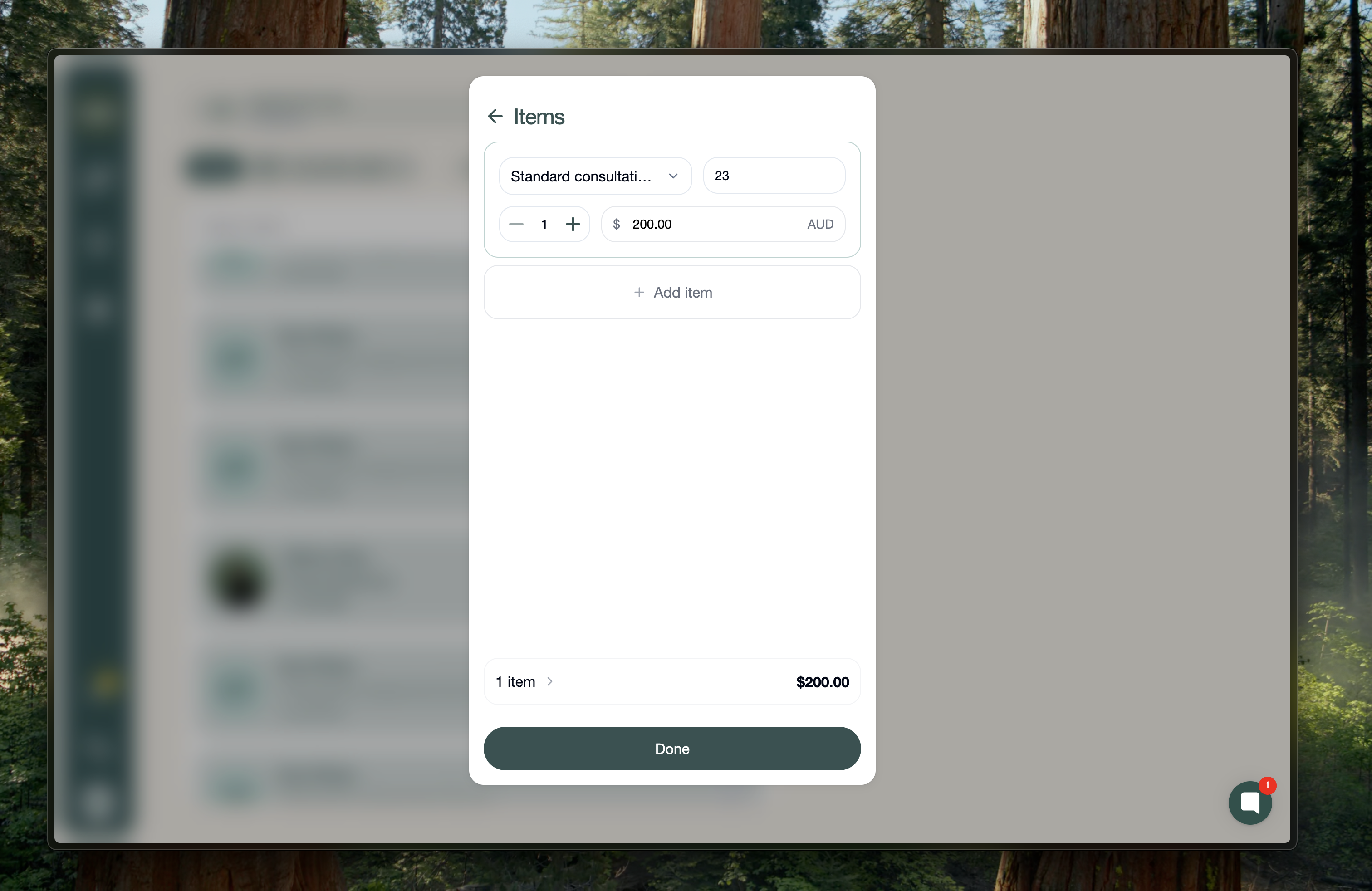
Go to the Items section to manage everything being billed.
Here you can:
edit existing items
change quantities
change prices
add stock items
Editing an existing item:
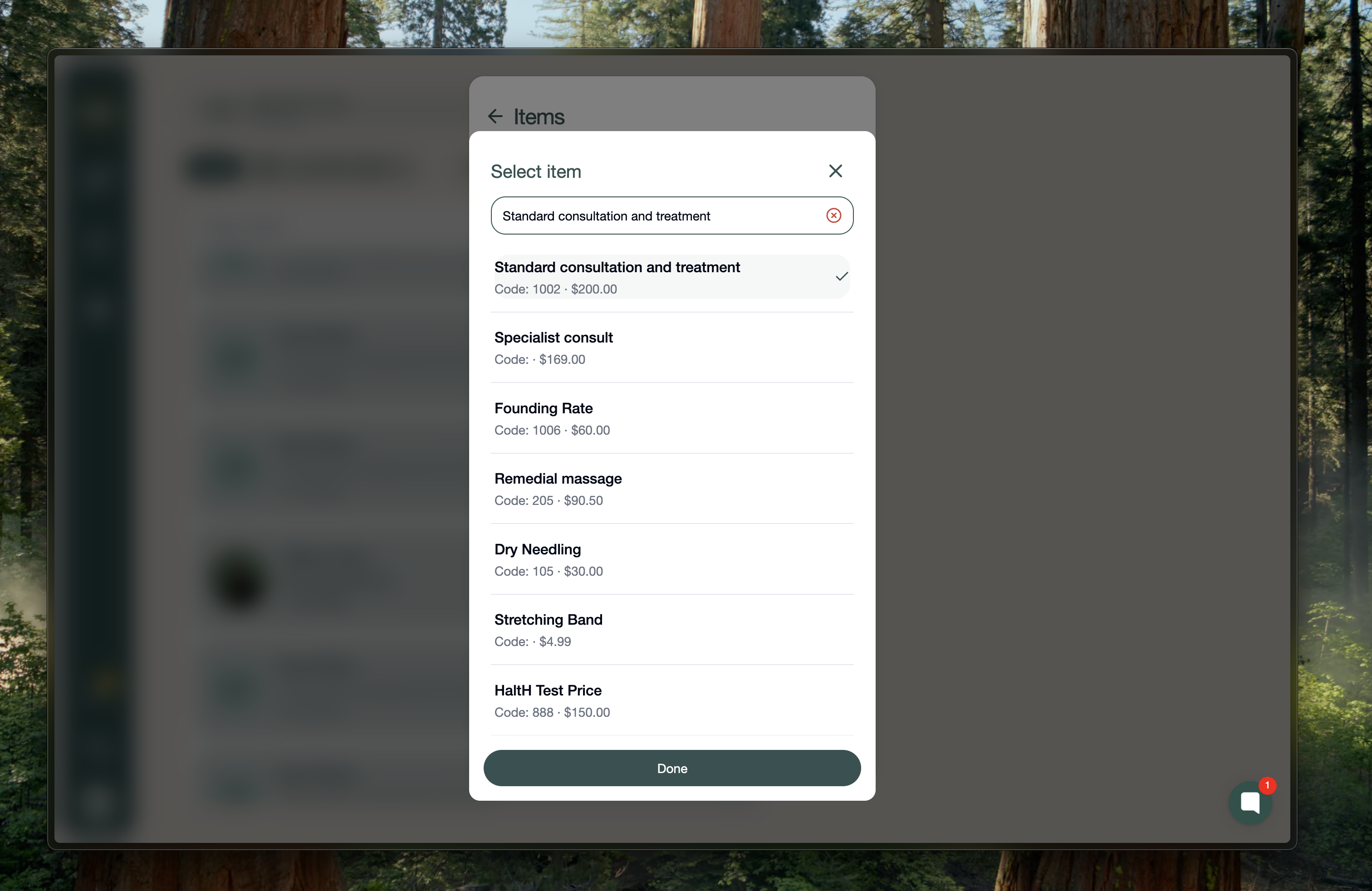
Click the item field.
Search for the item you want, such as:
special consultant
funding rate
Select the correct item.
Item code:
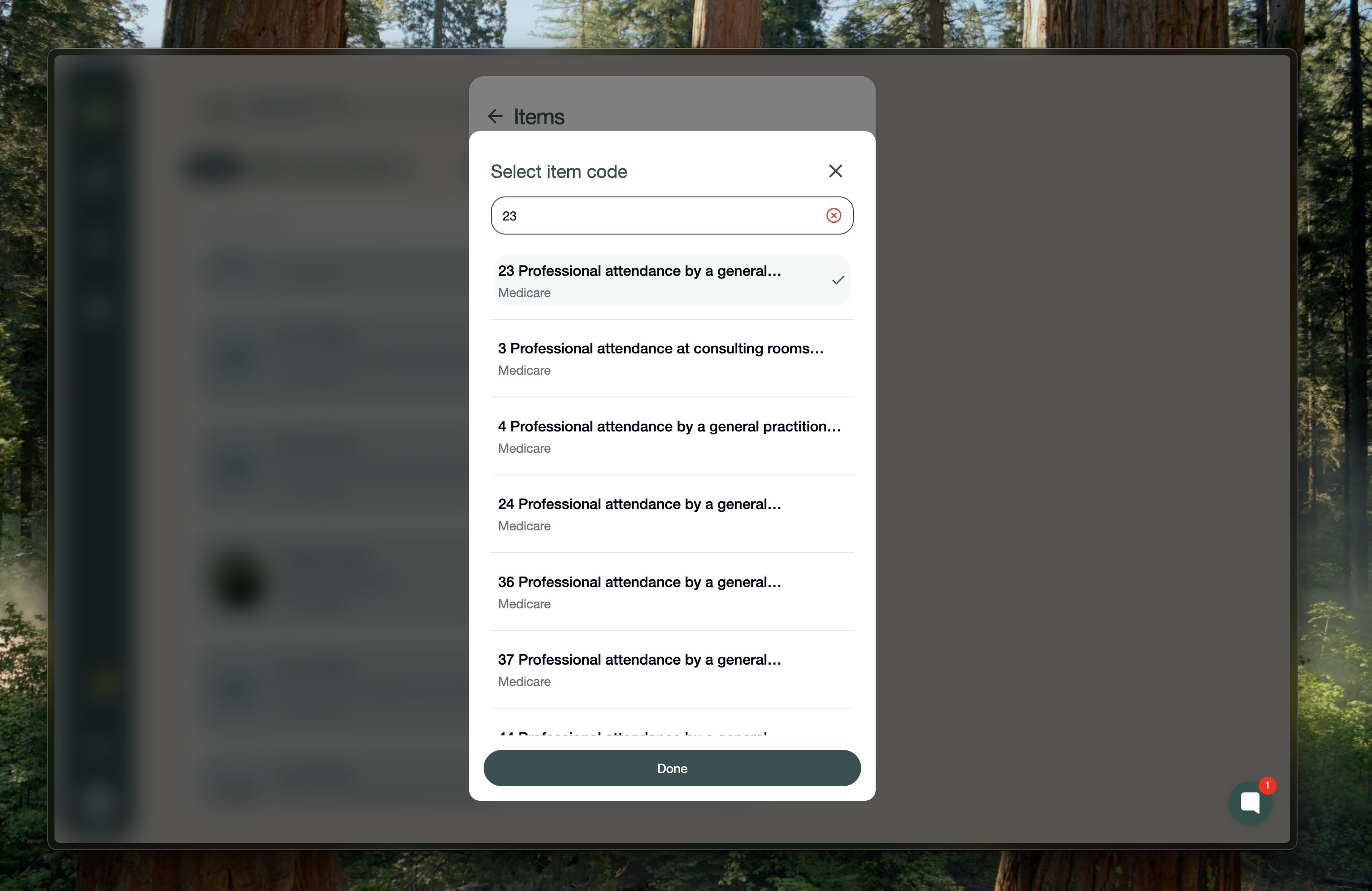
The item code tells the funding system what rebate you are claiming.
For Medicare, this is how Medicare knows which service to rebate.
Quantity and price:
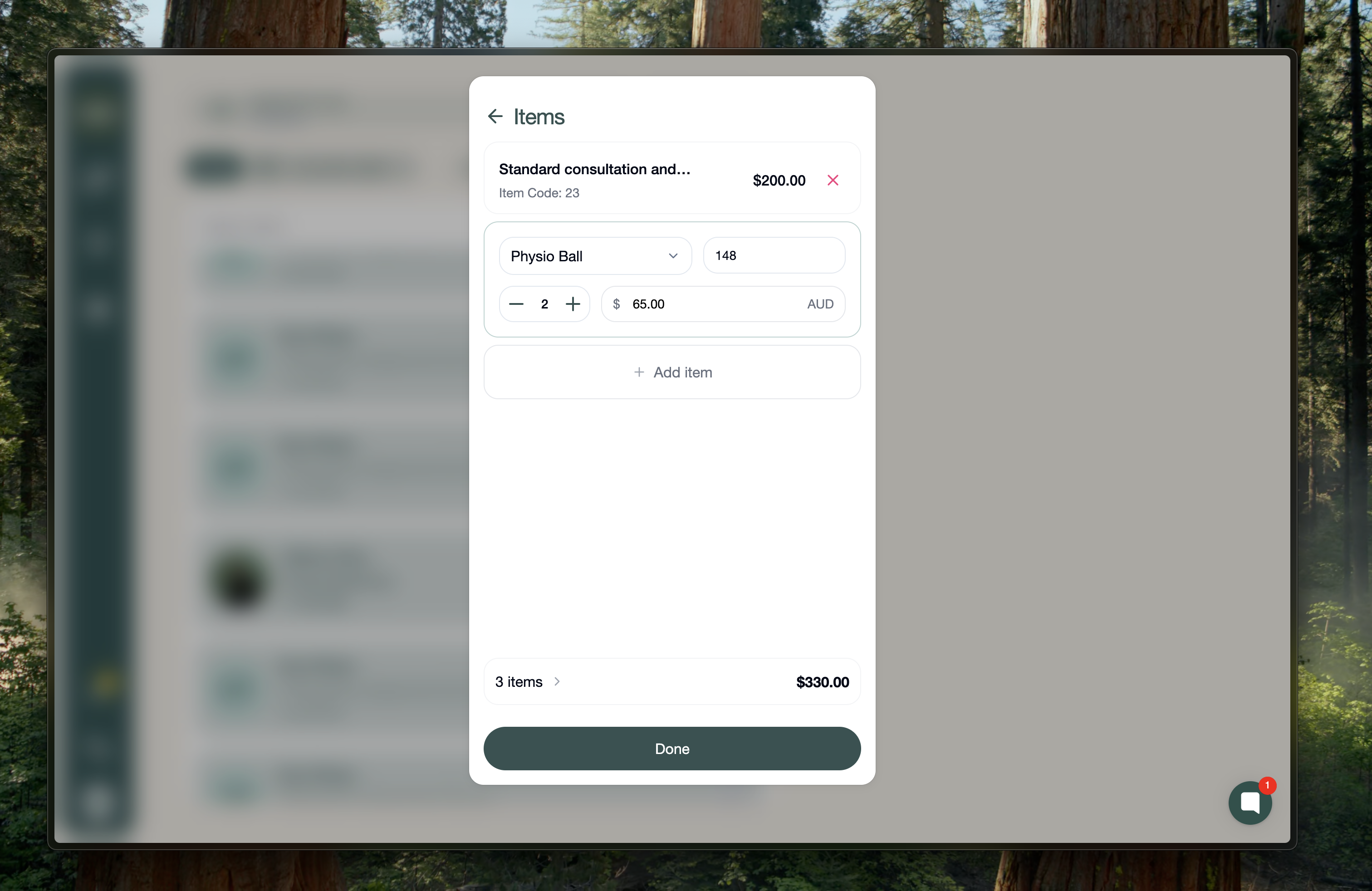
Increase or decrease the quantity using the + icon.
You can also change the price manually.
Example: change the item price to $250.
Adding stock items:
Add products like:
stretching band
physio ball etc
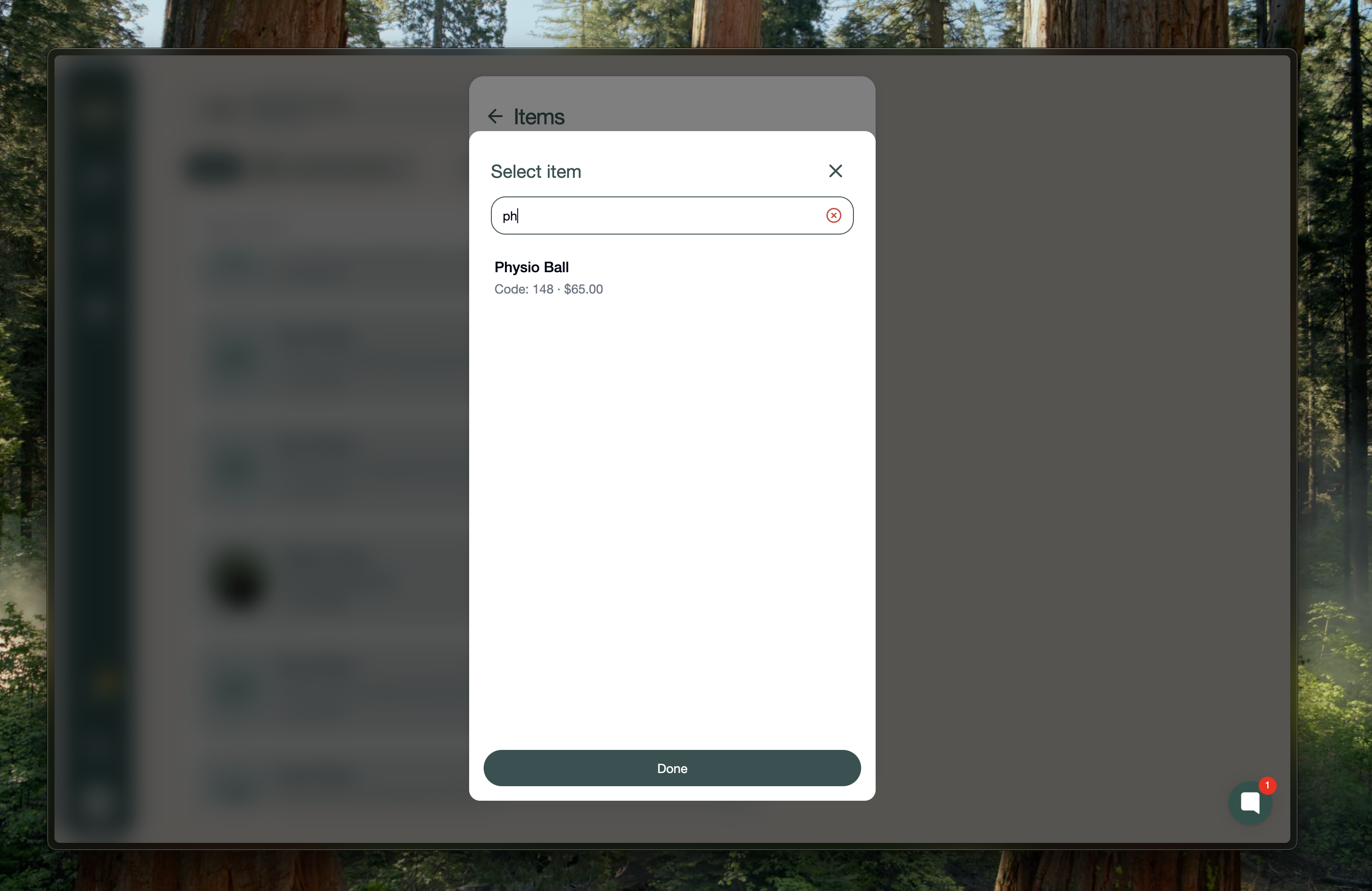
If the customer wants more than one, set the quantity and press done.
5. Apply a discount if needed:
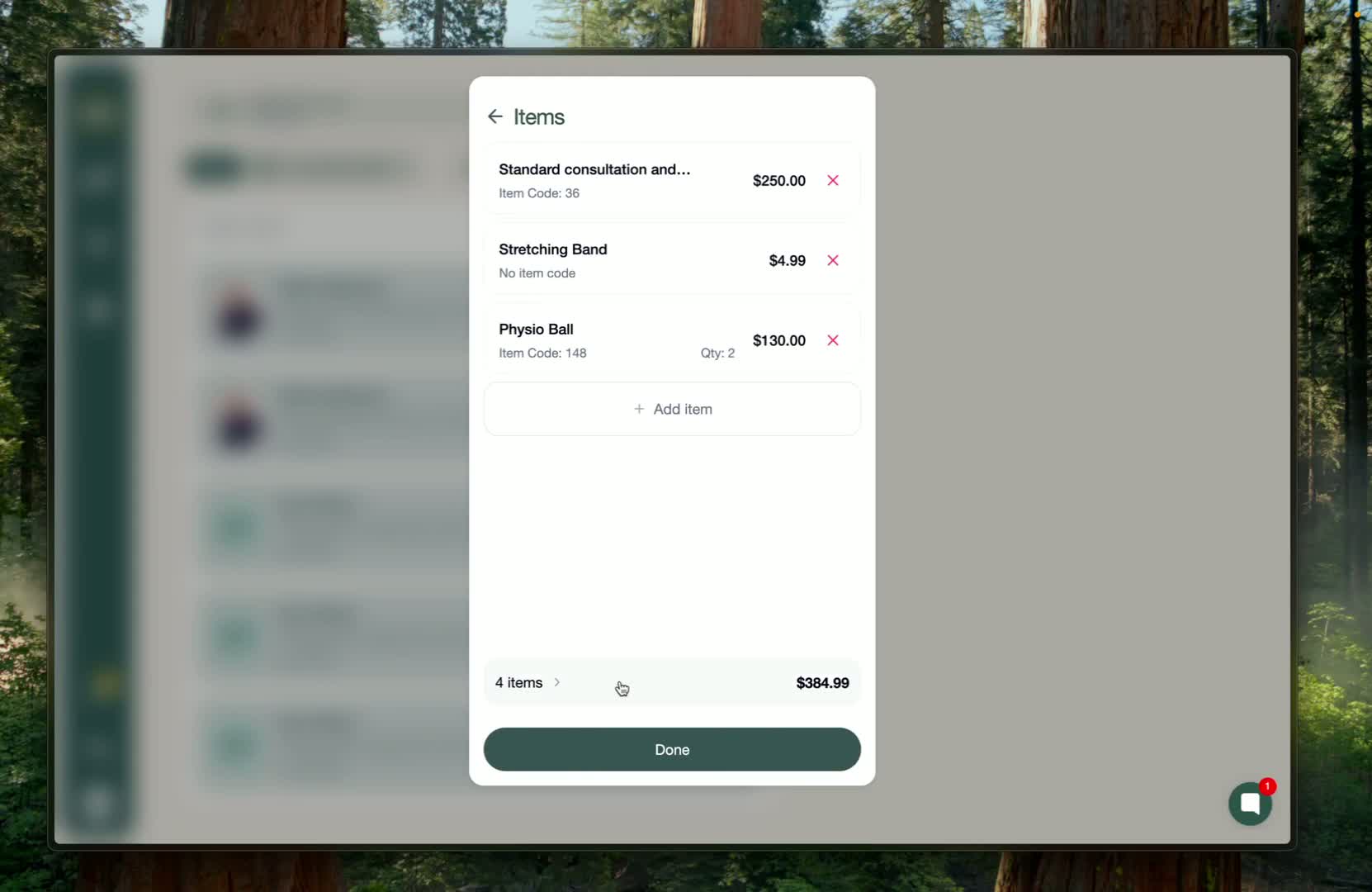
In the items area, open the discount box:
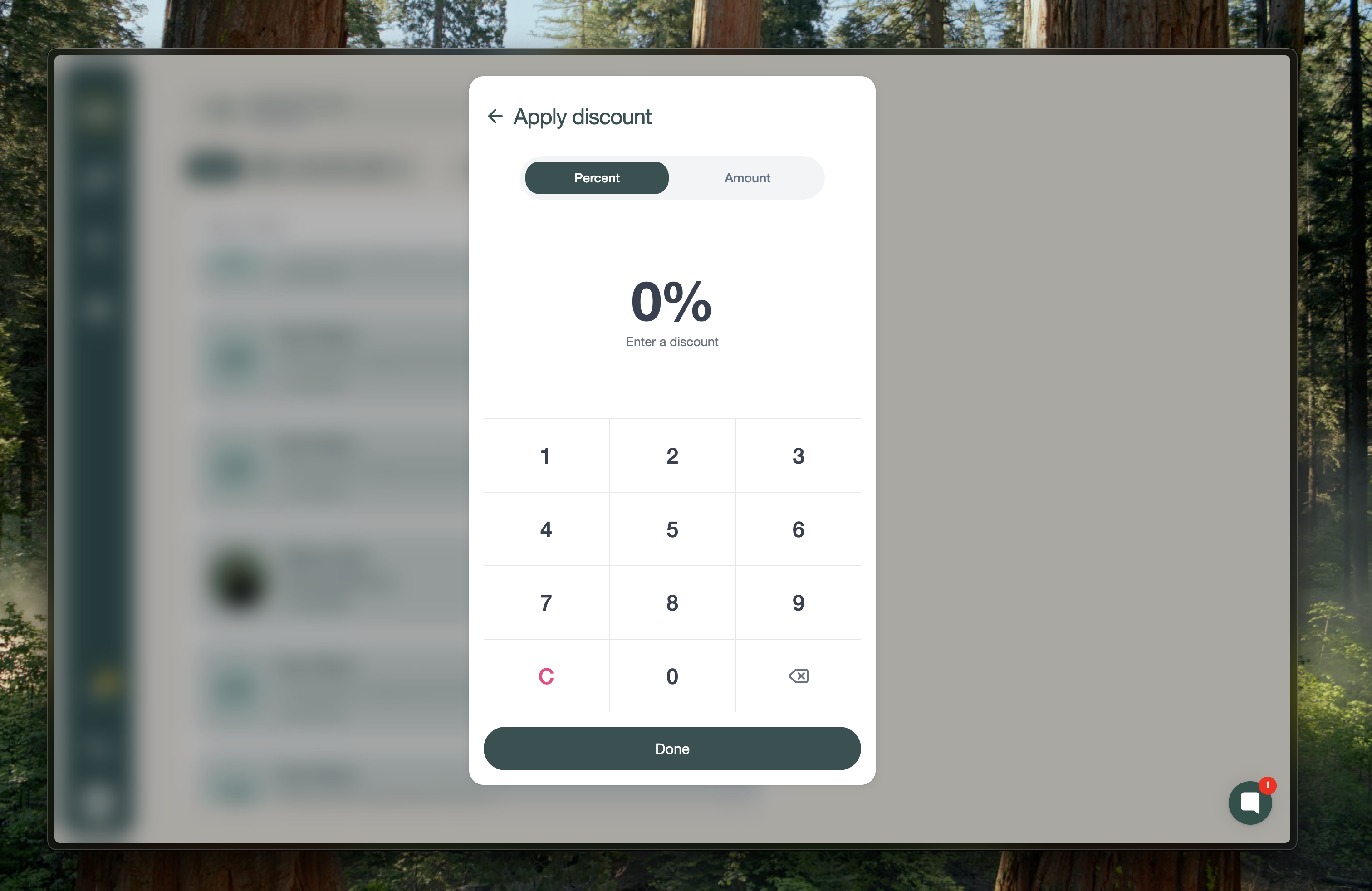
Choose whether the discount is:
a percentage, or
a fixed amount
Examples:
20% off gives a percentage discount
$20 off gives a flat amount discount
Press Done to apply the discount immediately.
6. Choose how the client will pay:
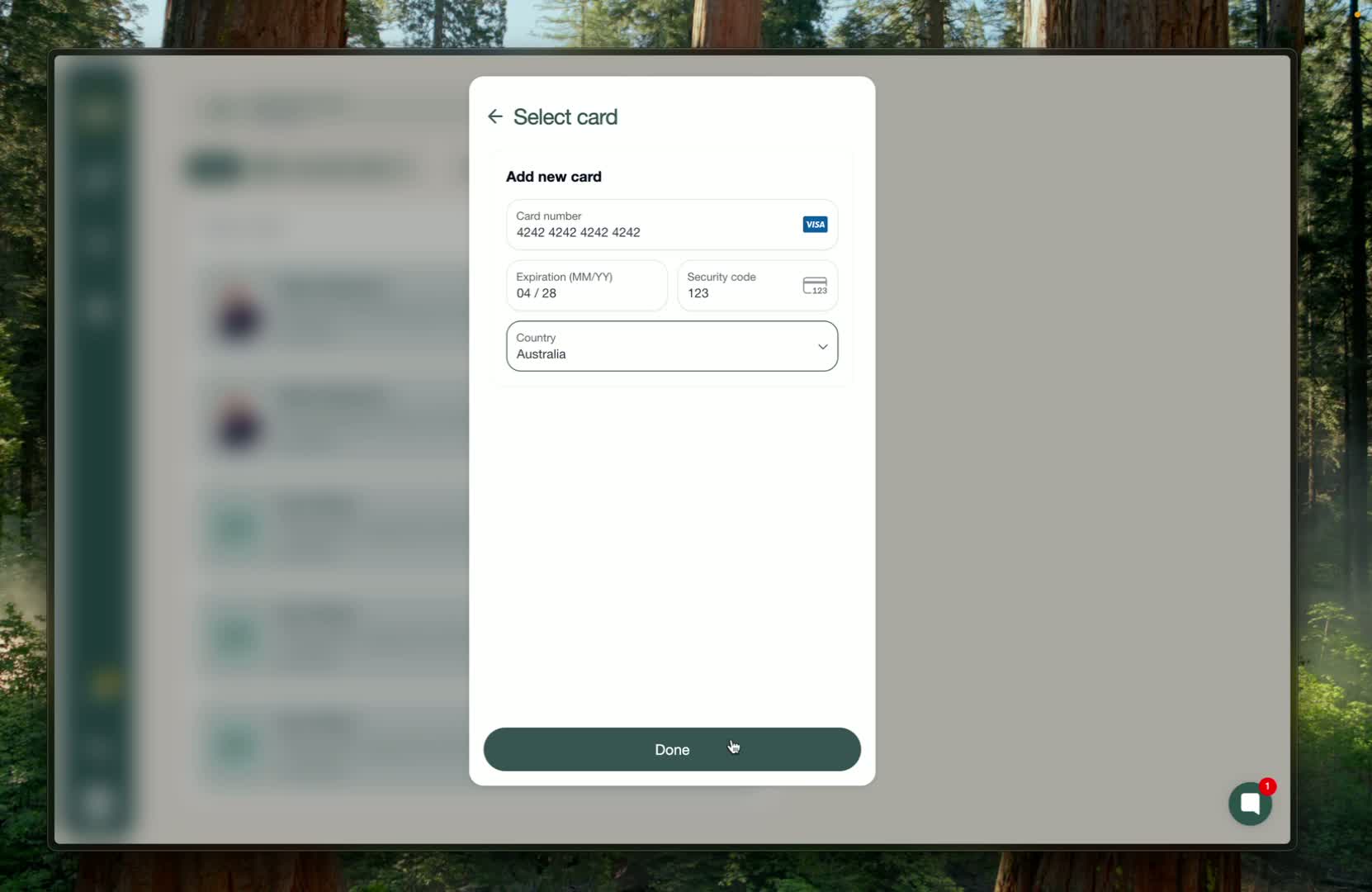
Go to the Pay section to complete payment.
If no card is connected, add a new card by entering the details and pressing Done.
Once saved, that card can be used for payment.
Other payment options:
If no card is available, you can also use:
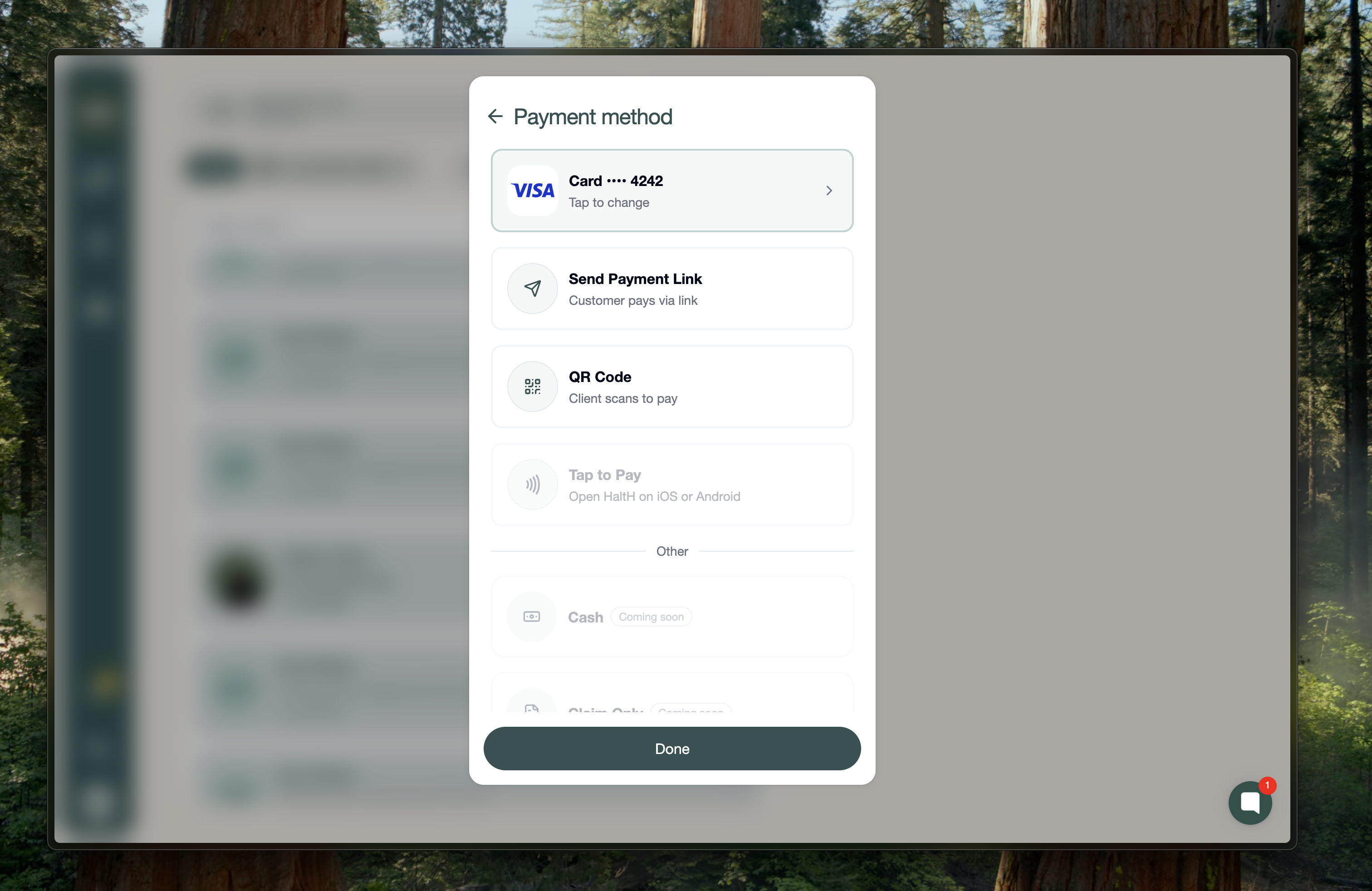
Send payment link
QR code
Tap to pay on Apple or Android
Send payment link:
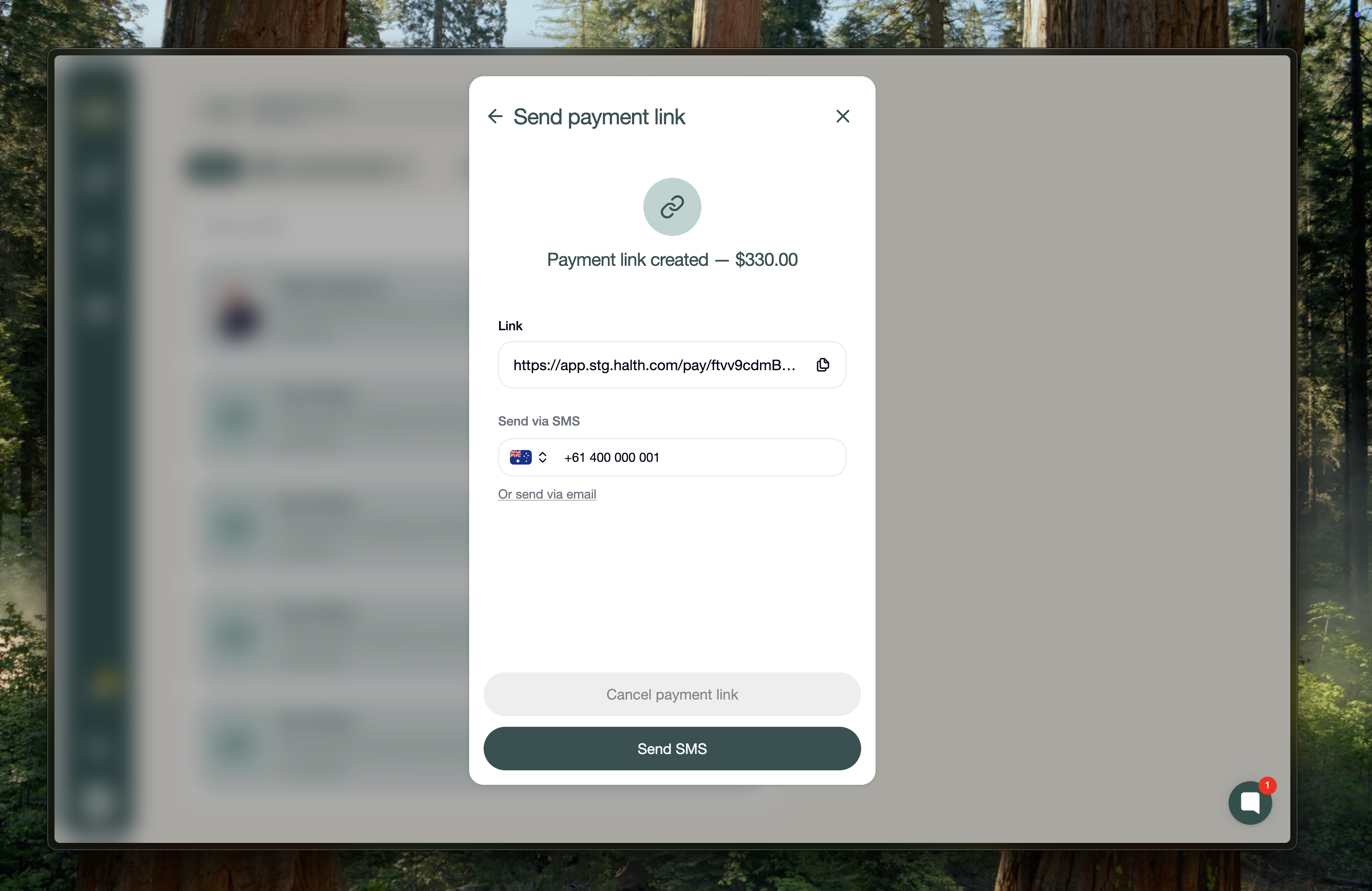
Generates a payment link.
You can:
save it
send it by SMS
send it by email
copy it to share manually
You can also cancel the payment link if needed.
The payment page shows:
what is being paid for
any discount applied
the provider
saved cards or the option to add a new card
a Complete payment button
QR code:
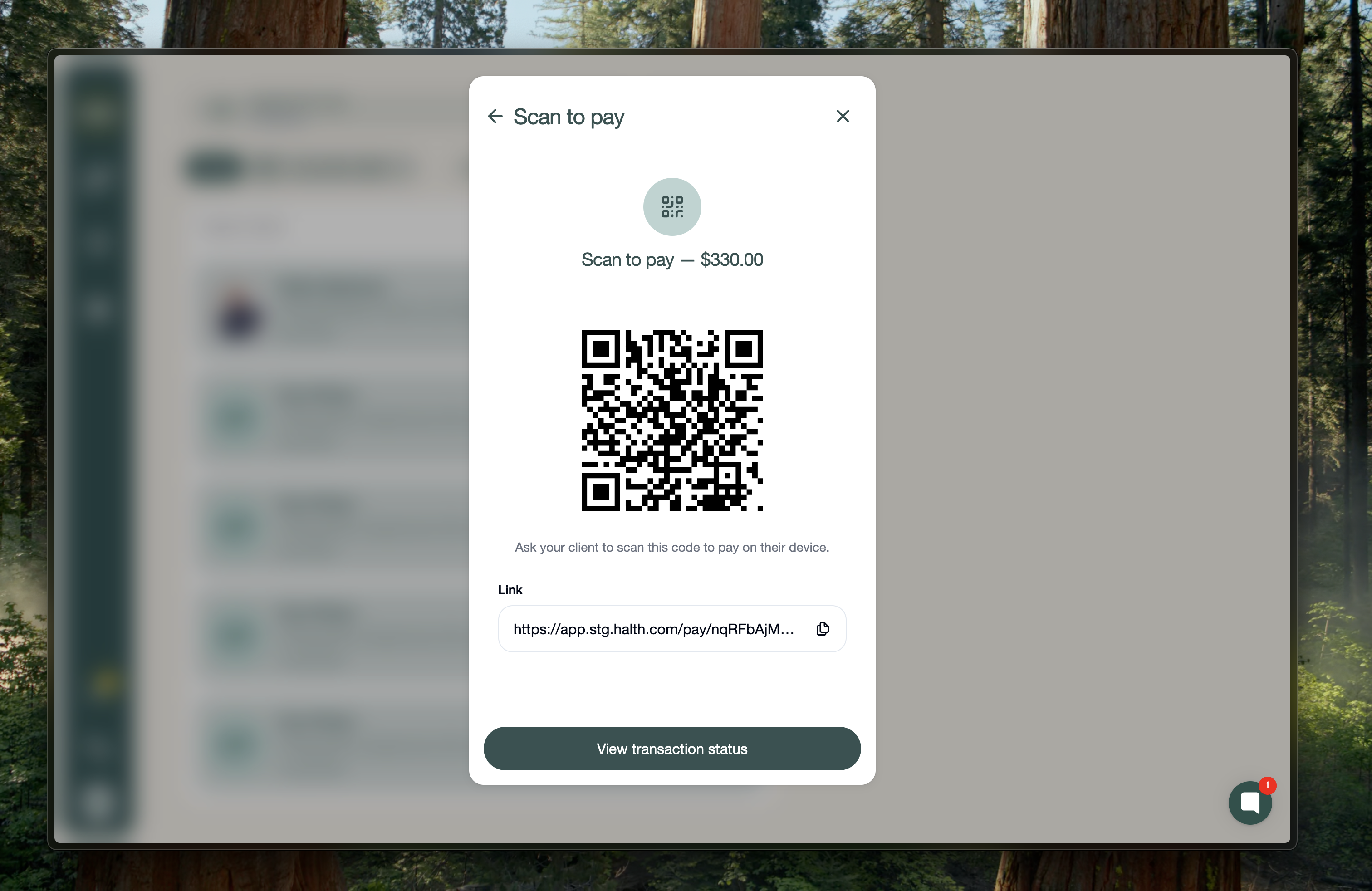
Press Generate QR code.
This creates a QR code and link for the client to scan and pay.
The transaction status will show as awaiting payment until completed.
7. Confirm funding with the client and finish the transaction:
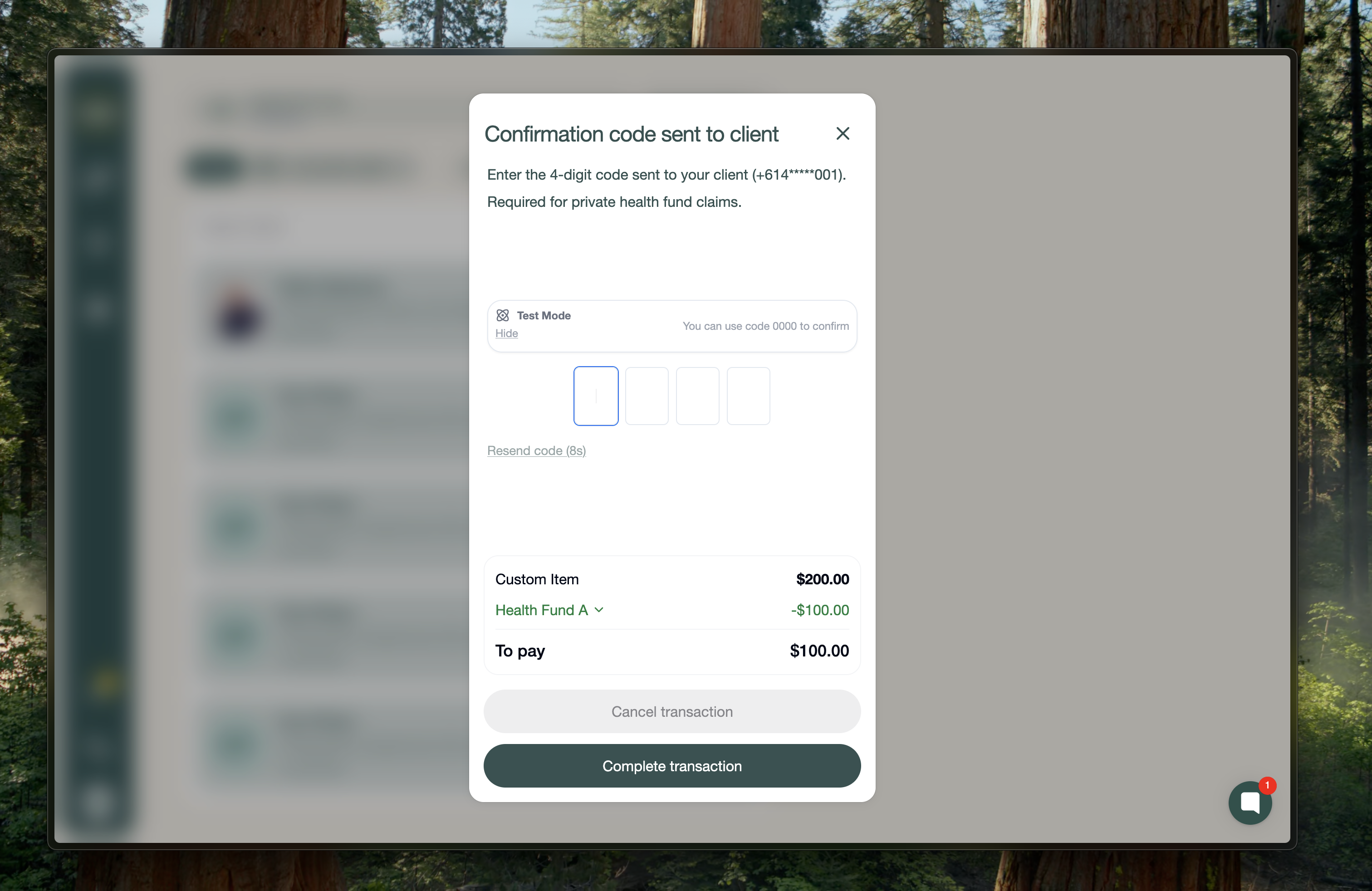
After payment is completed, press Confirm funding with client.
This sends an SMS code to the client.
The client reads the code back to confirm the transaction.
This replaces the usual receipt and signature-based confirmation flow.
Once confirmed, the transaction is complete.
If Medicare was used and the Medicare card plus the referring provider were entered correctly:
The Medicare claim is sent automatically
The client should receive the rebate in a few business days
8. Review the invoice and follow claim instructions for other funding types:
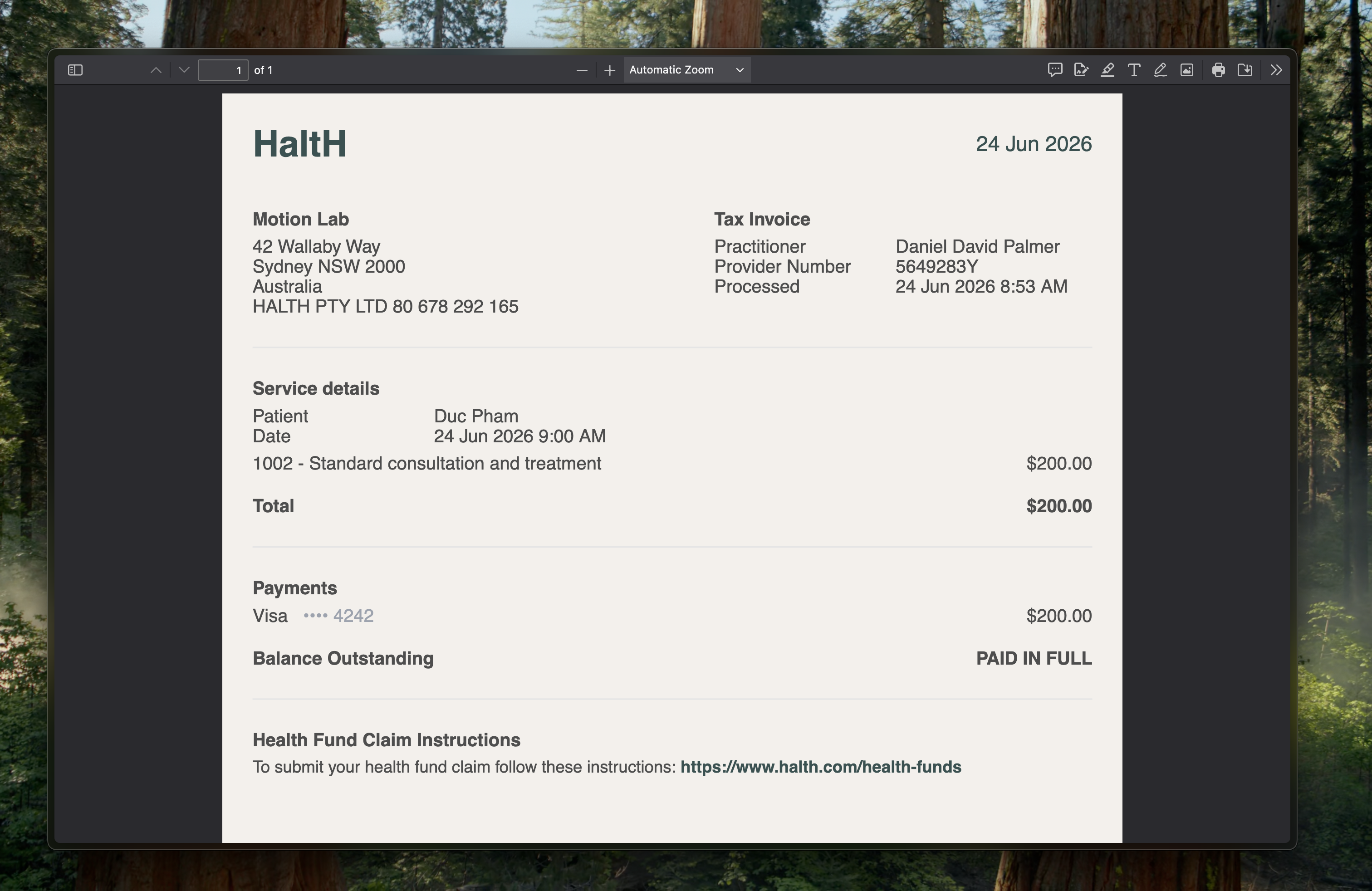
After completion, you can view what was invoiced.
This lets you review the full transaction details.
If the client has no connected health funding:
Some funding types, like DVA or other government funds, are not yet available in HaltH.
In those cases, the system shows green health fund claim instructions on the invoice.
Follow the on-screen instructions to complete the claim manually or through the required process.
