company logo

Help center

Back to HaltH
How Secure is HaltH?What Health Funds Are Available?
Explore all topicsGetting Started on HaltH For BusinessesHaltH Extend

HaltH Extend

How to set up and everything to know about HaltH extend

HaltH Extend brings HaltH into your practice management system. Once itโ€™s set up, you can start transacting bookings straight from your PMS!

Step 1: Install HaltH Extend

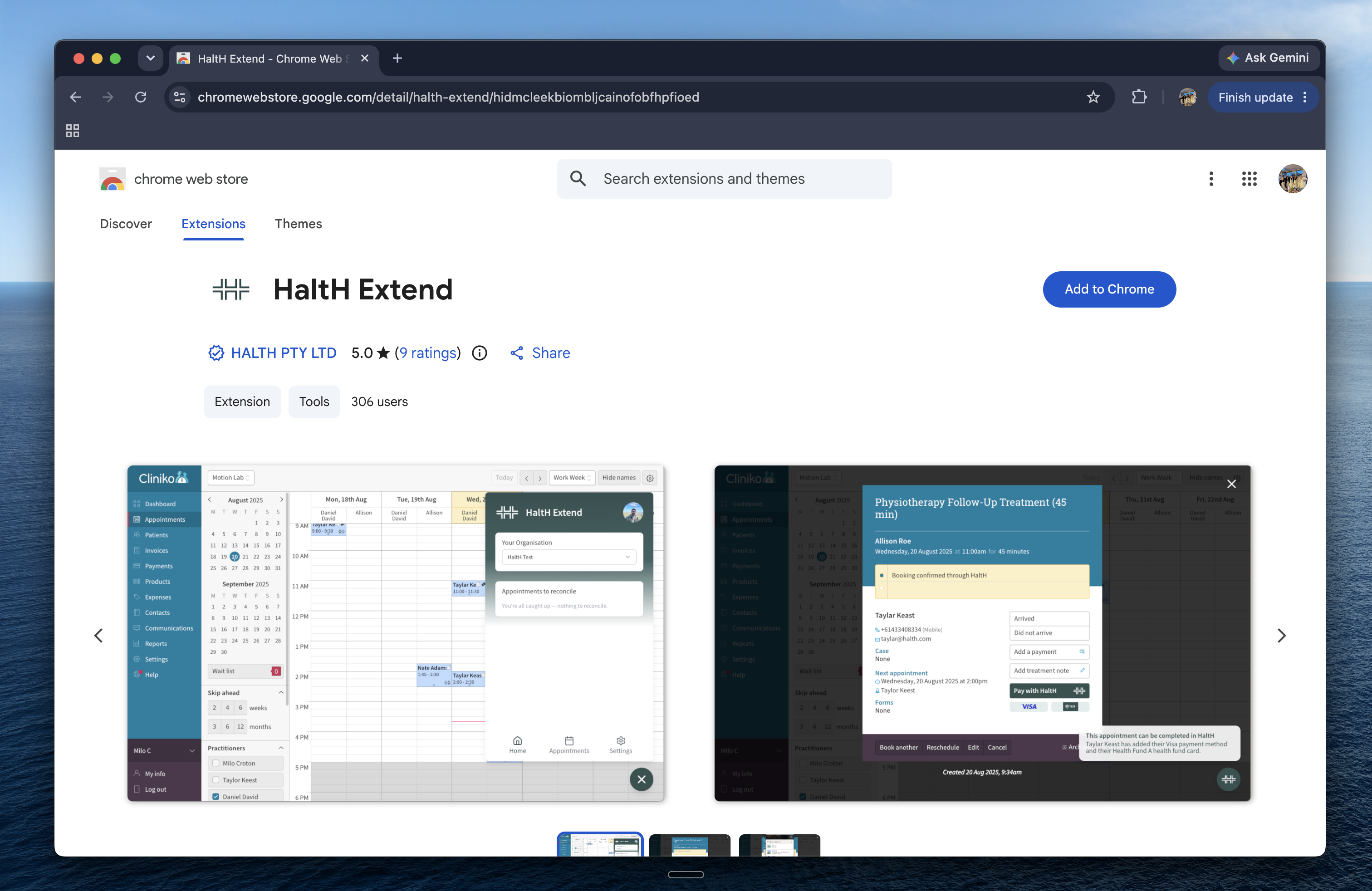
  1. Go to the Chrome Web Store, or use this link.

  2. Search for HaltH Extend.

  3. Click Add to Chrome.

    Chrome Web Store Extensions listing for Halth Extend, with an Add to Chrome button and previews of a clinic calendar and appointment details. Visible: chrome web store, Extensions, Themes, Halth Extend, Add to Chrome, HALTH PTY LTD.

Step 2: Sign in and set up

  1. Open your PMS.

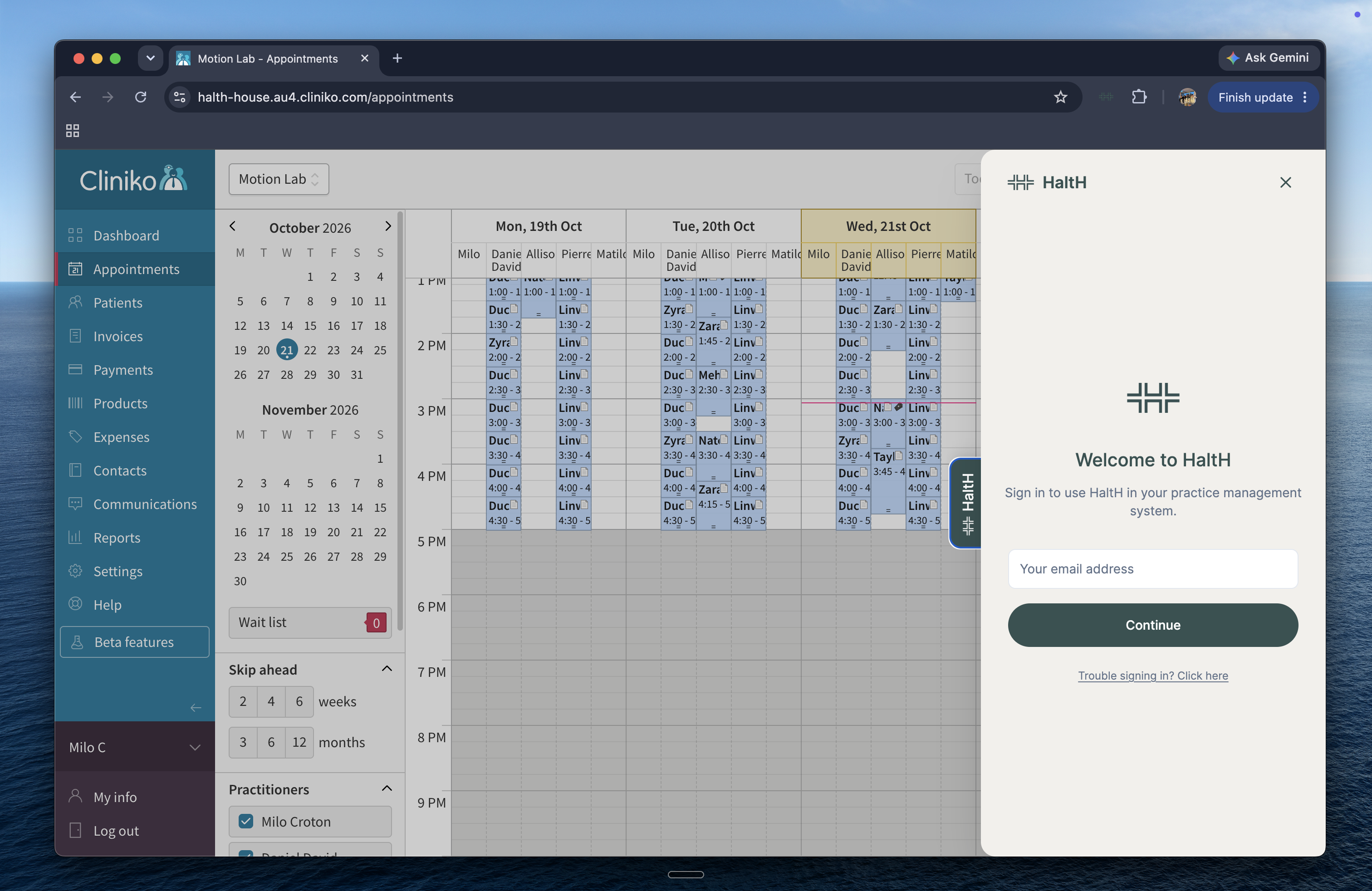
  2. Click the HaltH Extend logo on the right side of the screen.

  3. Sign in with your HaltH account.

    Cliniko Appointments calendar is dimmed behind the HaltH sign-in panel, which asks for an email address to continue. Visible: Appointments, October 2026, Mon, 19th Oct, Tue, 20th Oct, Wed, 21st Oct, HaltH.

  4. Select the business you wish to use.

  5. Set up your payment types in your PMS.
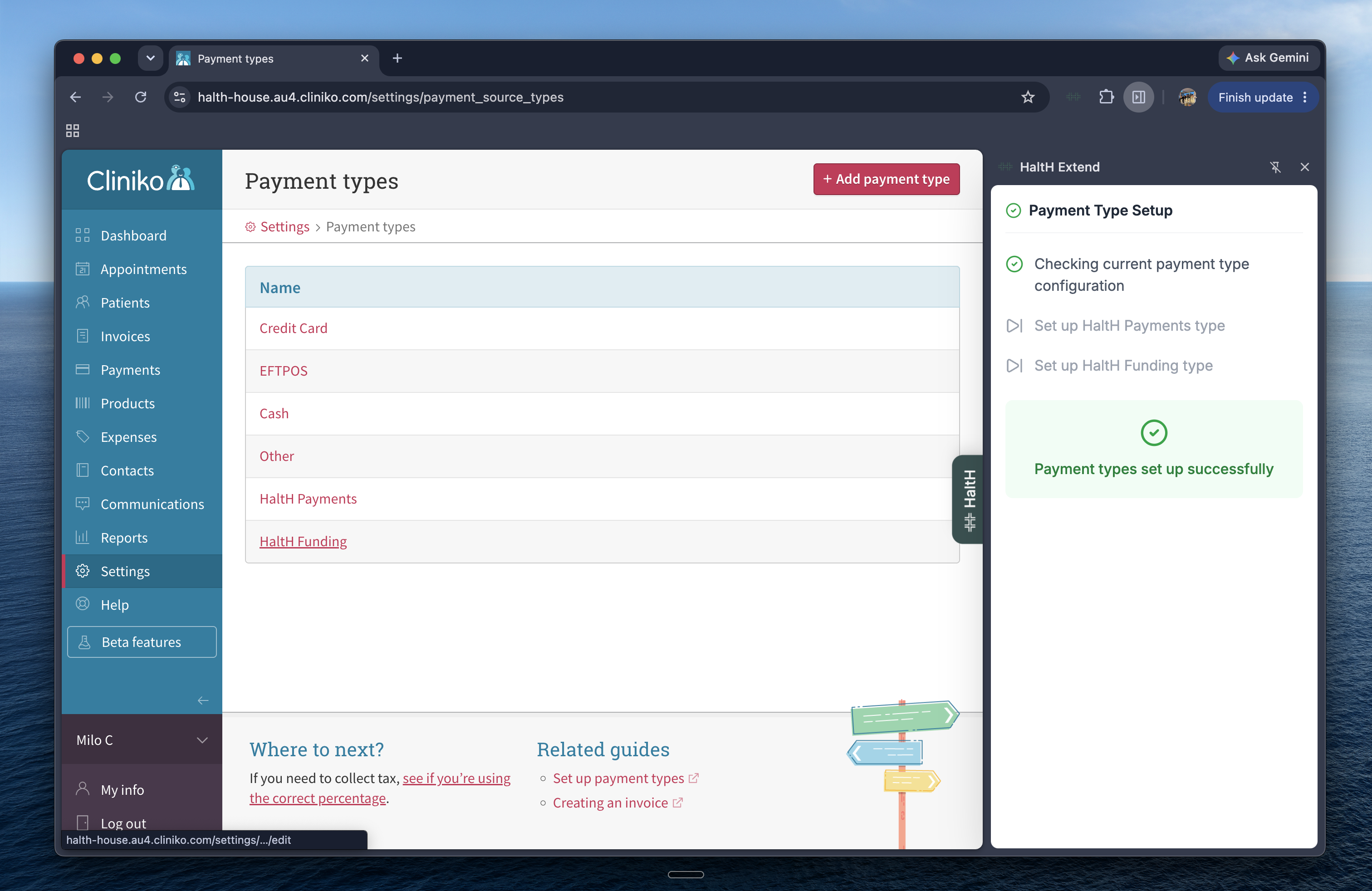
    Cliniko Settings > Payment types screen lists payment methods, with a HaltH Extend panel confirming payment types were set up successfully. Visible: Payment types, Settings, Name, Credit Card, EFTPOS, Cash.

  6. Click Finish.

Thatโ€™s it. HaltH Extend is ready to use!

Step 3: Using HaltH Extend

See your HaltH debrief
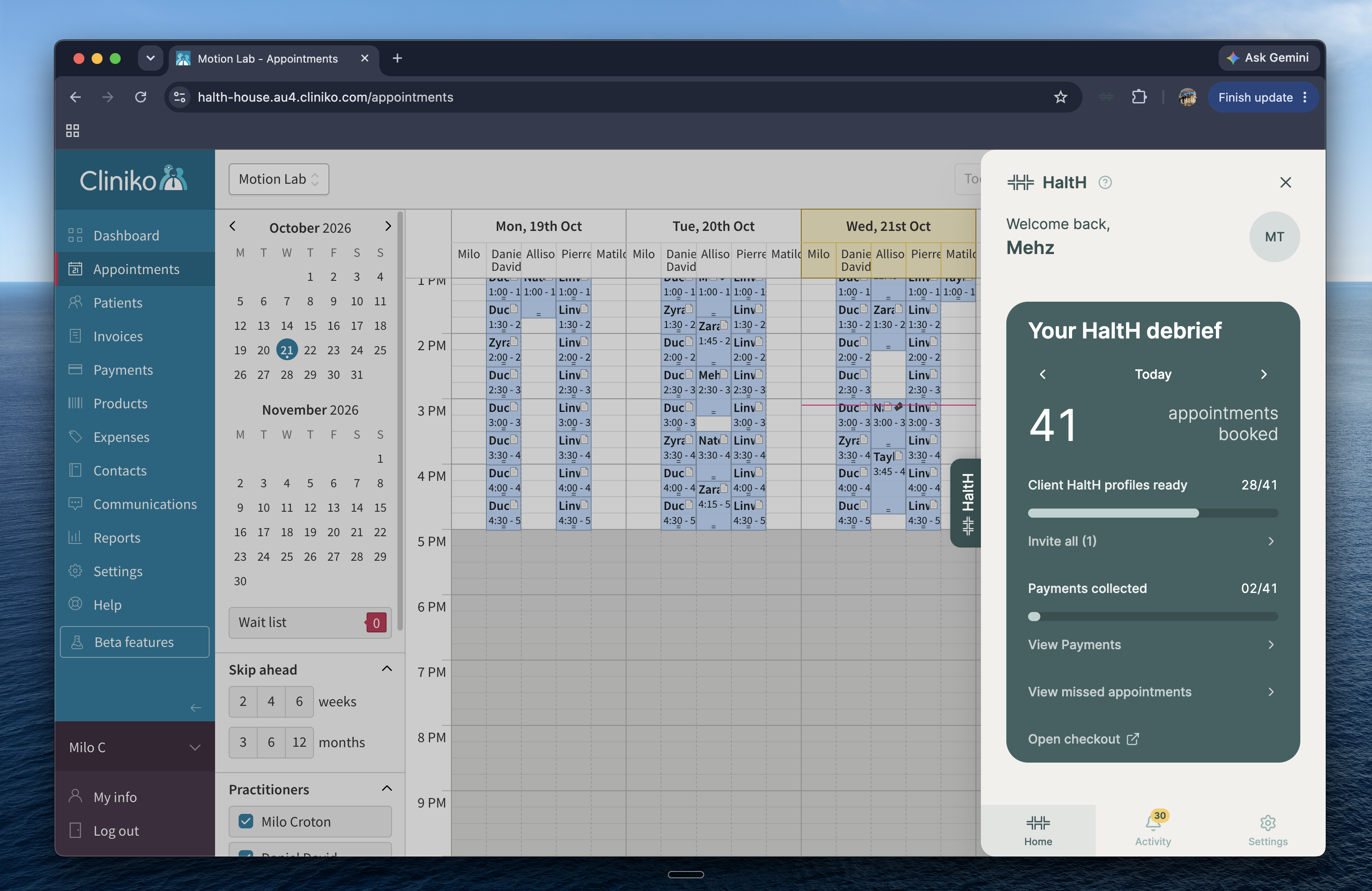
Click the HaltH Extend logo on the right to see a quick summary of:

  • Appointments booked

  • Client HaltH profiles ready

  • Payments collected

View your activity
Go to the Activity page to see all your notifications, payments, reconciliations and missed appointments.
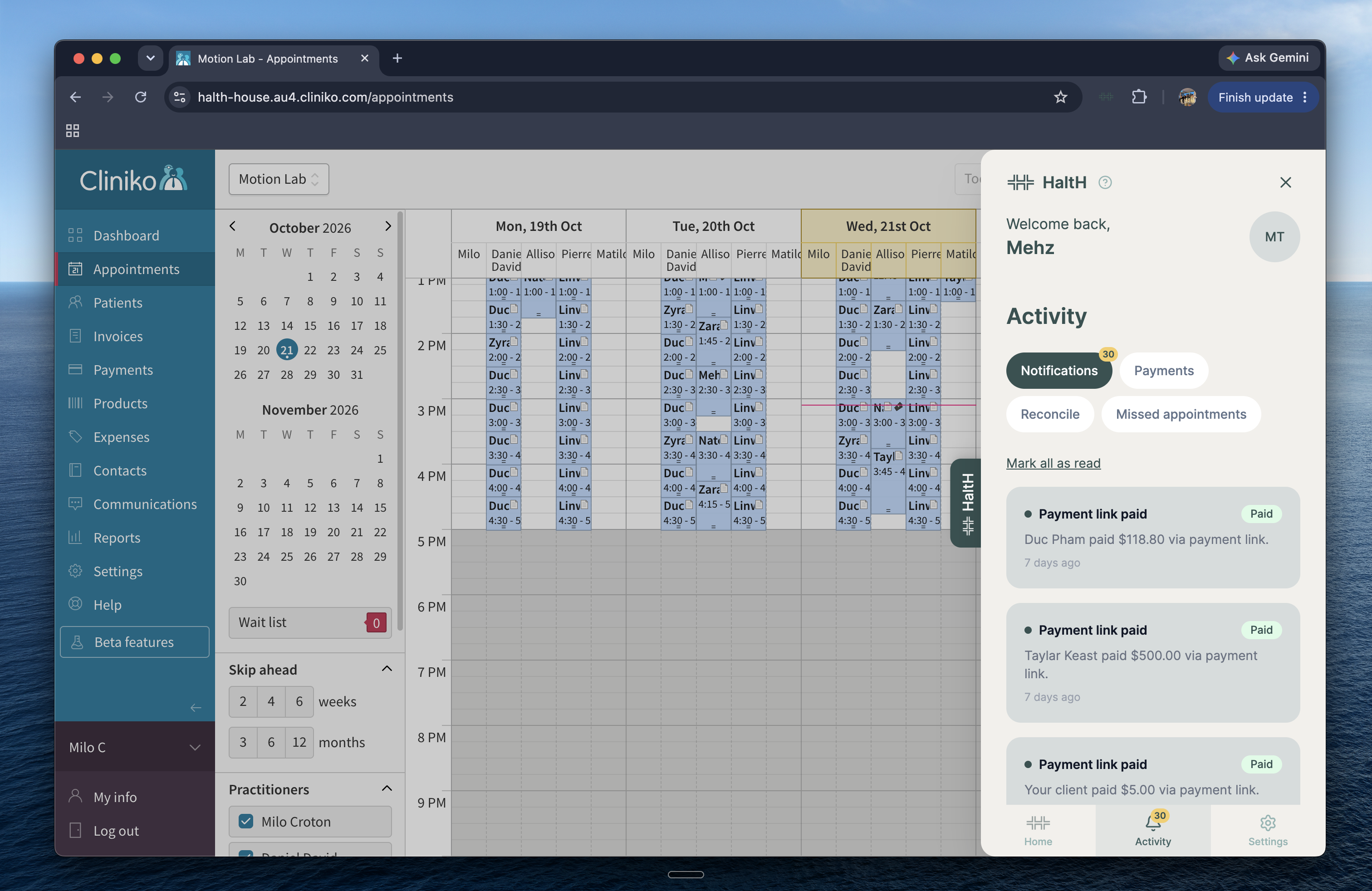
Cliniko Appointments calendar with the HaltH Activity panel open, showing Notifications selected and payment-link-paid activity cards. Visible: Appointments, October 2026, HaltH, Welcome back,, Mehz, Activity.

Manage your settings
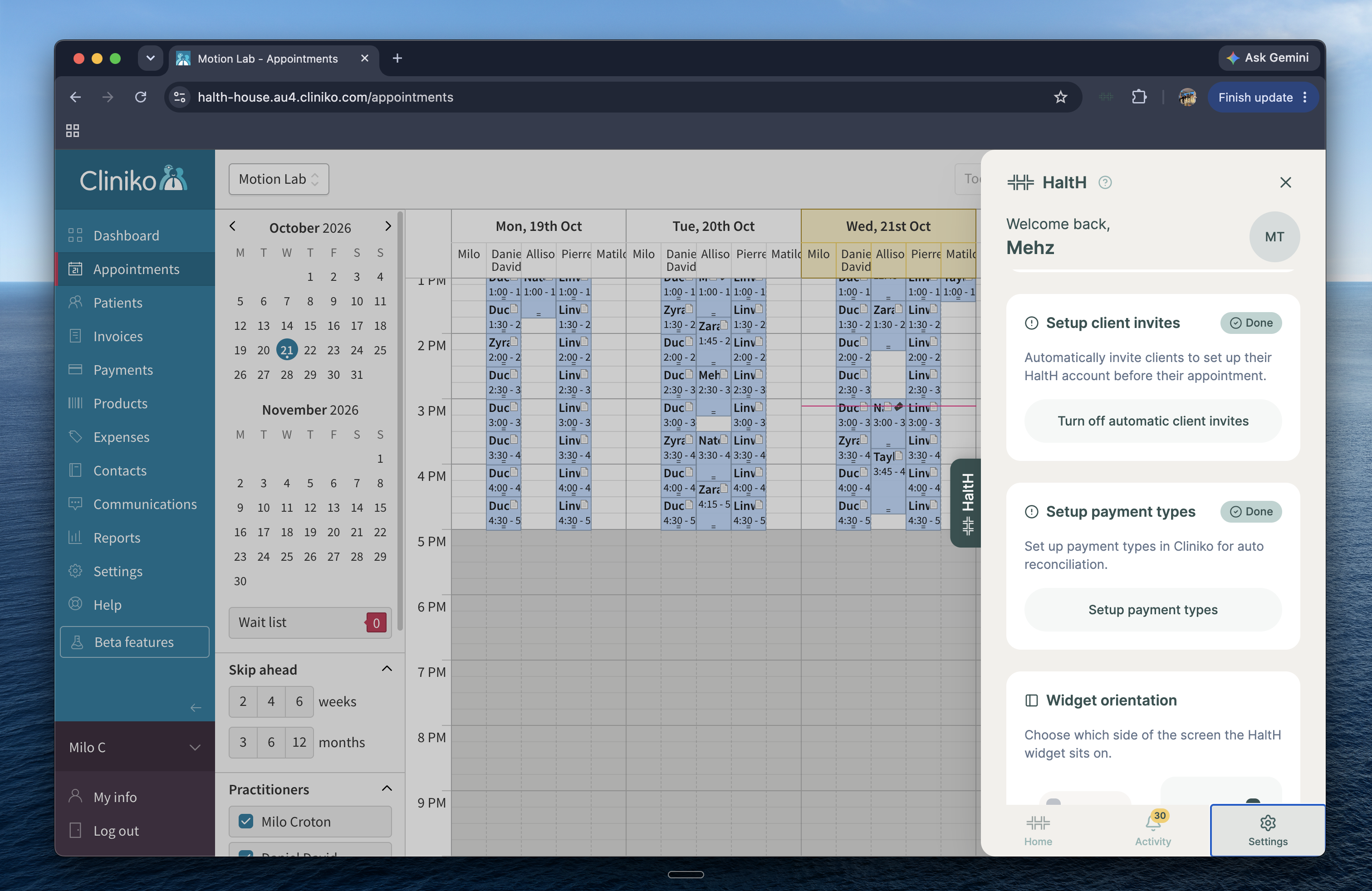
Open Settings to change your preferences, such as:

  • Turning client invites on or off

  • Setting the widget orientation

    Cliniko Appointments calendar for Motion Lab is dimmed behind the open HaltH Settings panel, showing setup cards for client invites, payment types, and widget orientation. Visible: Motion Lab, Appointments, October 2026, HaltH, Welcome back,, Mehz.

Need help?

If you have any questions, contact our support team by clicking the widget in the bottom right!
Did this help?
๐Ÿ˜ž
๐Ÿ˜
๐Ÿ˜