
A deposit is an amount clients pay when they book online. You set deposits on a booking link, so you can ask for a deposit on some services or all of them, as a dollar amount or a percentage of the service price.
Where to find deposits
Go to Bookings in the left menu.
Select Create a link.

Choose your locations on step 1, then select Next. You can add deposits in two places: on each service (step 2), or for every service on the link at once (step 3).
Option 1: Set a deposit for selected services
Use this when only some services need a deposit, or when services need different amounts.
On step 2 (Who and what?), choose your providers. Your services appear below.
Find the service and go to Deposit for this service.
Choose $ for a fixed amount or % for a percentage of the price, then type the amount.
Repeat for any other services, then select Next.
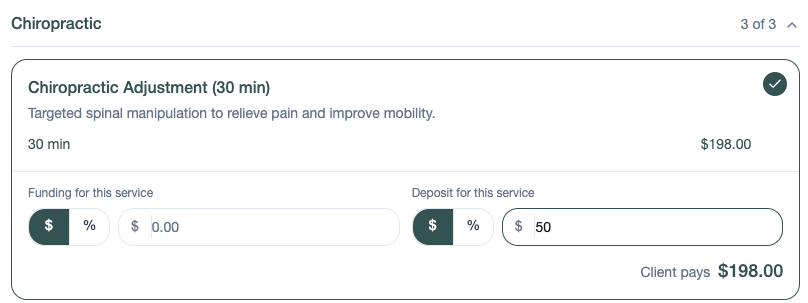
Leave the deposit at 0.00 for any service that doesn't need one.
Option 2: Set a deposit for every service on the link
Use this when every service on the link should have the same deposit.
On step 3 (Finish your link), go to For every service on this link.
In the Deposit box, choose $ or % and type the amount.
Finish the rest of the page and select Create link.
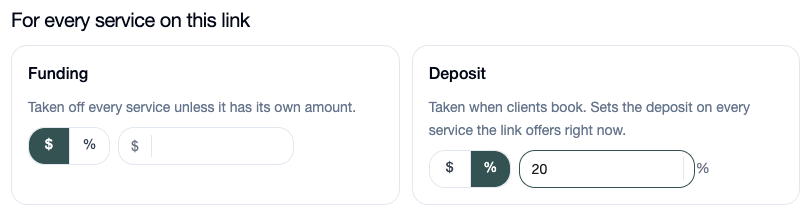
Good to know: this sets the deposit on every service the link offers right now. It replaces any per-service deposits you entered on step 2.
Things to know
The deposit is taken when the client books.
A deposit doesn't change the service price. Client pays still shows the full price, less any funding.
Deposits belong to the link. If you have several booking links, set deposits on each one you want them on.