
If checkout shows one of these messages, the location the booking belongs to isn't connected to a business in HaltH yet:
The location has not been associated with the business. Please complete payments onboarding for this location.
Payments aren't available — [location] isn't linked to a business.
Going through payments onboarding again won't fix it. The location itself needs to be connected.
Why this happens
Payments are attributed to a business (its ABN, GST and payout account). Each location from your practice software has to be linked to one. A location stays unlinked if it wasn't ticked on the Select your locations screen when you connected your PMS, or if it was added to your PMS later.
Connect the location
You need to be an organisation owner to do this.
Go to Settings and open the Business tab.
Scroll to Locations. A connected location shows Booking link and Edit. An unlinked one shows Connect.
Select Connect next to the location.
Choose Connect to [your business] to add it to your existing business. If this location trades under a different ABN, choose Create a new business instead.
Read the tax and reporting notice. Payments at this location will be attributed to that business, including GST. Then select Confirm (or Create & connect).
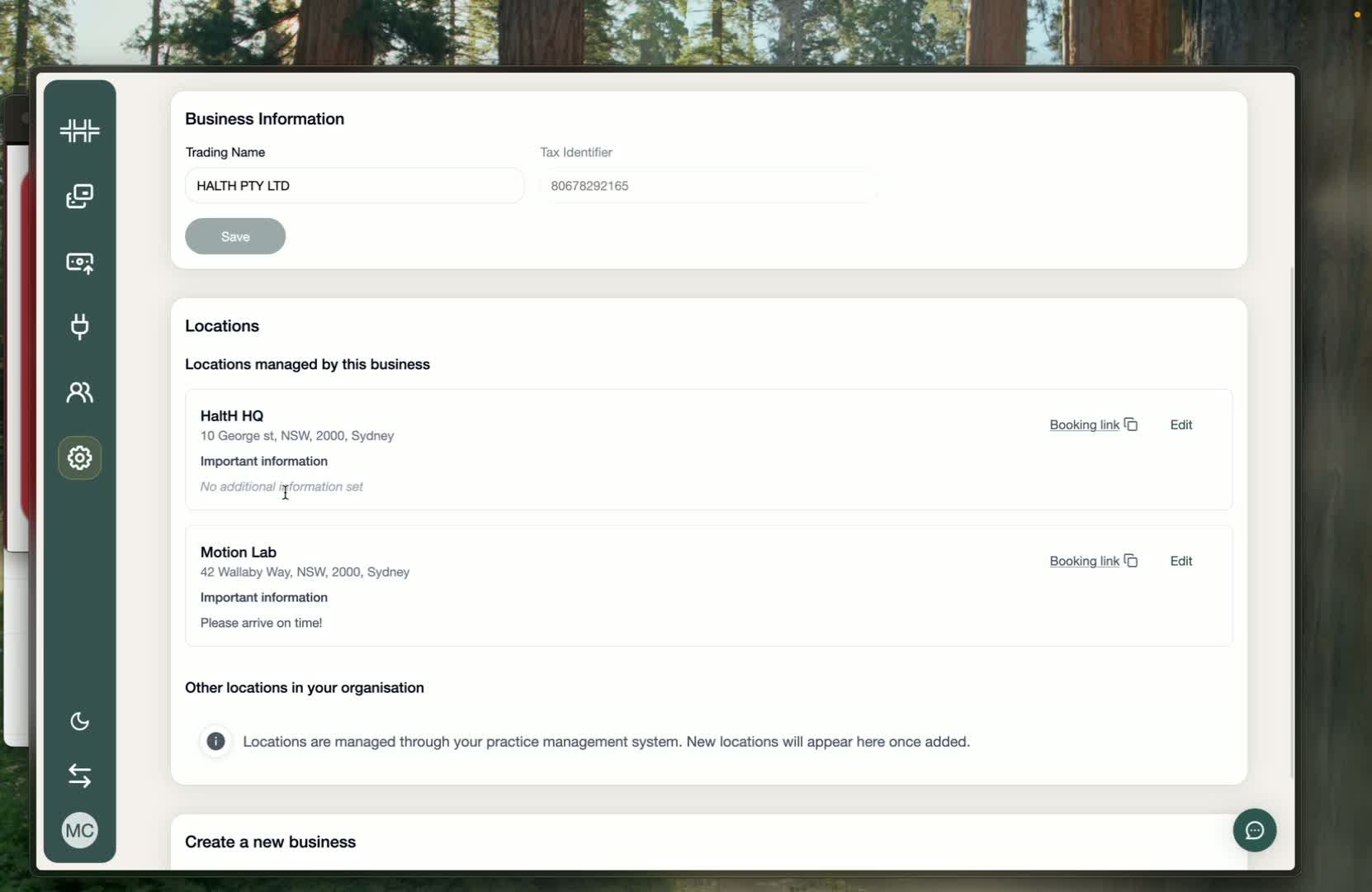
The location now shows Booking link and Edit, and you can take payments there straight away. Reopen the booking and go back to checkout.
Still seeing the message?
If the Connect button is greyed out, the location is already connected to another business in your organisation. Check that the booking is in the right location.
If checkout says Payments setup for [location] isn't finished yet, select Setup and finish payments onboarding for that business. See Setting up payments.
Don't see the location at all? It's managed in your practice software. Check it exists there and that your PMS is syncing.
Still stuck? Message us from the chat bubble and include the location name.