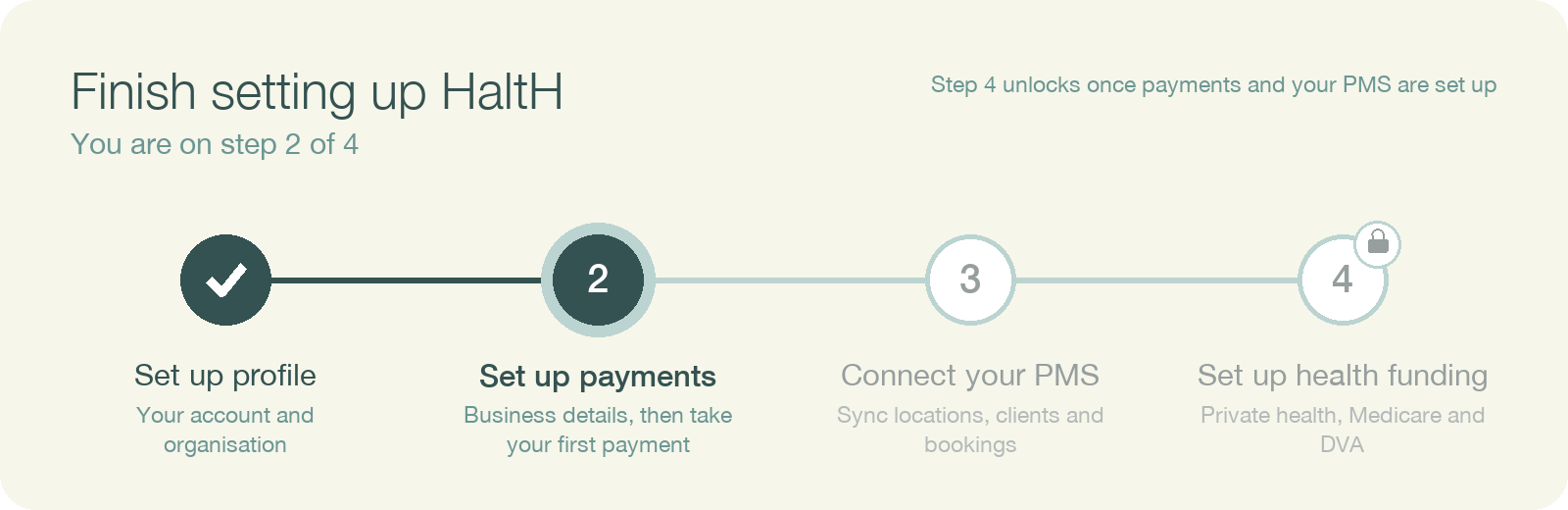
Setting up payments lets you charge clients through HaltH: by saved card, payment link, QR code or Tap to Pay on your phone. You'll confirm your business details and verify your identity so we can securely process payments for you.
Your ABN and legal business name
Your business address, and website if you have one
Your date of birth, home address and mobile number
Photo ID, such as a driver licence or passport, in case you're asked for it
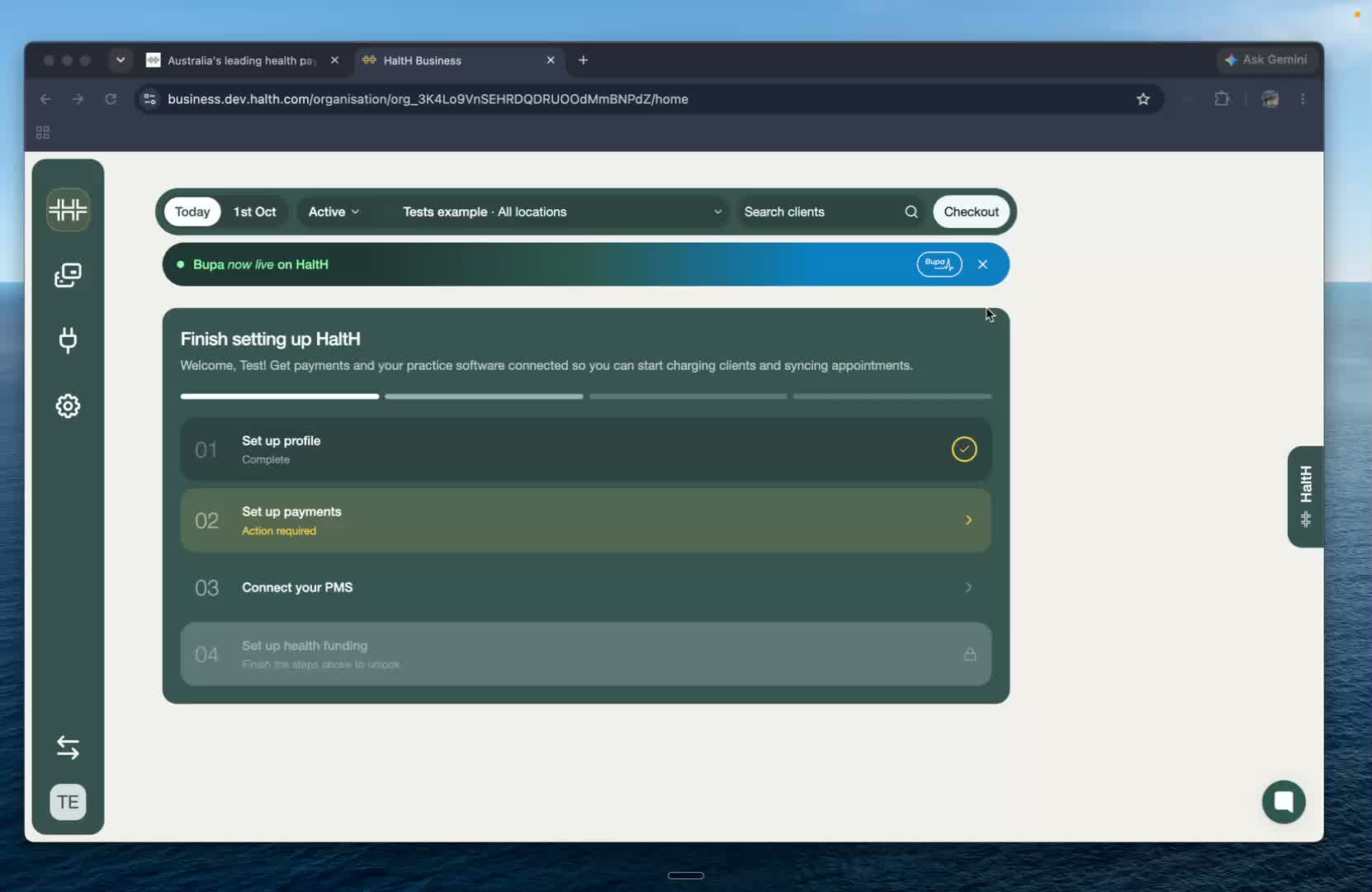
On Home, under Finish setting up HaltH, select Set up payments, then Continue setup.
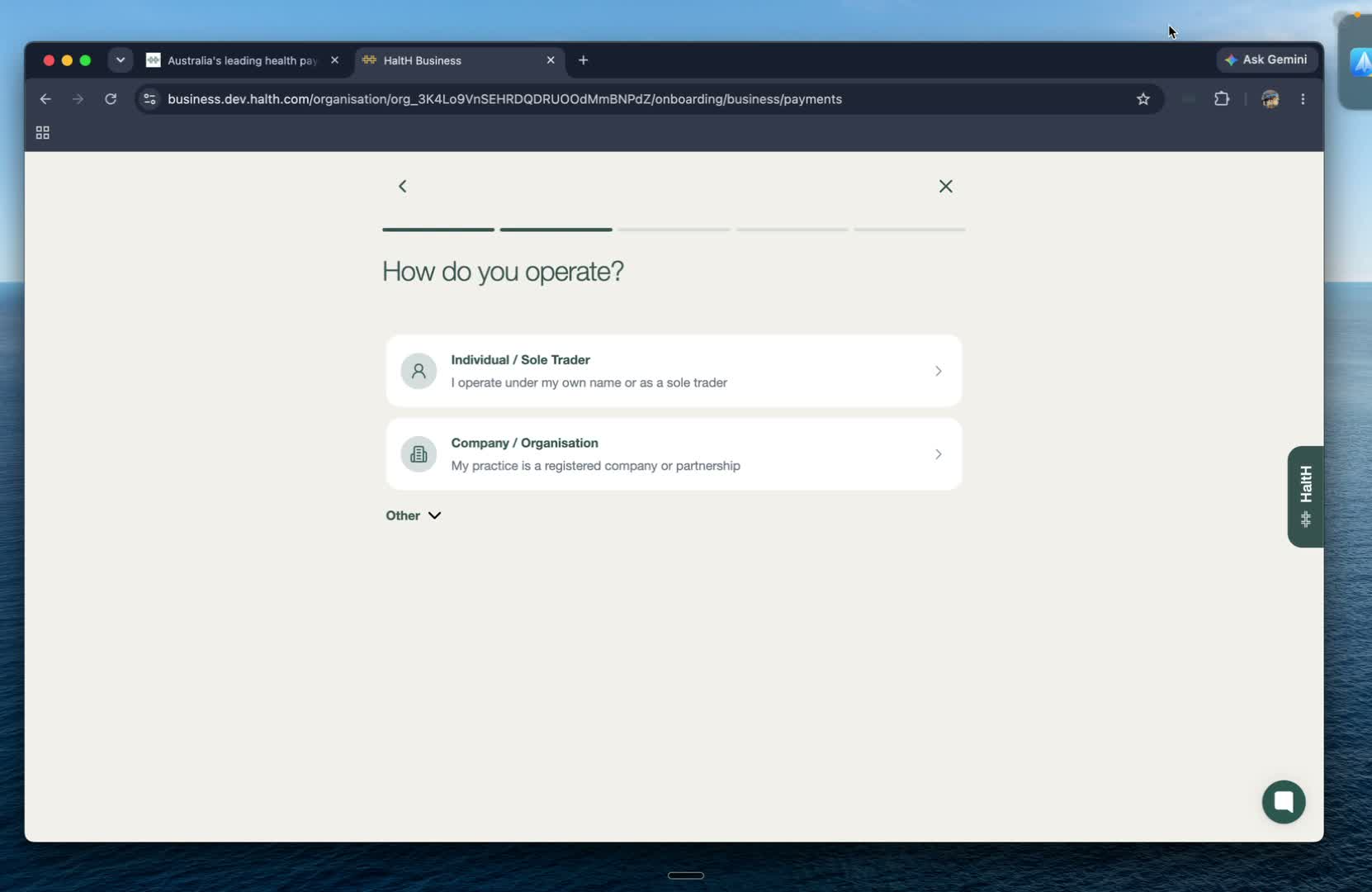
Choose Individual / Sole Trader if you work under your own name, or Company / Organisation if your practice is a registered company or partnership. Select Continue.
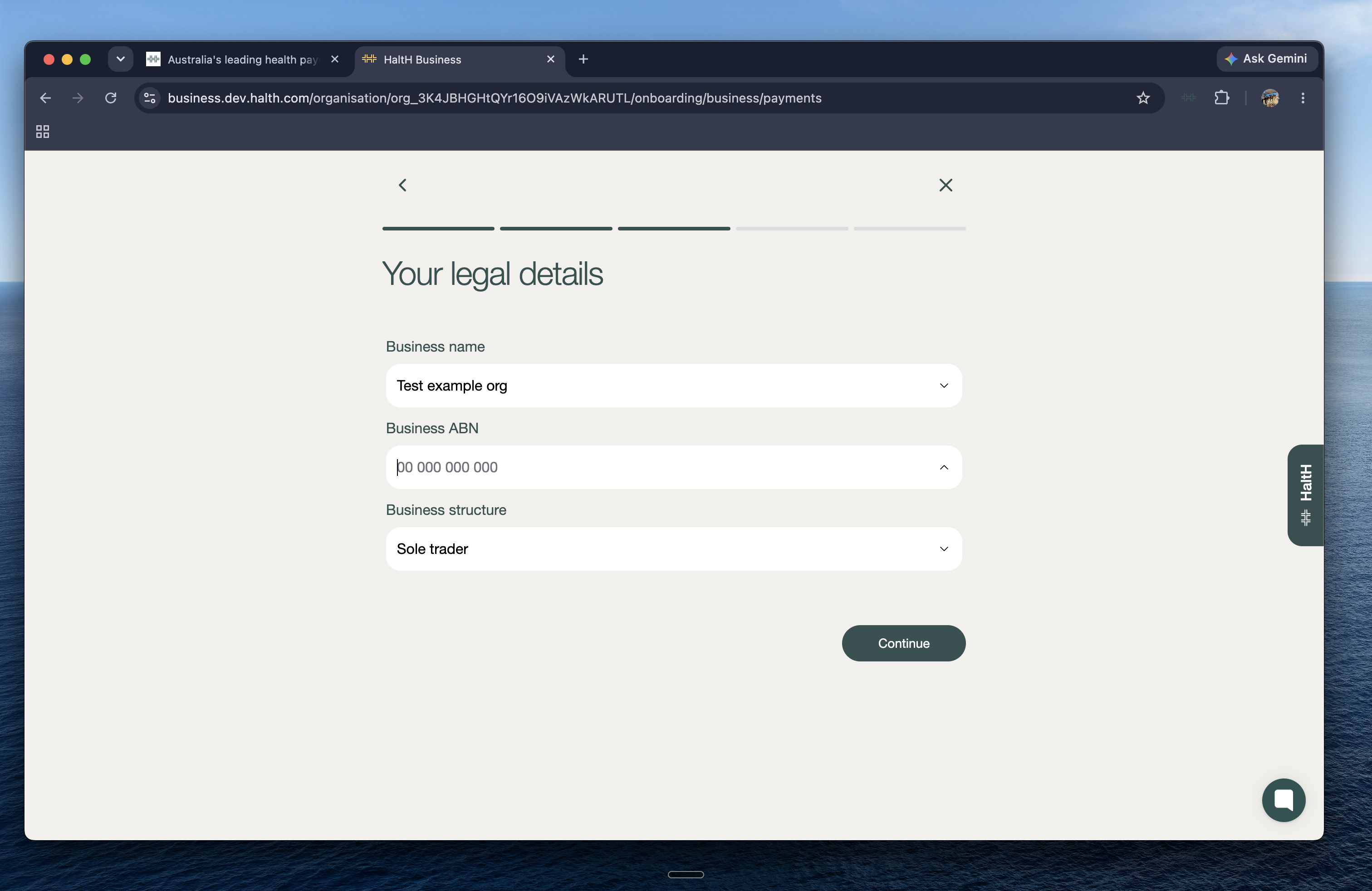
Confirm your Business structure, Business ABN and Business name, then select Continue. The ABN you choose here is the one your payments, GST and payouts are attributed to.
Before you can accept payments, we need to verify who you are and who owns the business.
Fill in your business information: legal business name, business name, ABN, business address, industry and website.
Enter your personal details: date of birth, home address and phone number.
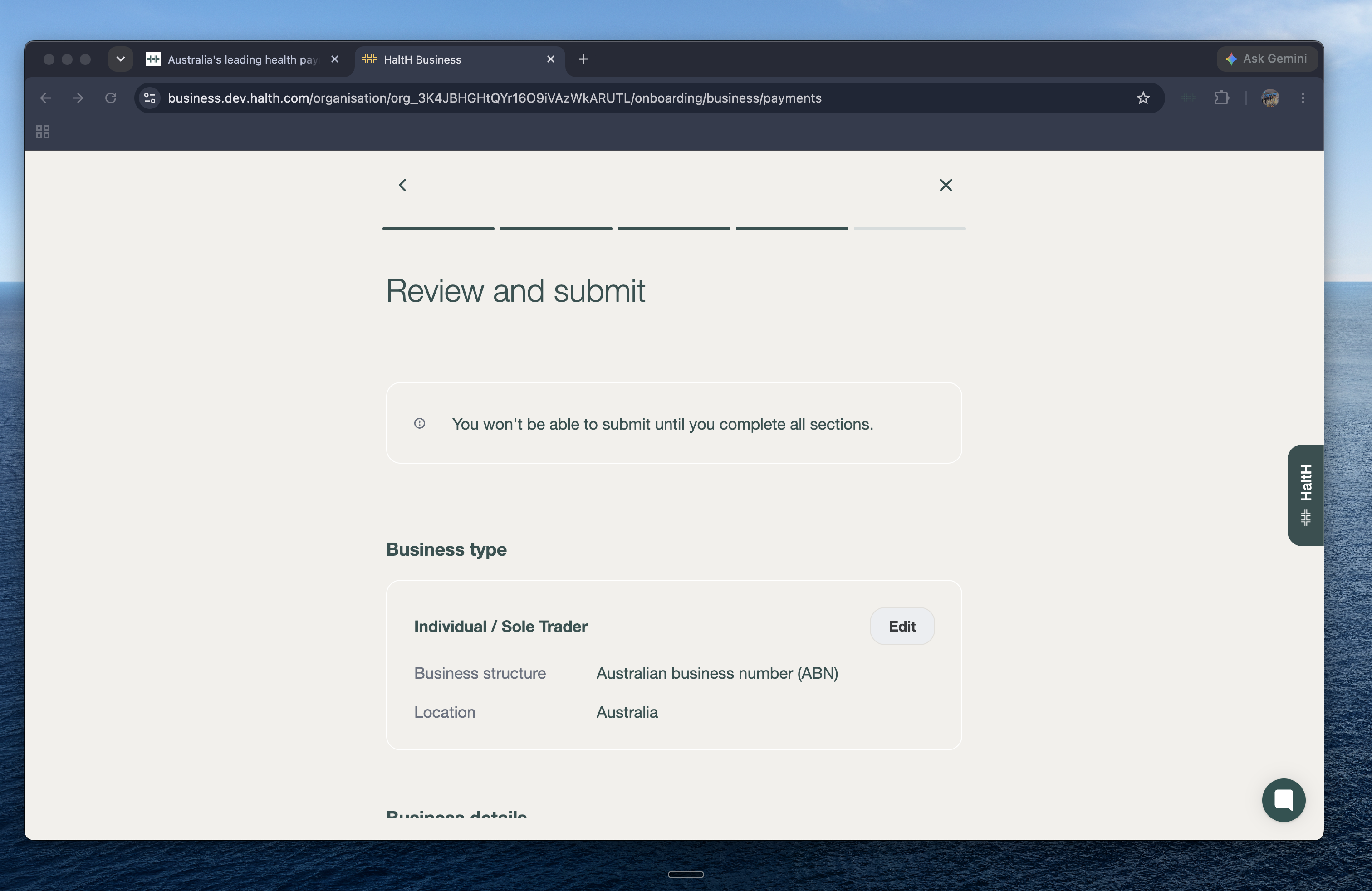
On Review and submit, check everything and use Edit to fix anything.
If asked, photograph your ID. Make sure every detail is clear and visible.
Select Agree and submit.
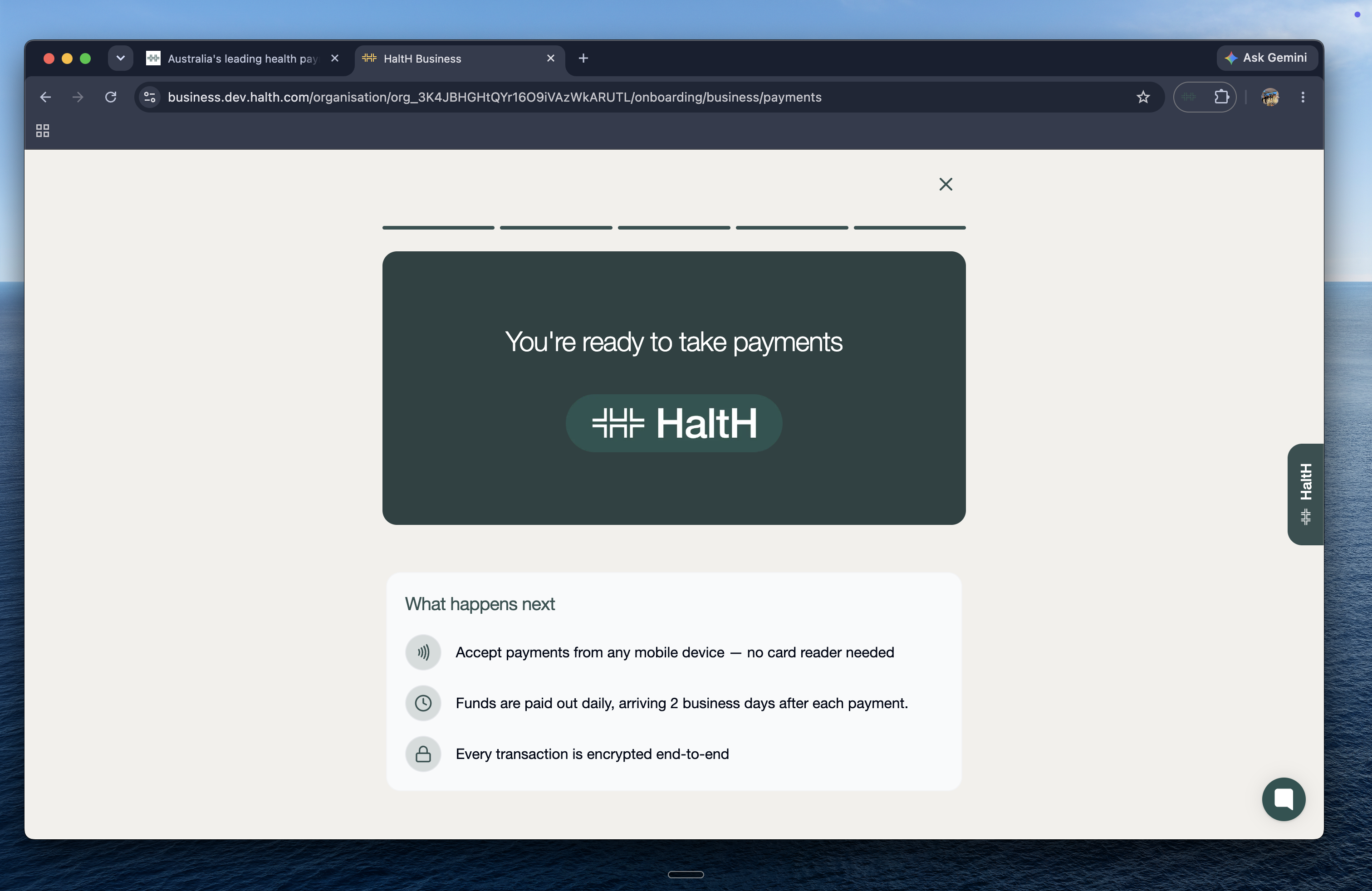
Select Take my first payment, or Go to home to keep setting up.
You won't be asked for bank details during setup. Once you take your first payment, your Home checklist shows Set up payouts. Select it and enter your BSB and Account number.
Do this straight away. We can't pay you out until your bank account is added.
Funds are paid out daily, arriving 2 business days after each payment. You can see each payout, and the transactions in it, in Transactions → Payouts.
Email [email protected] from the email address on your HaltH account with your new BSB and account number, and we'll update it for you. For your security we only accept changes from the account owner's email.
Step 3: Connect your practice software (PMS)
Sync your locations, clients and bookings from Cliniko, Nookal or PracSuite. About 5 minutes.
