Connecting your practice management software (PMS) is Step 3 of your HaltH onboarding.
Once connected, HaltH can sync your practice data and help reduce manual entry when managing bookings and payments.
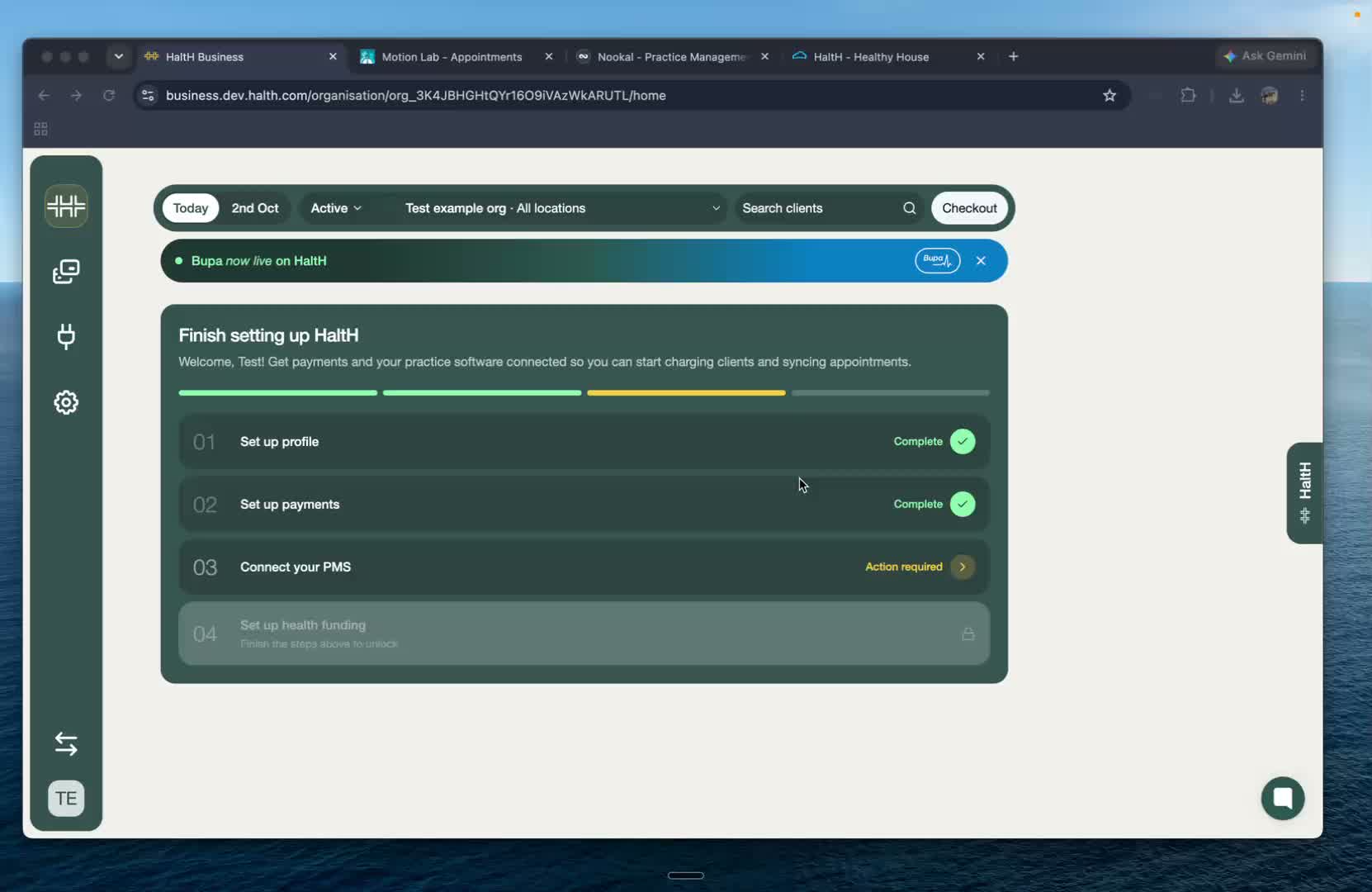
From your business homepage, find Step 3: Connect your practice management software (PMS).
Select the step to begin.
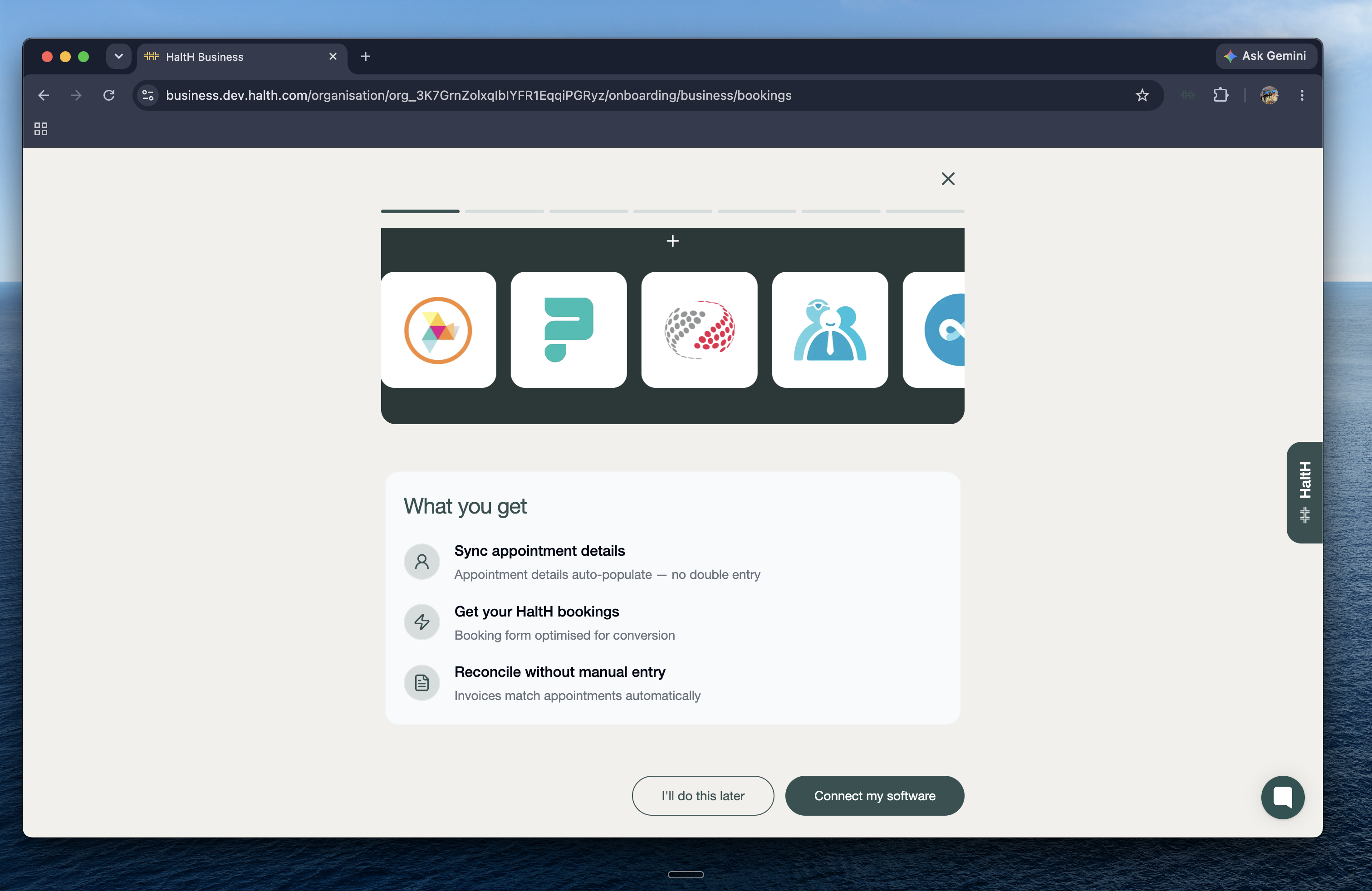
You'll first see an overview of what connecting your PMS will allow you to do.
Connecting your PMS can help you:
Auto-populate appointment details, reducing double entry.
Use HaltH bookings with a booking form designed to make booking easier for your clients.
Reconcile payments without manually entering appointment information.
Once you're ready, select Continue or Connect my software.
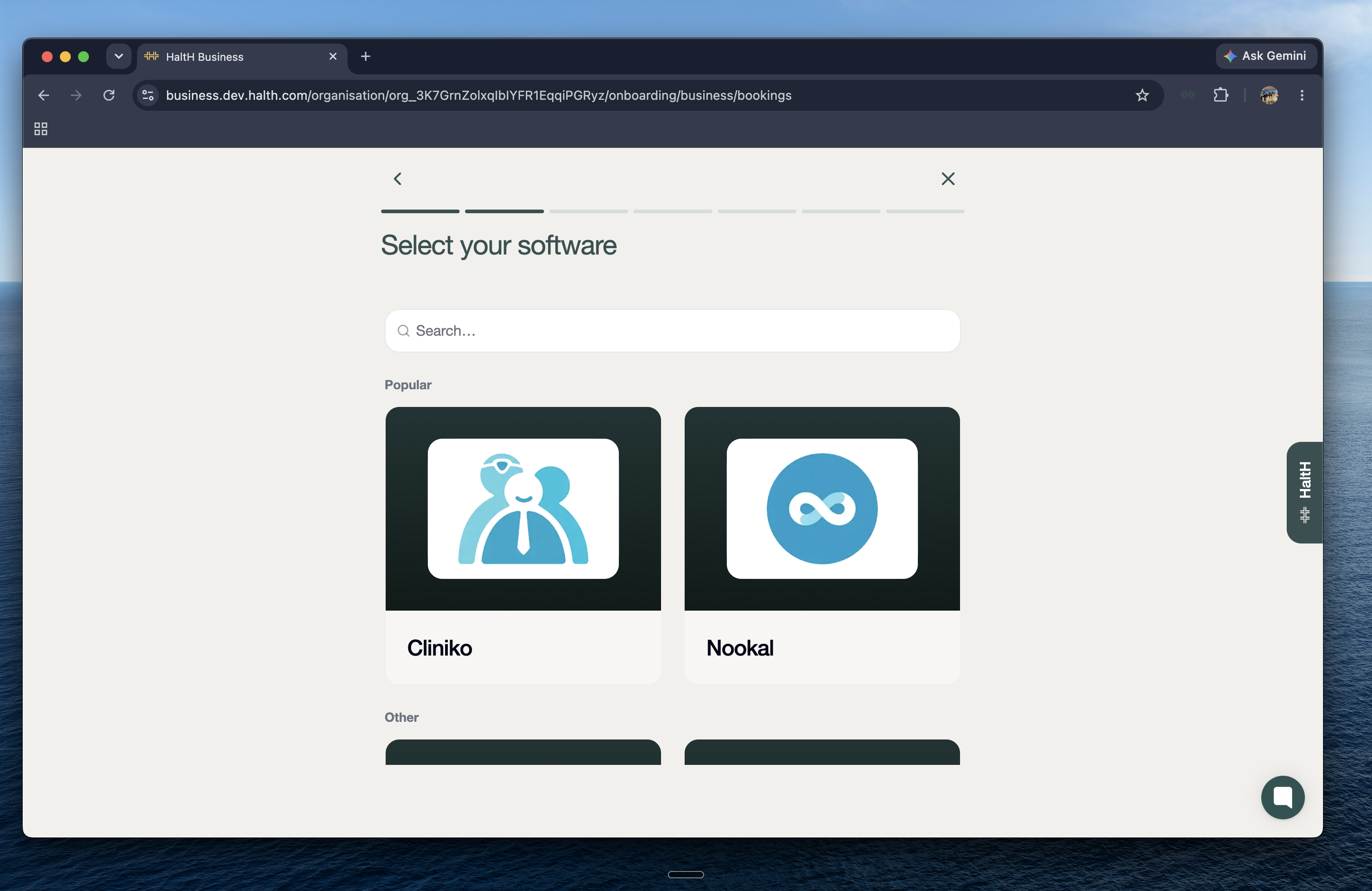
Choose the practice management software you use from the list.
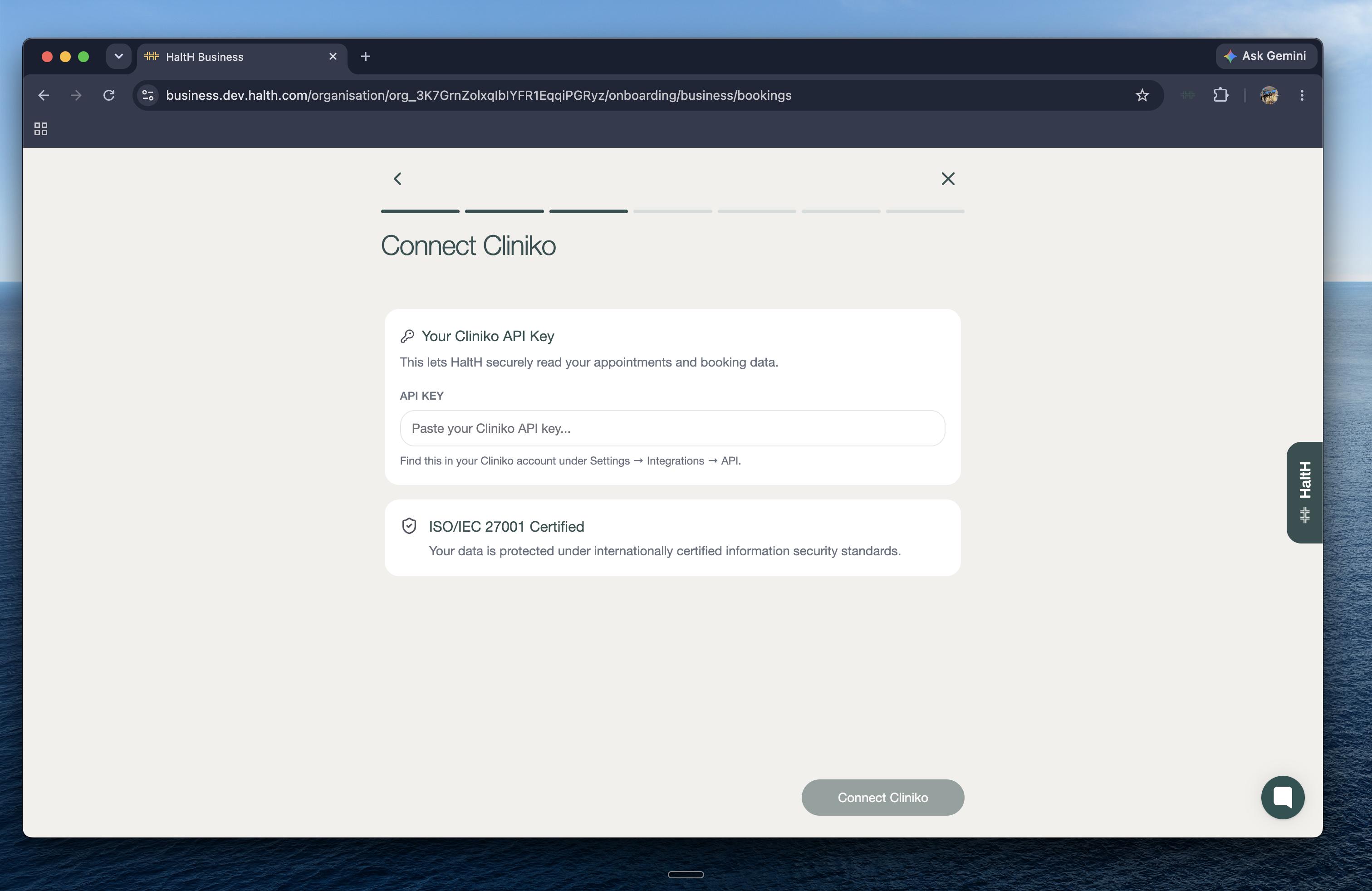
Once you've selected your PMS, you'll be asked to enter an API key.
Don't have your API key yet? Don't worry — you can find it in your PMS using the instructions below.
The steps for finding an API key vary depending on your PMS.
Open the menu on the bottom left and go to My Info.
Scroll down to Manage API Keys.
Select Add an API Key and give the key a name.
Copy the generated API key.
Select Setup.
Scroll down to API Keys.
Generate a new API key and copy it.
Go to Settings.
Open Integrations.
Select API
Create a new API key and copy it.
For other PMS platforms, look for an API, Integrations, or API Keys section in your software. If you're having trouble finding your key, reach out to your PMS provider for help.
Return to HaltH and paste your API key into the provided field.
Select Connect to start syncing your PMS.
HaltH will begin syncing your PMS data. Once the sync is complete, you'll be able to continue with your booking setup.
After your PMS has synced, you'll see a preview of your booking form.
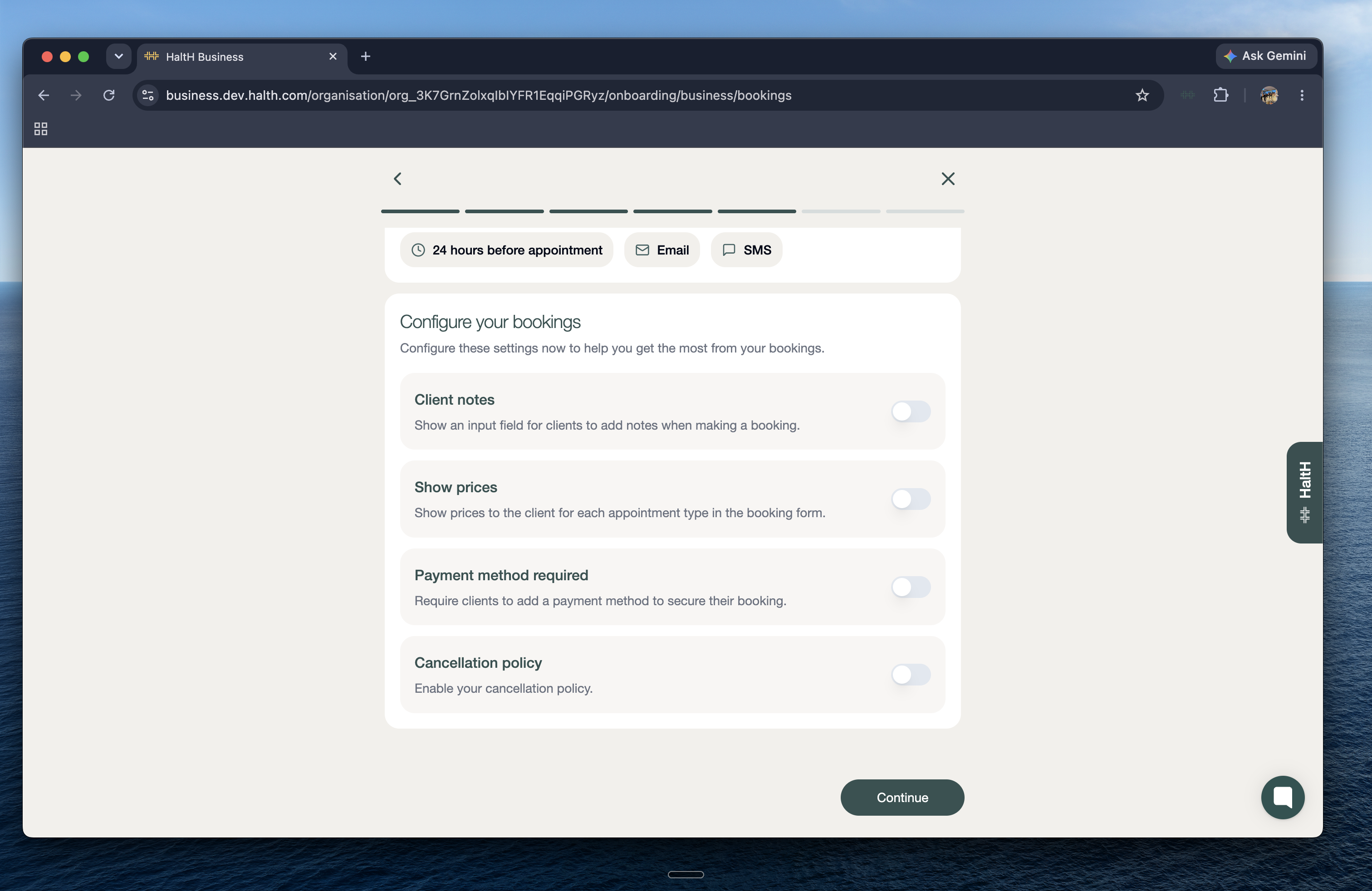
You can configure settings such as:
Whether to automatically invite clients.
How you want your bookings to be set up.
Review your settings and select Continue when you're ready.
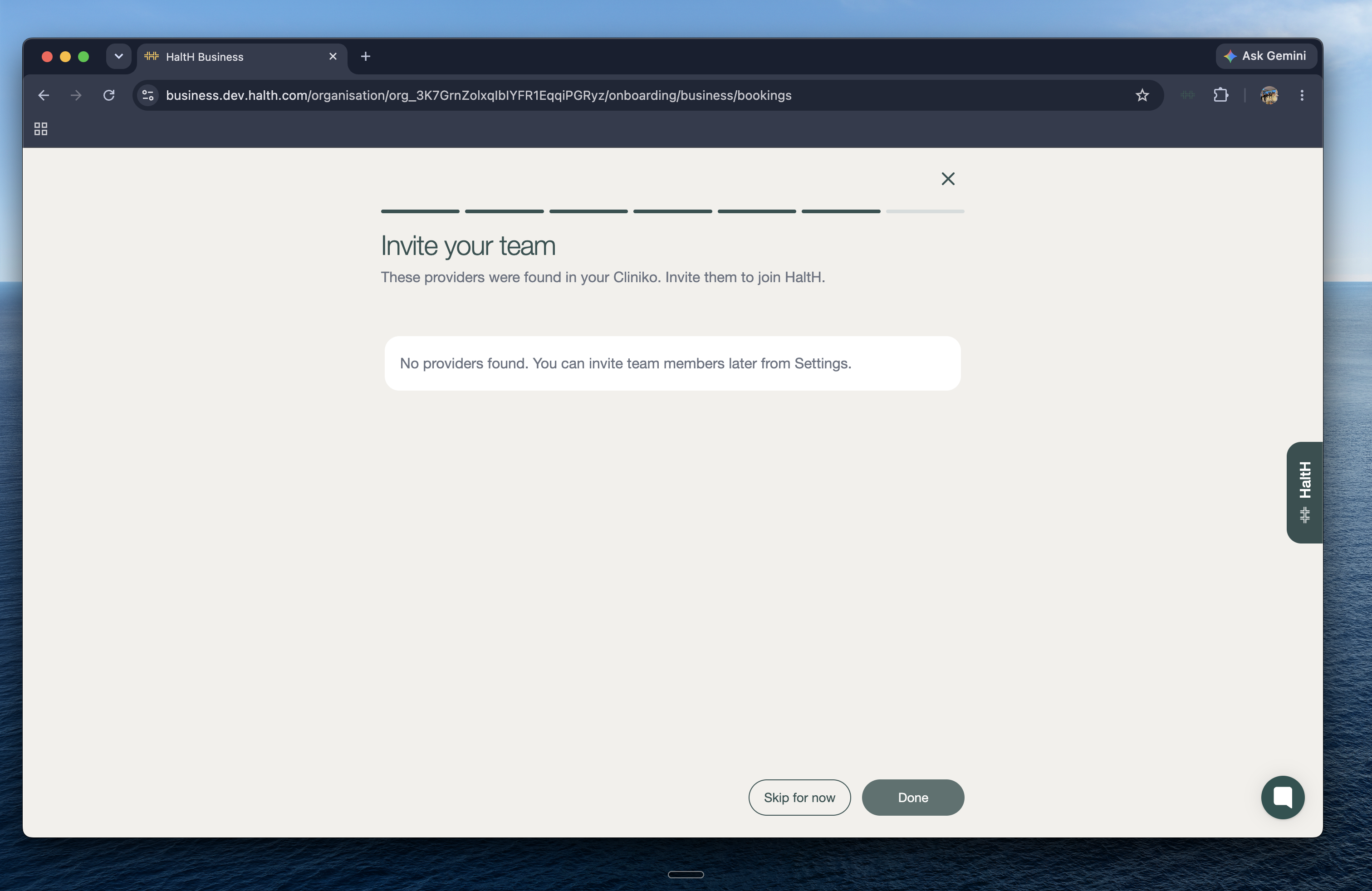
You will be given the option to invite any providers part of your PMS to your HaltH organisation.
Add the providers you'd like to include, then select Done.
Your PMS connection and booking setup are now complete.
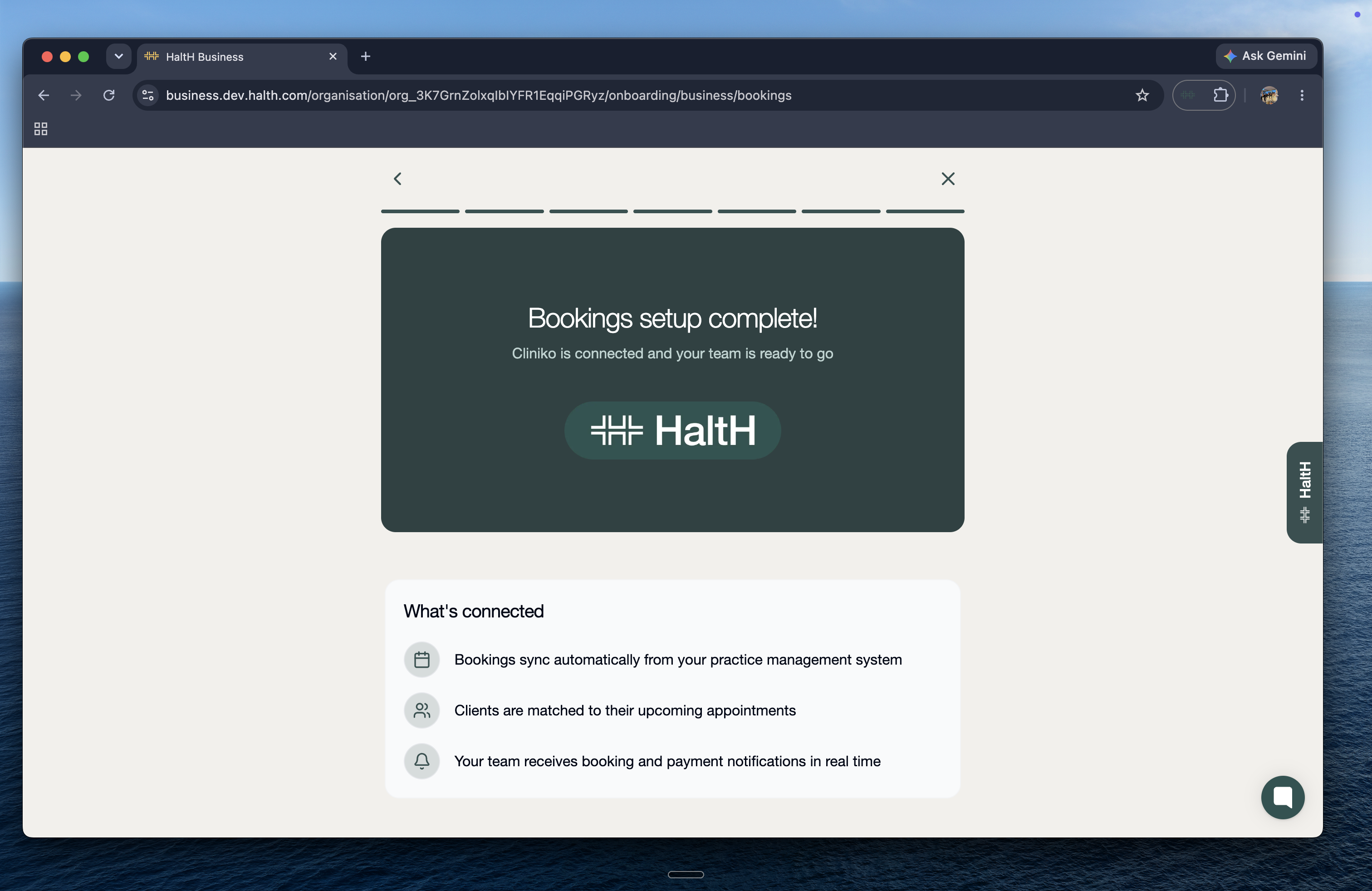
Your practice management software is connected to HaltH, and your booking setup is ready to use.
