HaltH Tap turns your phone into a card reader. Clients can tap their card or phone against yours to pay, so you can take payments anywhere in your practice without extra hardware.
HaltH Tap is part of the HaltH mobile app and uses your phone’s built-in contactless reader.
Not sure if your phone supports Tap to Pay? Check our list of supported devices before you start. →
HaltH Tap: Supported Devices
HaltH Tap lets you accept contactless payments directly on a compatible phone or device. No extra card reader is required. Below is a simple guide to which devices work and what’s required to get started.
There are two ways to take a payment: send a booking to your phone from your practice software, or start the payment straight from the HaltH app.
This is the quickest way if you’re already looking at the booking on your computer.
Make sure the HaltH app is open on your phone.
Open the booking in your practice management software (for example, Cliniko).
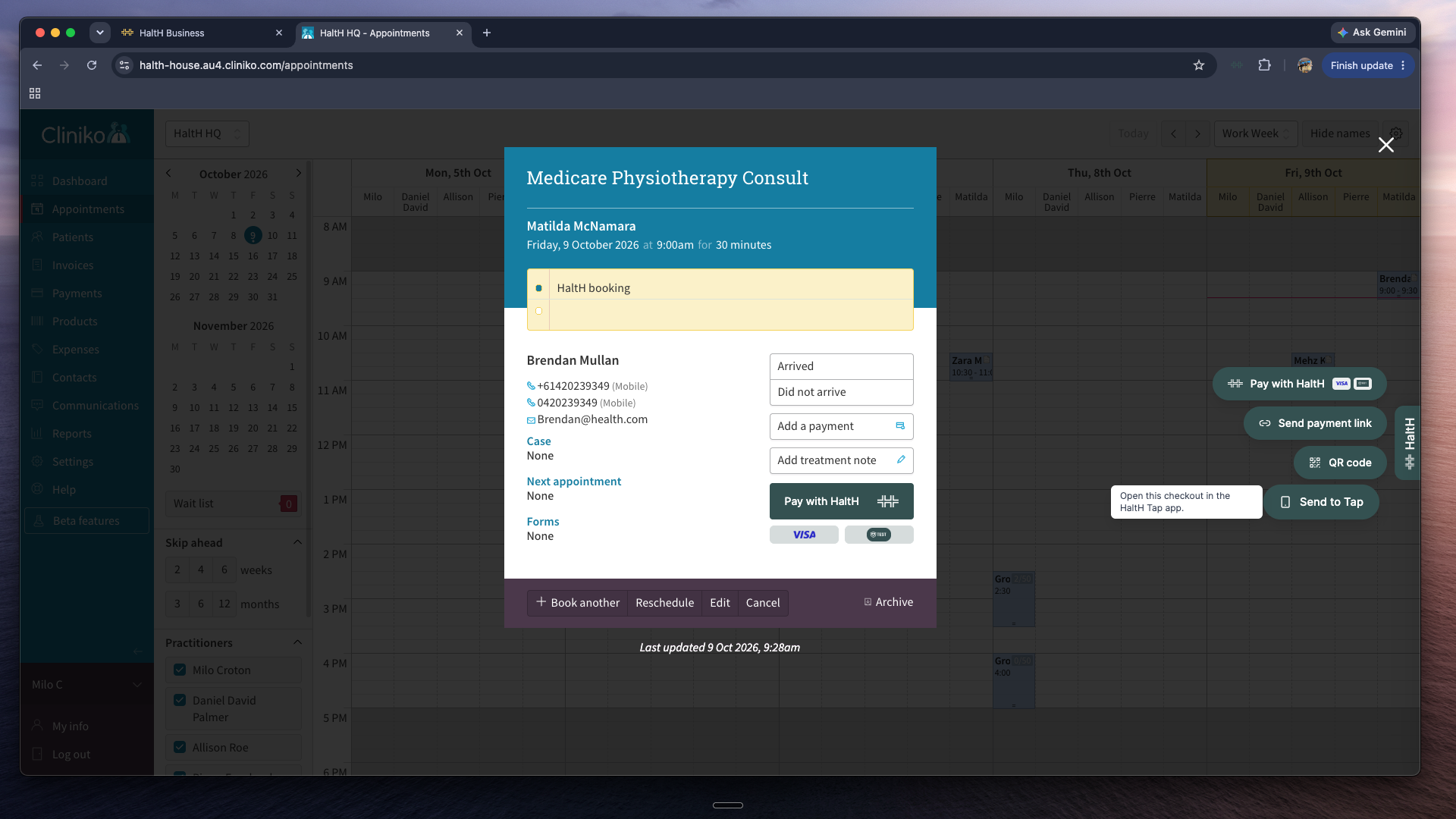
When prompted, click Send to Tap.
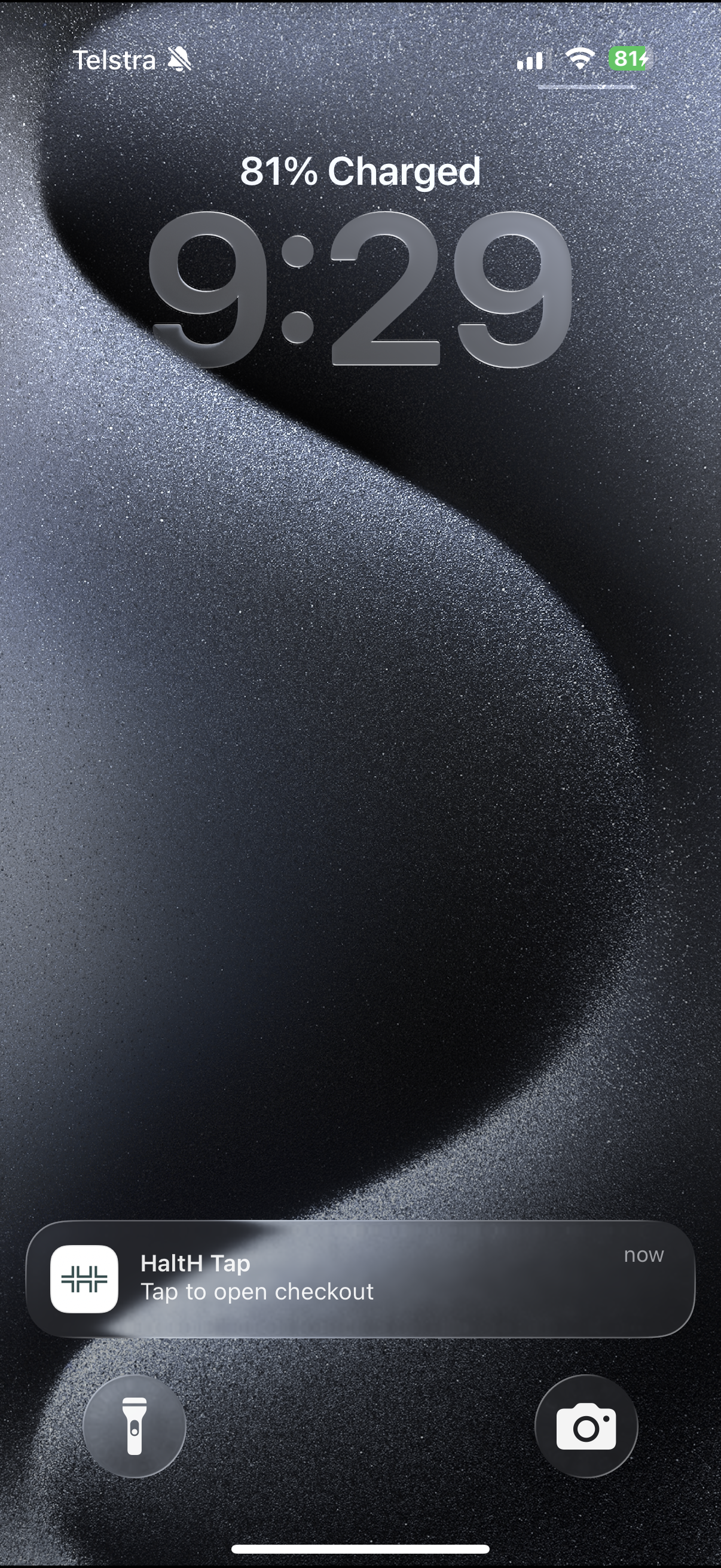
A notification will appear on your phone. Tap it to open the HaltH Tap reader with that booking ready to go.
Follow the steps under Completing the payment below.
Open the HaltH app on your phone.
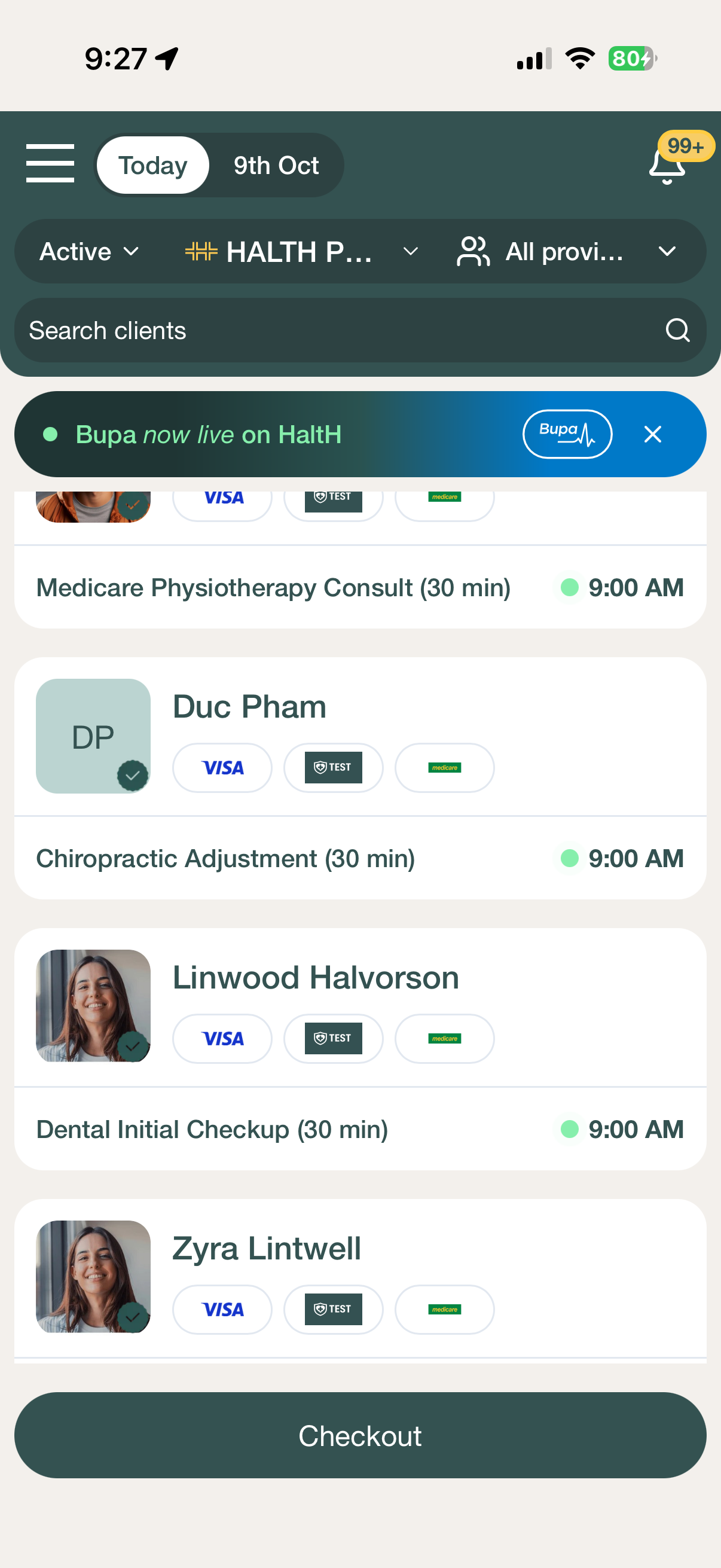
Find the booking you’d like to process.
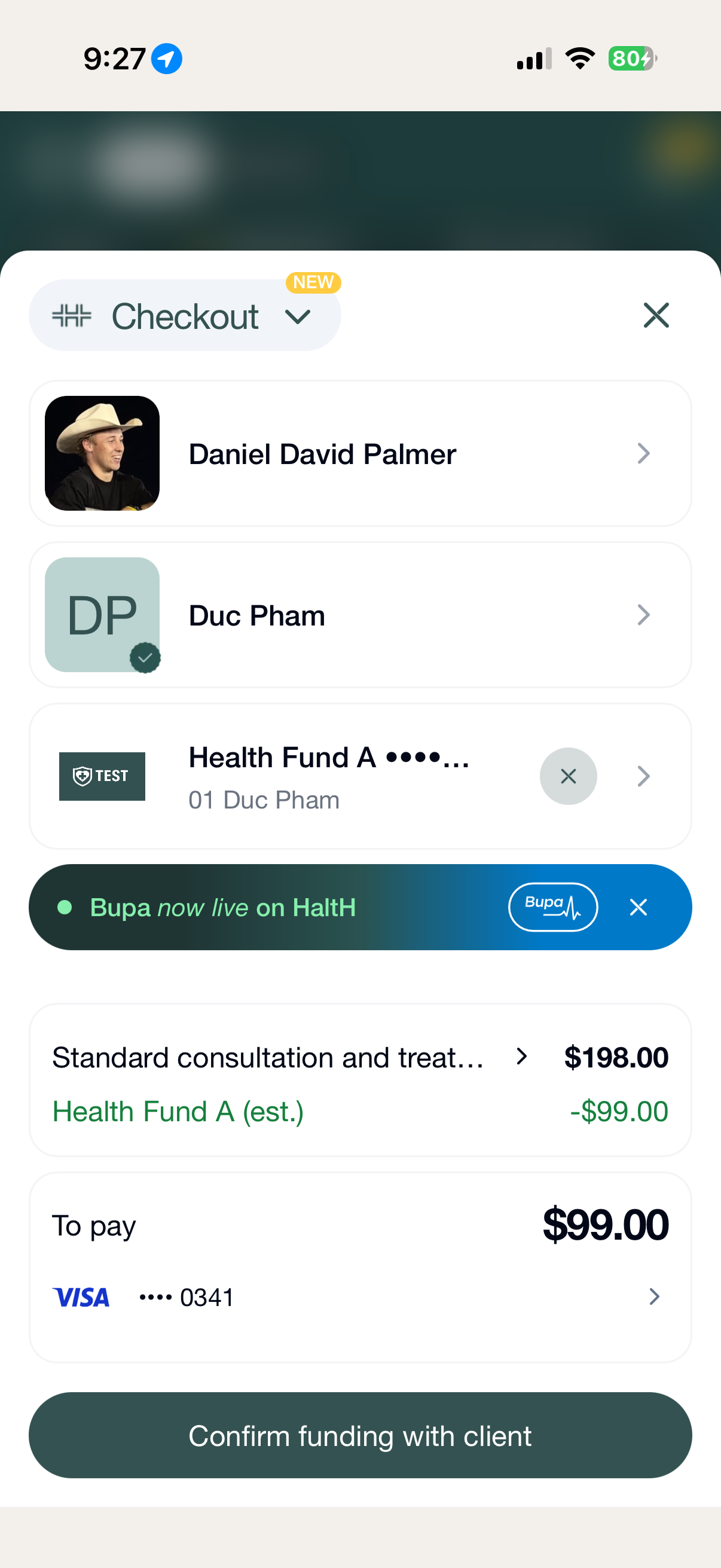
Tap To Pay.
Scroll down and select Tap to Pay.
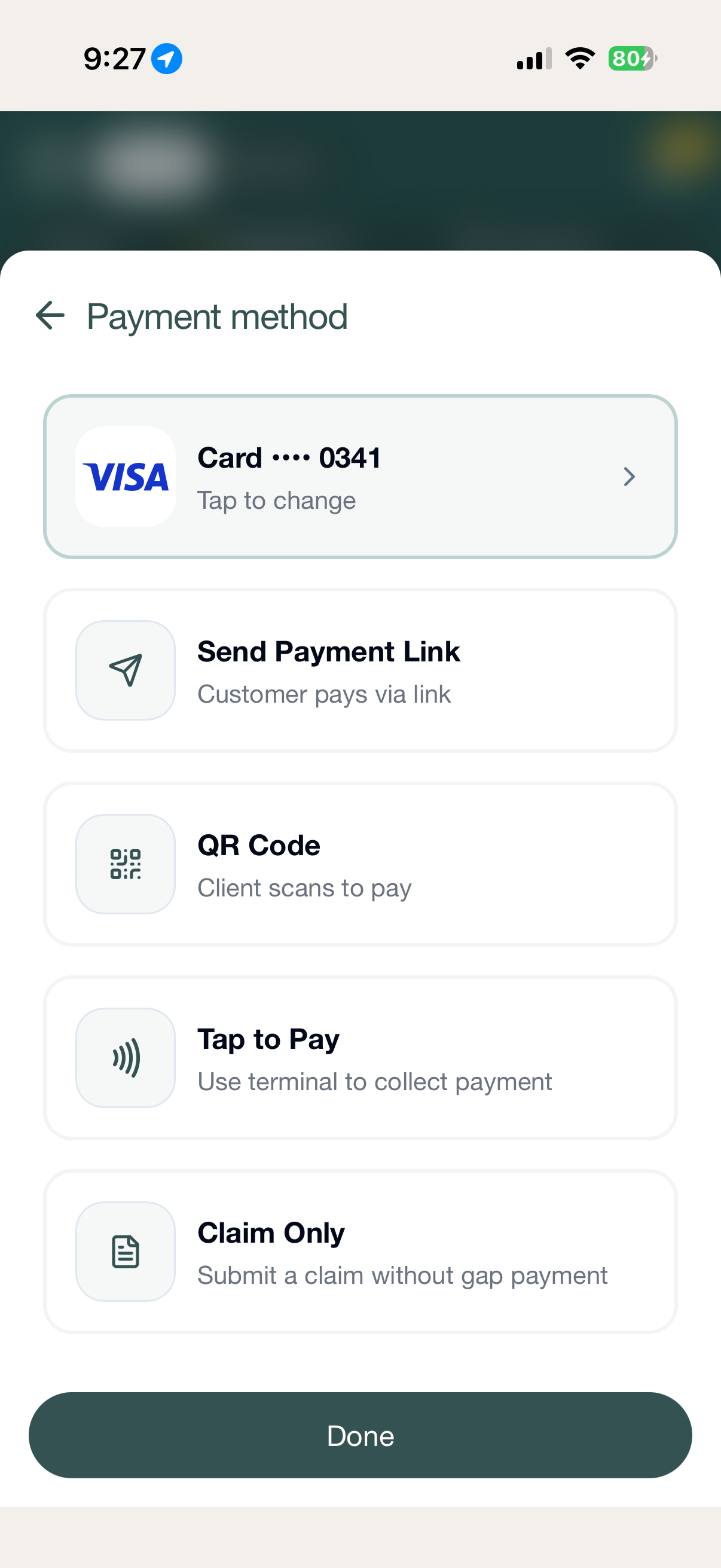
Follow the steps under Completing the payment below.
[Image: Booking in the HaltH app with Pay selected]
[Image: Tap to Pay option]
Tap Confirm funding with client.
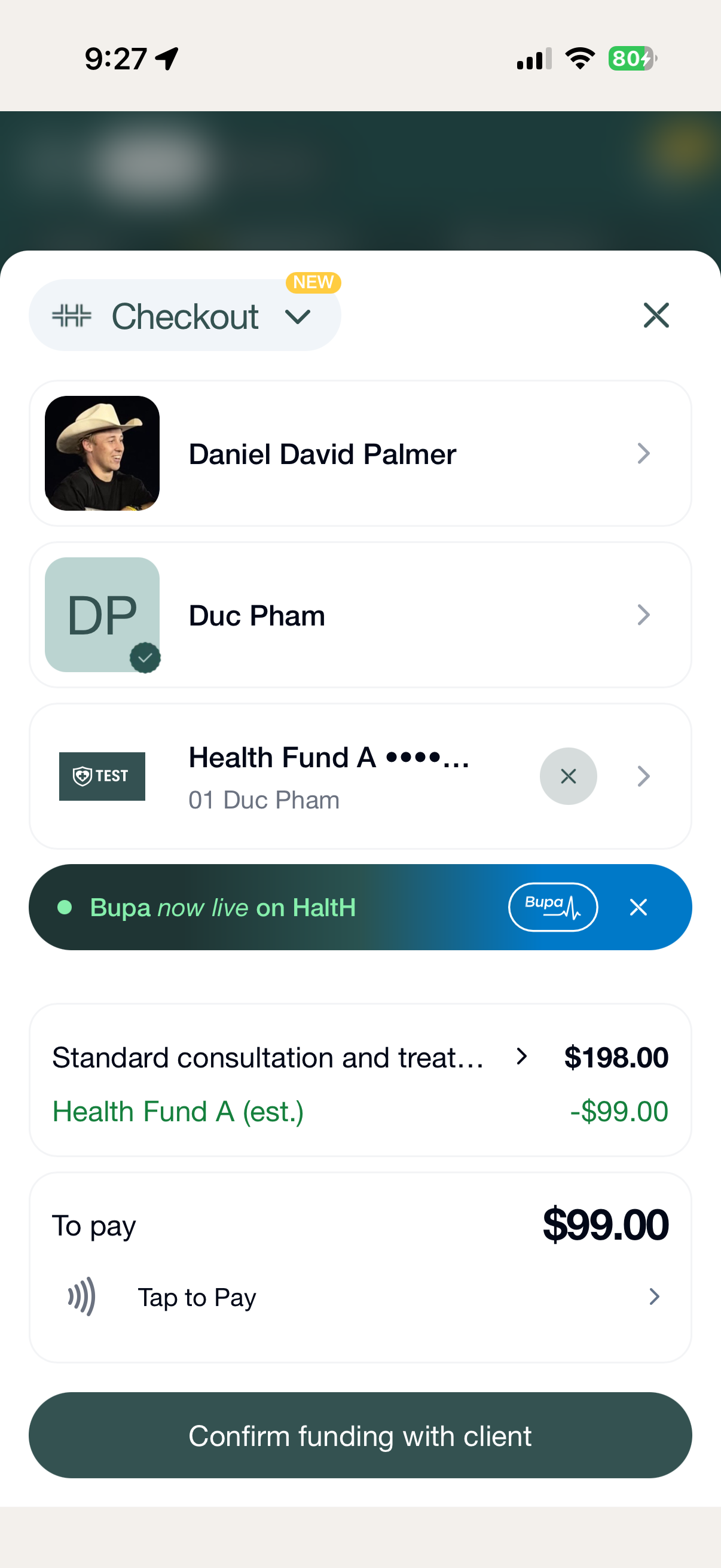
Enter the SMS code when prompted.
The card reader will open. Ask your client to hold their card or phone near the top of your phone until the payment goes through.
Good to know: Taking a payment with Tap to Pay doesn’t save your client’s card. If you’d like to keep it on file for future payments, follow the steps below.
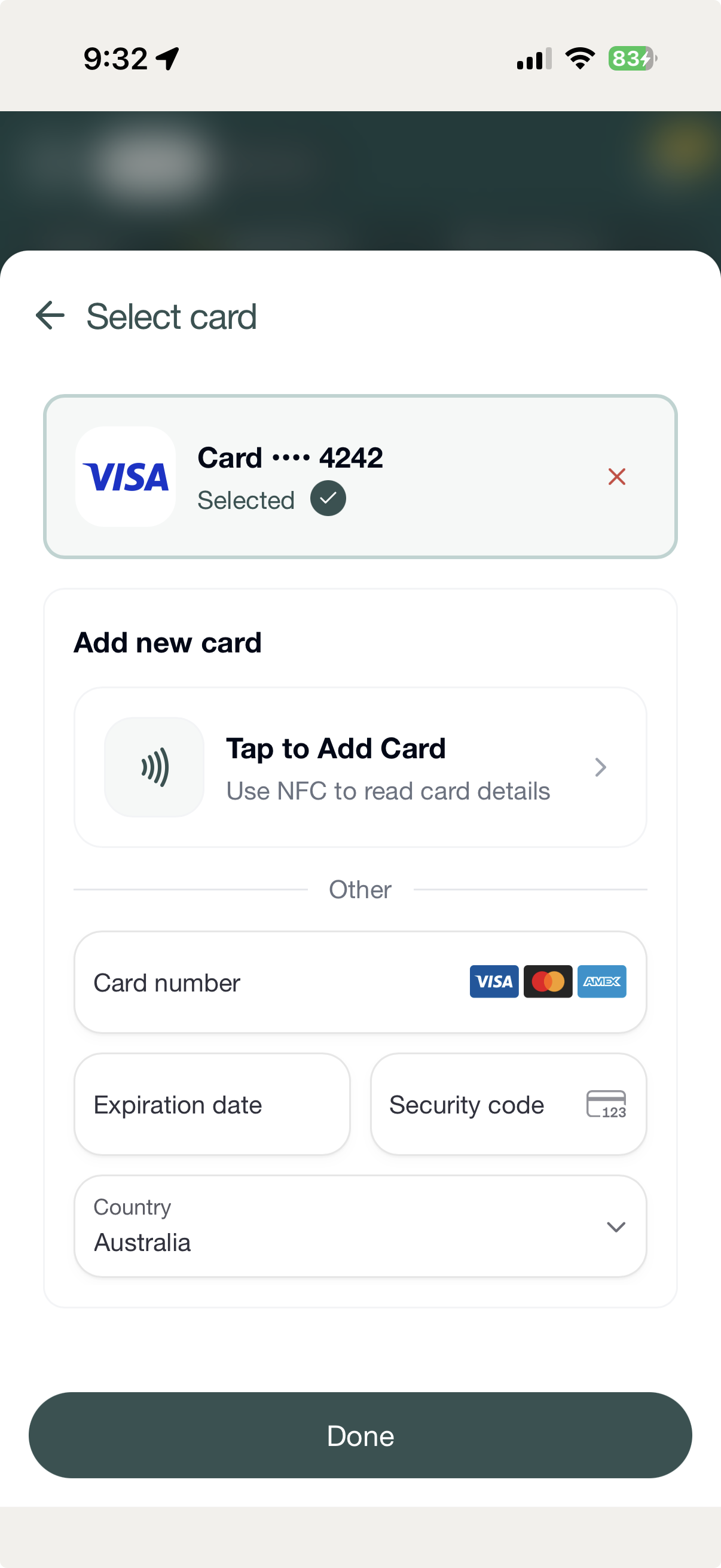
You can also use HaltH Tap to save a client’s card details, instead of charging them.
Open the booking in the HaltH app.
Tap Pay, then go to Payment method.
Select Add new card, then Tap to add card.
The card reader will open. Ask your client to tap their card, and their details will be saved securely in HaltH. They won’t be charged.
Do I need a separate card reader?
No. HaltH Tap uses the contactless reader that’s already built into supported phones.
Can clients pay with their phone or watch?
Yes. Clients can tap a physical card or a digital wallet like Apple Pay or Google Pay.
I didn’t get the Send to Tap notification.
Check that the HaltH app is open and you’re logged in, and that notifications are turned on for HaltH in your phone’s settings. You can always start the payment manually in the app instead (Option 2).
Still need help? Chat with us and we’ll help you get set up.