HaltH Extend brings HaltH into your practice software. Once it's set up, you can invite clients, take payments and reconcile without leaving your appointment book.
Google Chrome. HaltH Extend is a Chrome extension and doesn't work in other browsers.
A HaltH account for your practice. It's the same login you use for the HaltH dashboard and HaltH Tap.
Select Add to Chrome and confirm.
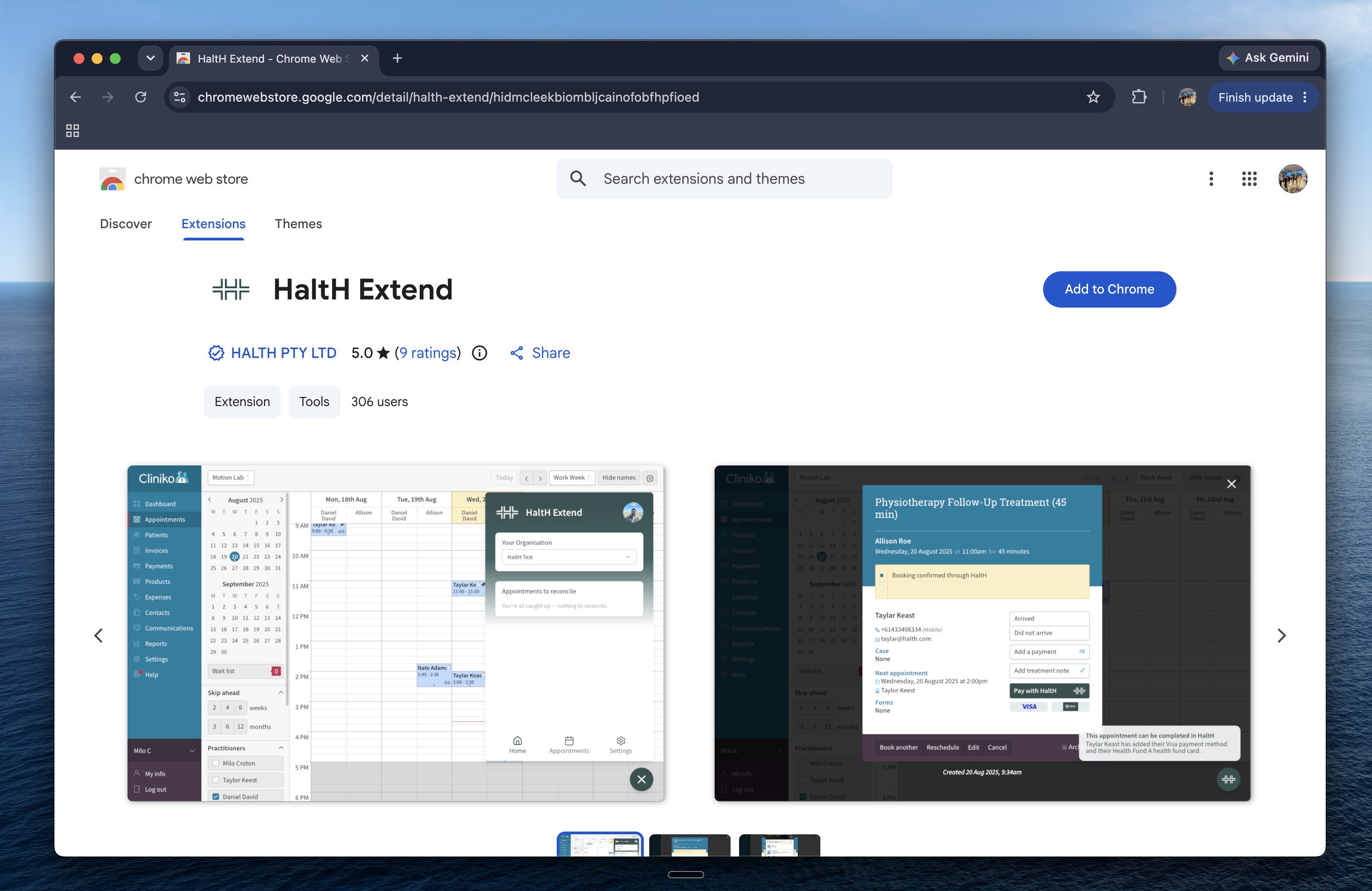
HaltH Extend runs on Cliniko and Nookal straight after you install it. Skip to step 3.
For PracSuite, Splose, Halaxy, Zanda, Coreplus, Zedmed and Jane, Chrome needs your permission first:
Open your practice software in Chrome.
Select the HaltH Extend icon in Chrome's toolbar. If you can't see it, select the puzzle piece icon first.
Select Enable on followed by your software's name, for example Enable on Pracsuite. Confirm when Chrome asks to allow access. The page reloads.
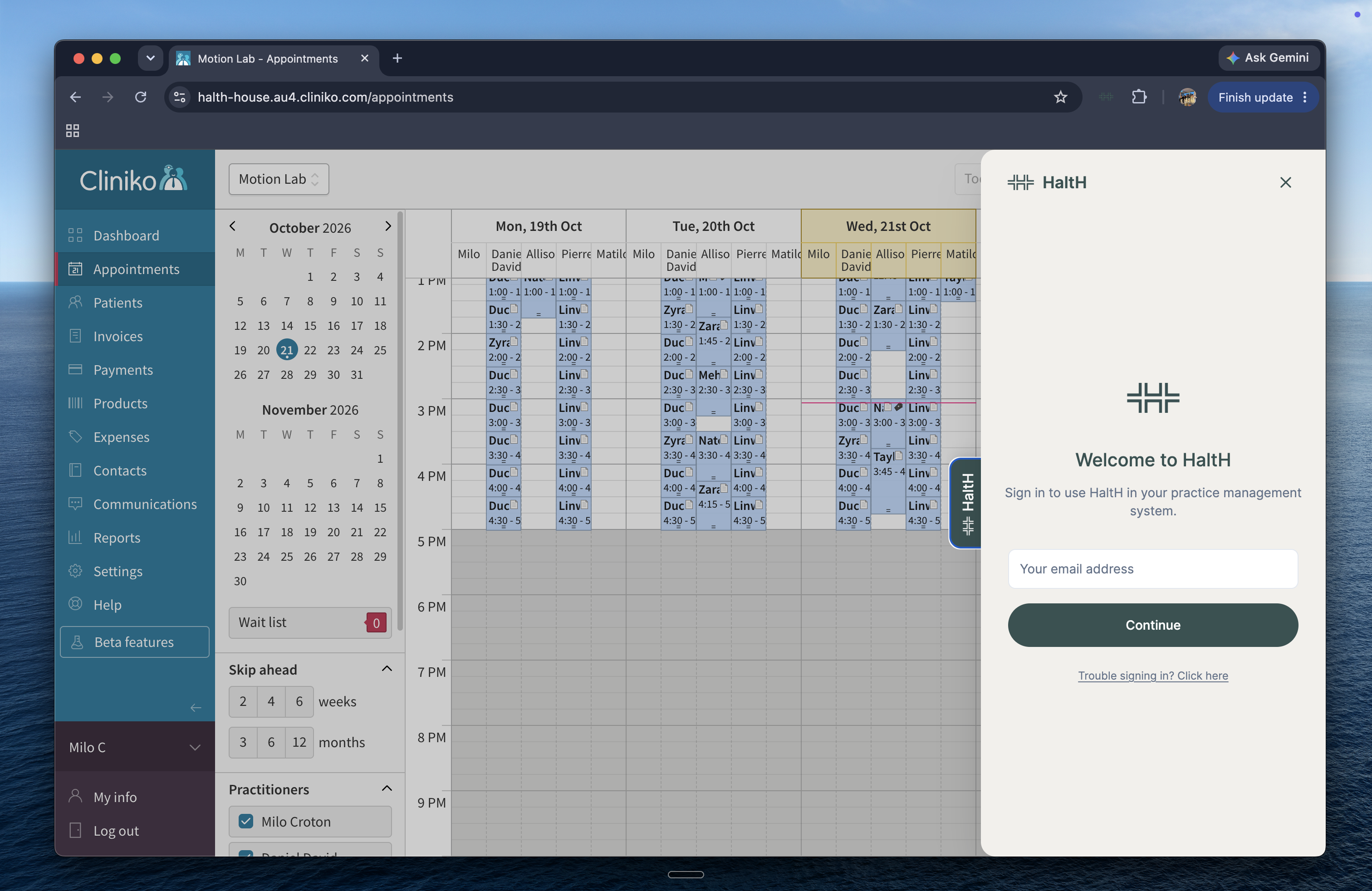
In your practice software, select the HaltH tab at the edge of the screen.
Enter your email address, then enter the code we email you.
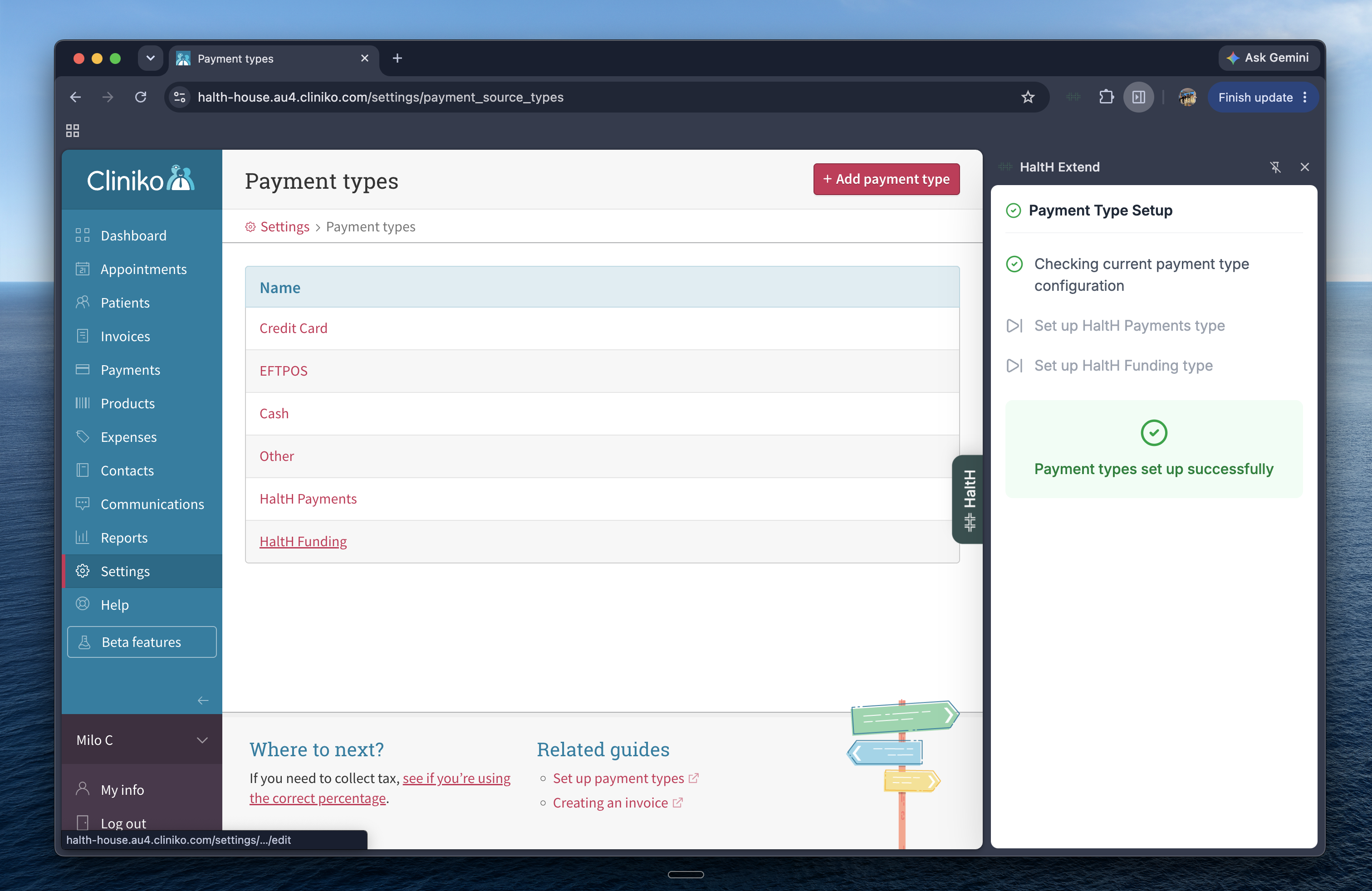
Work through the setup steps:
Get started: check you're in the right business.
Client invites: choose whether HaltH invites clients to add their payment and funding details.
Widget settings: choose which side of the screen the HaltH tab sits on.
Payment types (Cliniko only): adds the HaltH Payments and HaltH Funding payment types to Cliniko.
When you see You're all set, HaltH Extend is ready.
In Cliniko, Nookal and PracSuite, open an appointment and HaltH Extend shows buttons beside it. Which ones you see depends on the booking:
Invite client sends the client an invite to join HaltH. Shown when they aren't on HaltH yet.
Pay with HaltH opens checkout so you can take the payment now.
Send payment link lets the client pay from their own phone.
QR code shows a code the client scans to pay.
Send to Tap opens the checkout in HaltH Tap on your phone. Shown when you've used HaltH Tap recently.
Reconcile with HaltH records a paid booking in Cliniko or Nookal. In Cliniko, select it before you open the invoice.
View daily reconciliation appears on Cliniko's Daily Payments report. It compares the day's HaltH totals with Cliniko and lists bookings still to reconcile.
When an invoice is open, Pay with HaltH also appears and opens checkout using the invoice details. This is how HaltH Extend works in Splose and Halaxy.
Select the HaltH tab to see a summary of the day: appointments booked, clients with HaltH profiles ready, and payments collected.
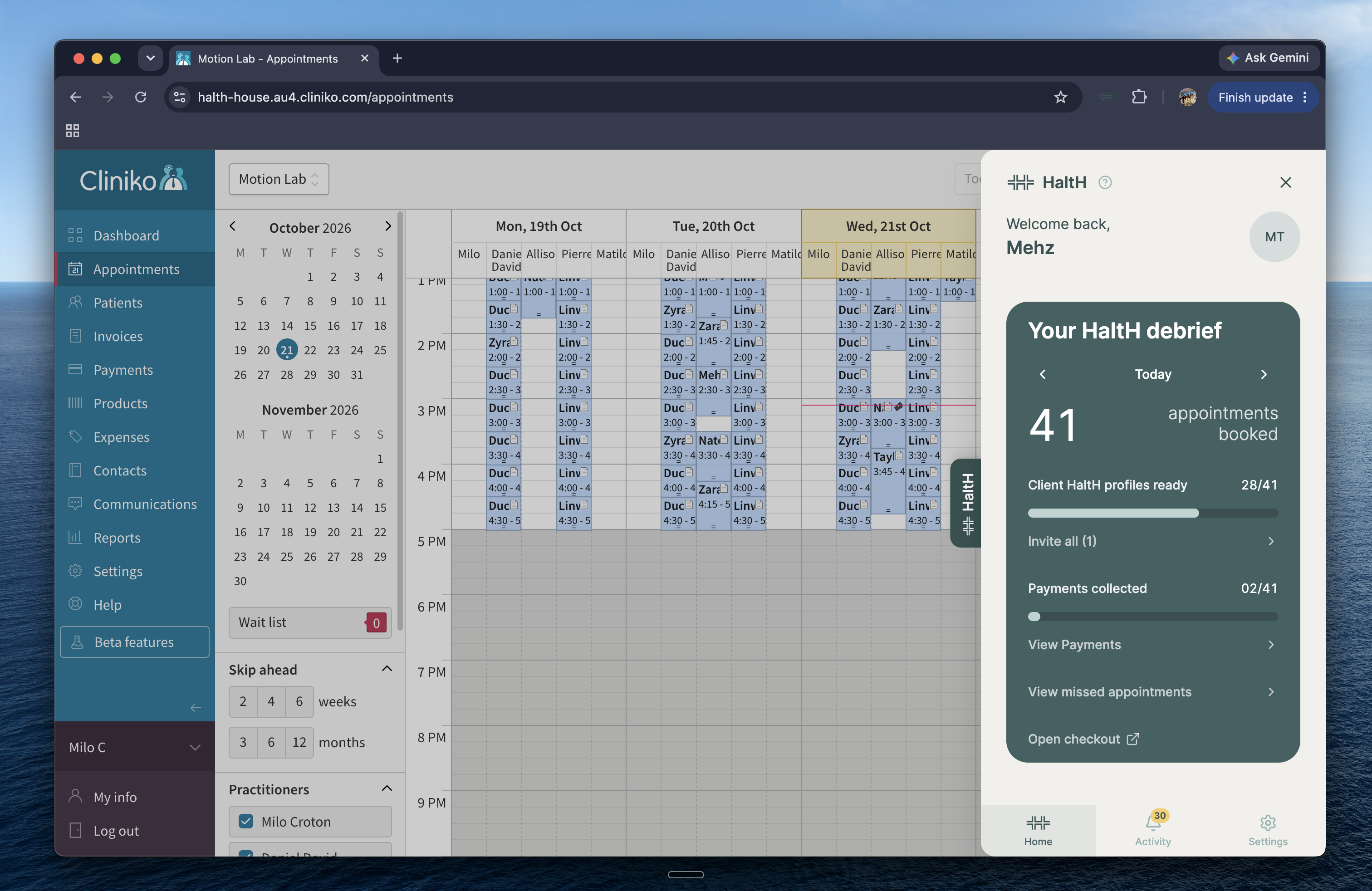
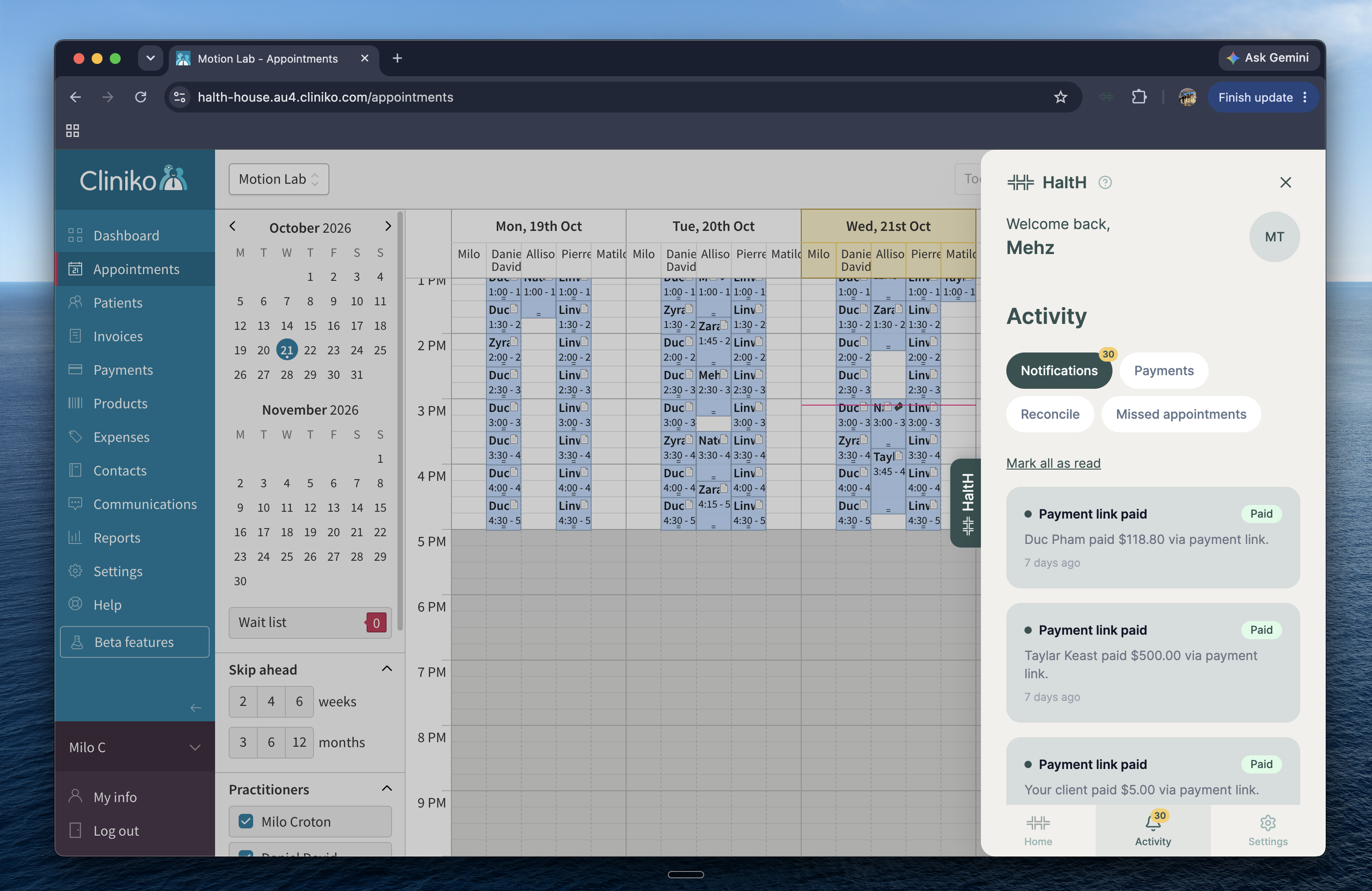
Open Activity to filter by:
Notifications, such as paid payment links.
Payments taken through HaltH.
Reconcile (Cliniko only): paid bookings still to reconcile in Cliniko.
Missed appointments: unpaid late cancellations and no-shows for the day. Select one to open it in HaltH and charge it.
Open Settings in HaltH Extend to switch business, turn client invites on or off, set up Cliniko payment types again, move the HaltH tab to the other side of the screen, or sign out.
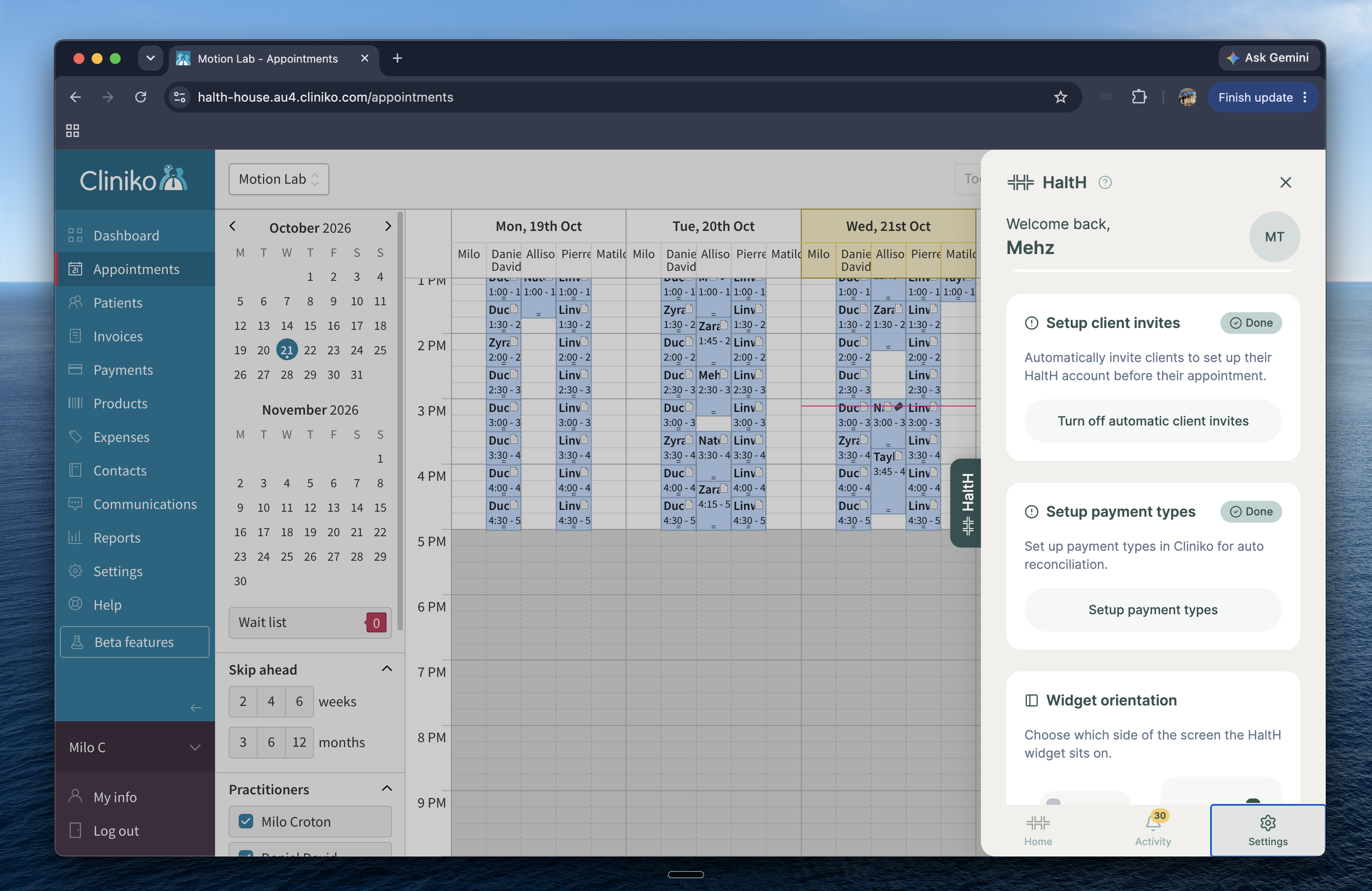
Your version number is at the bottom of Settings in HaltH Extend, next to the words HaltH Extend. Our support team may ask for it.
Chrome updates extensions automatically. To update straight away:
In Chrome, go to chrome://extensions.
Turn on Developer mode at the top right.
Select Update, then reload your practice software.
If HaltH Extend still isn't working, remove it from chrome://extensions and install it again from the Chrome Web Store. You'll need to sign in again, and turn it on again for any software that needed Enable on.
Connect Cliniko to HaltH
Sync your Cliniko locations, clients and bookings with HaltH, and reconcile HaltH payments in Cliniko.
Connect Nookal to HaltH
Sync your Nookal locations, clients and bookings with HaltH, and let HaltH reconcile paid bookings for you.
Connect PracSuite to HaltH
Connect PracSuite with an API key, then turn on HaltH Extend to take payments from your PracSuite appointments.
Using HaltH with other practice software
What works today with Splose, Halaxy, Zanda, Coreplus, Zedmed, Jane and Power Diary, and how to hear when your software is connected.
