Your booking link is where clients book with you online. This guide covers your default link, custom links, the booking form settings on each link, and the settings that apply to all your bookings.
Select Bookings in the menu on the left. Under Your links you'll see:
Your booking link, marked Default. It offers all your services at standard pricing. You get it when you connect your practice software.
Any custom links you've created.
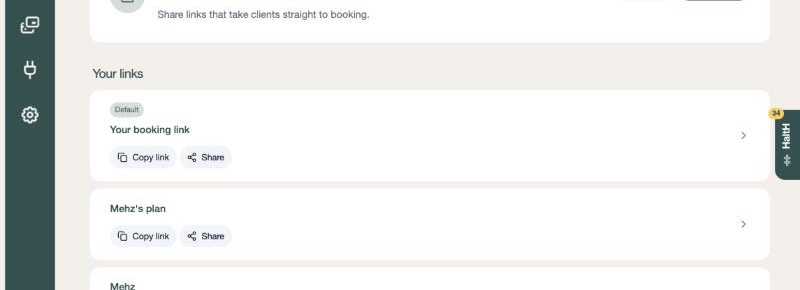
Each link has two buttons:
Copy link copies the link so you can paste it into a website, email, SMS or social post.
Share opens Share booking link, with a QR code you can download as a PNG, the Embed code for your website, an AI prompt for website builders, and Email developer.
Open a link to see its full address. Select the open icon next to it to preview the booking page as a client sees it.
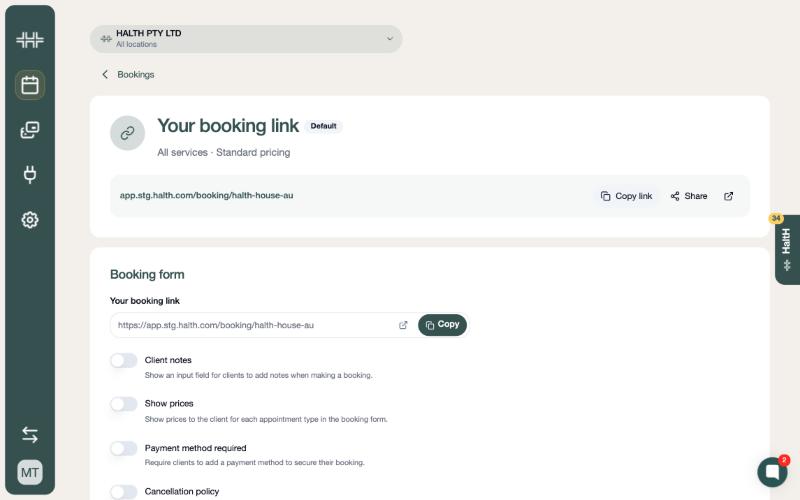
Each link has its own booking form settings. To change them, open the link and go to Booking form. Only organisation owners can see this section.
Setting | What it does |
|---|---|
Client notes | Adds a field for clients to leave a note when they book. |
Show prices | Shows the price of each service on the booking form. |
Payment method required | Clients must add a card to secure their booking. |
Cancellation policy | Turns on your cancellation fee. Enter a flat amount ($) or a percentage (%) of the service price, then the number of hours before the appointment that the fee applies (the fee if cancelled within ... hours box). |
Auto-charge for no-shows | Shows once the cancellation policy is on. Charges your cancellation fee to clients marked as Did Not Arrive, at 9am the following day. Providers can exempt a booking if needed. |
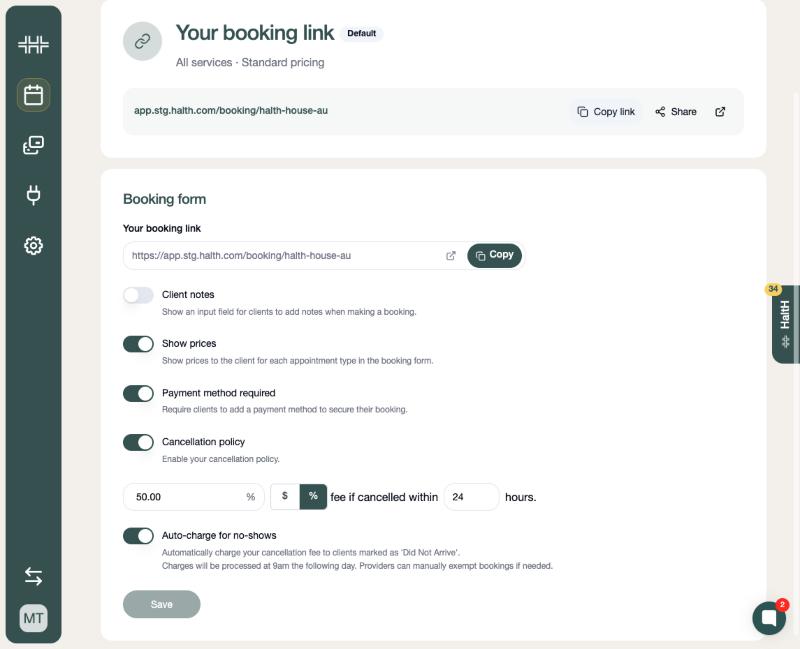
Select Save when you're done. If you haven't connected your practice software yet, you'll be asked to set up bookings first.
More on fees: Cancellation and no-show fees
Custom links let you share a set mix of locations, providers and services, with their own booking form settings. You can also take an amount off the price, which makes it a Funded link. It's useful for a new client offer or a campaign.
On Bookings, select Create link.
Select locations. Tick the locations to include. All locations also includes locations you add later. Select Continue.
Select services:
Under Providers, choose who clients can book with, or All providers.
Optional: open Default funding and enter a dollar amount or percentage to take off every service. You can also set a different amount on any selected service.
Under Services, tick the services, or turn on All services to include services you add later.
Link details. Enter a Name, such as New client offer, and set the booking form options for this link.
Select Create link.
The link's web address is based on its name where possible. A new link starts with the same booking form settings as your default link, and after that it keeps its own settings, so later changes to your default link don't carry over.
Open the link to see a summary: Default funding, Services, Locations, Providers and Created, plus the funding for each service. Clients who book through a funded link see the reduced price.
On Bookings, open the link.
Select Edit to change its locations, providers, services or name, then Save changes.
Or select Delete, then Delete again to confirm. Clients can no longer book with that link. Bookings already made with it aren't affected.
Your default link can't be deleted. Only organisation owners can create, edit or delete links.
On Bookings, select Settings (top right). These apply across your links:
Location Photos and Provider Photos: the images clients see when they choose a location or provider.
Analytics: your Google Tag Manager and Meta Pixel IDs. Track HaltH bookings in Google Tag Manager and Google Ads
Notifications: turn on Booking notifications for clients (confirmation, reminder and cancellation emails) and Booking notifications for providers (an email when a client creates or cancels a booking). Booking emails and texts: what's sent and when
Website Embed: the code to put the booking form on your website. Add HaltH bookings to your website
Provider Funding: funding settings for your providers.
Provider and location booking links
Find a booking link for each provider and location, or create a custom link for the providers and services you choose.
Cancellation and no-show fees
Set a cancellation policy on your booking link, then charge late cancellation and no-show fees automatically or from checkout.
