You're set up. Here's how to check out an appointment from start to finish. Every way of opening a booking leads to the same HaltH checkout.
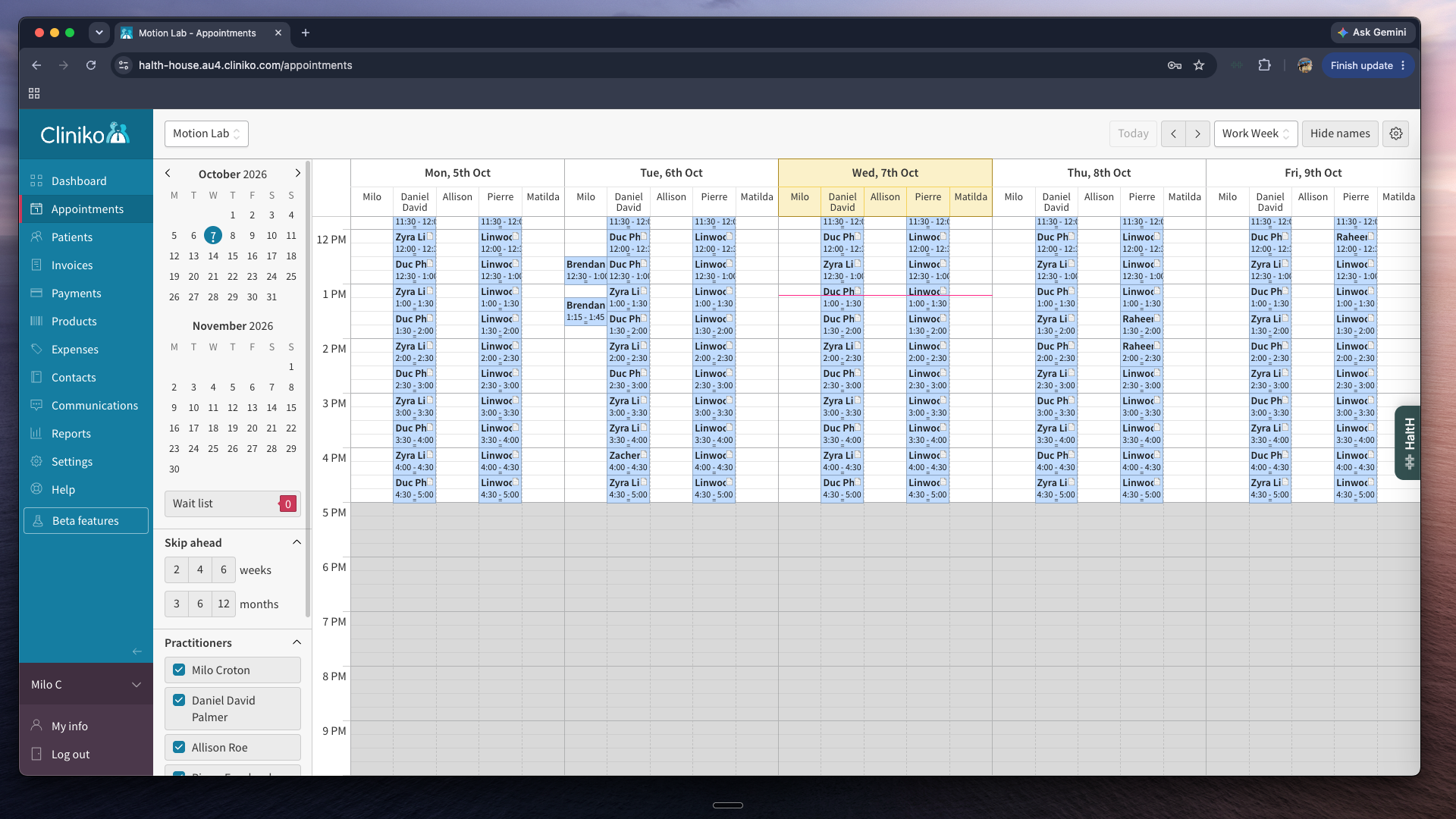
In Cliniko, Nookal or PracSuite, open the appointment.
Select Pay with HaltH. You'll need HaltH Extend installed.
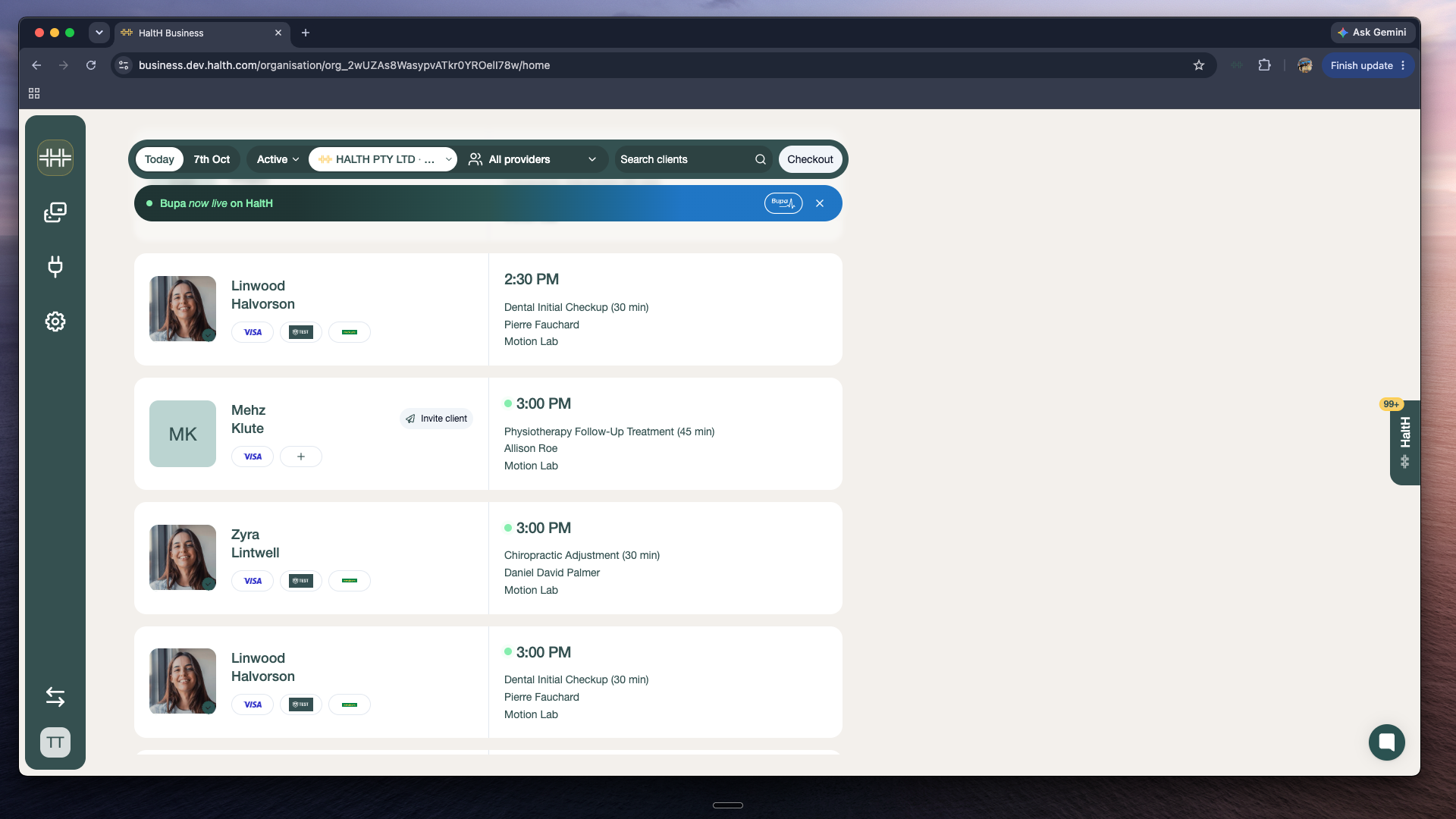
On Home, select the appointment in the day view to open checkout. On your phone, open the appointment in HaltH Tap and tap Pay.
Make sure the items, the client's funding (health fund, Medicare or DVA card) and the payment method are right.
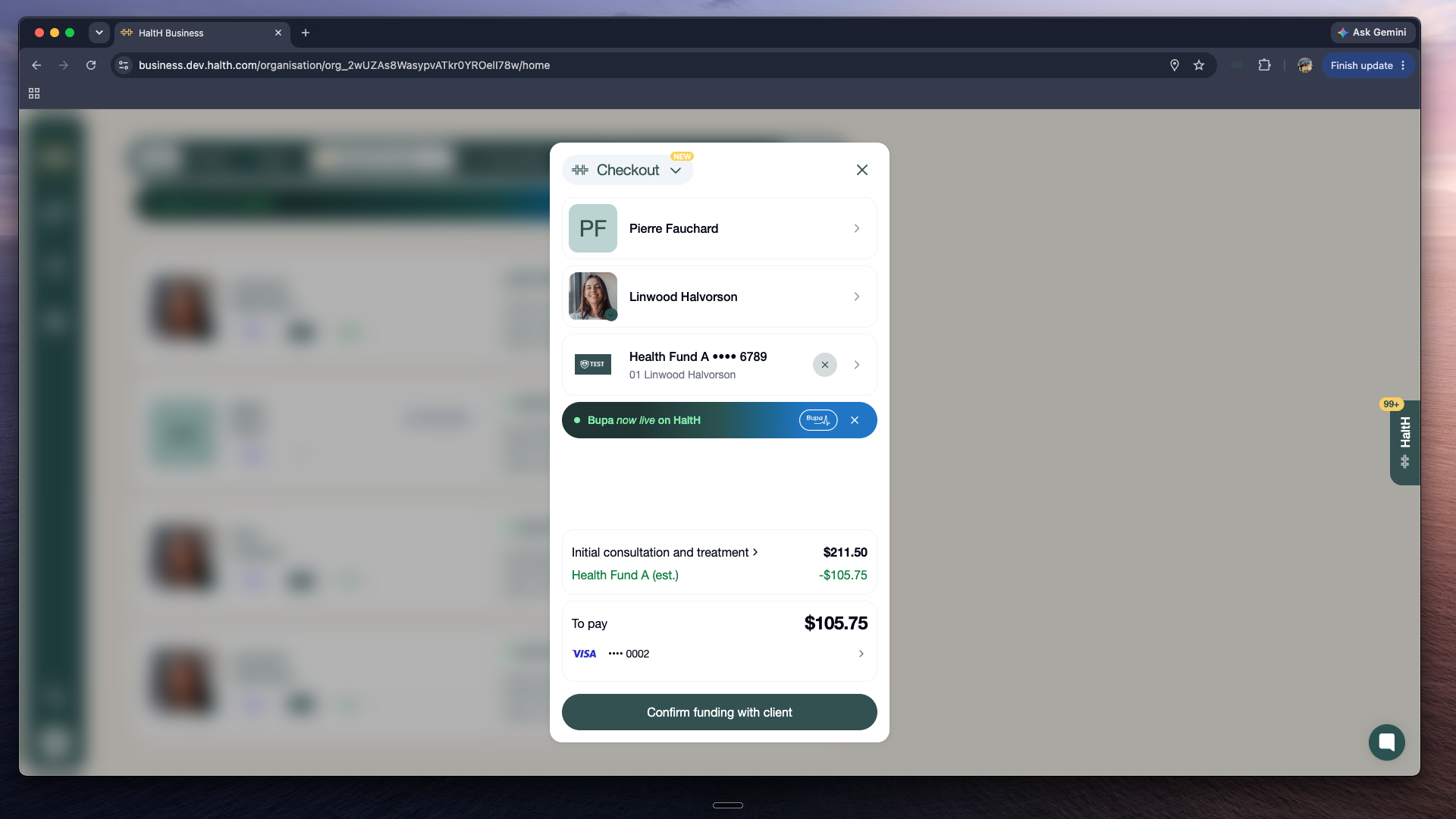
For more detail on each type of funding:
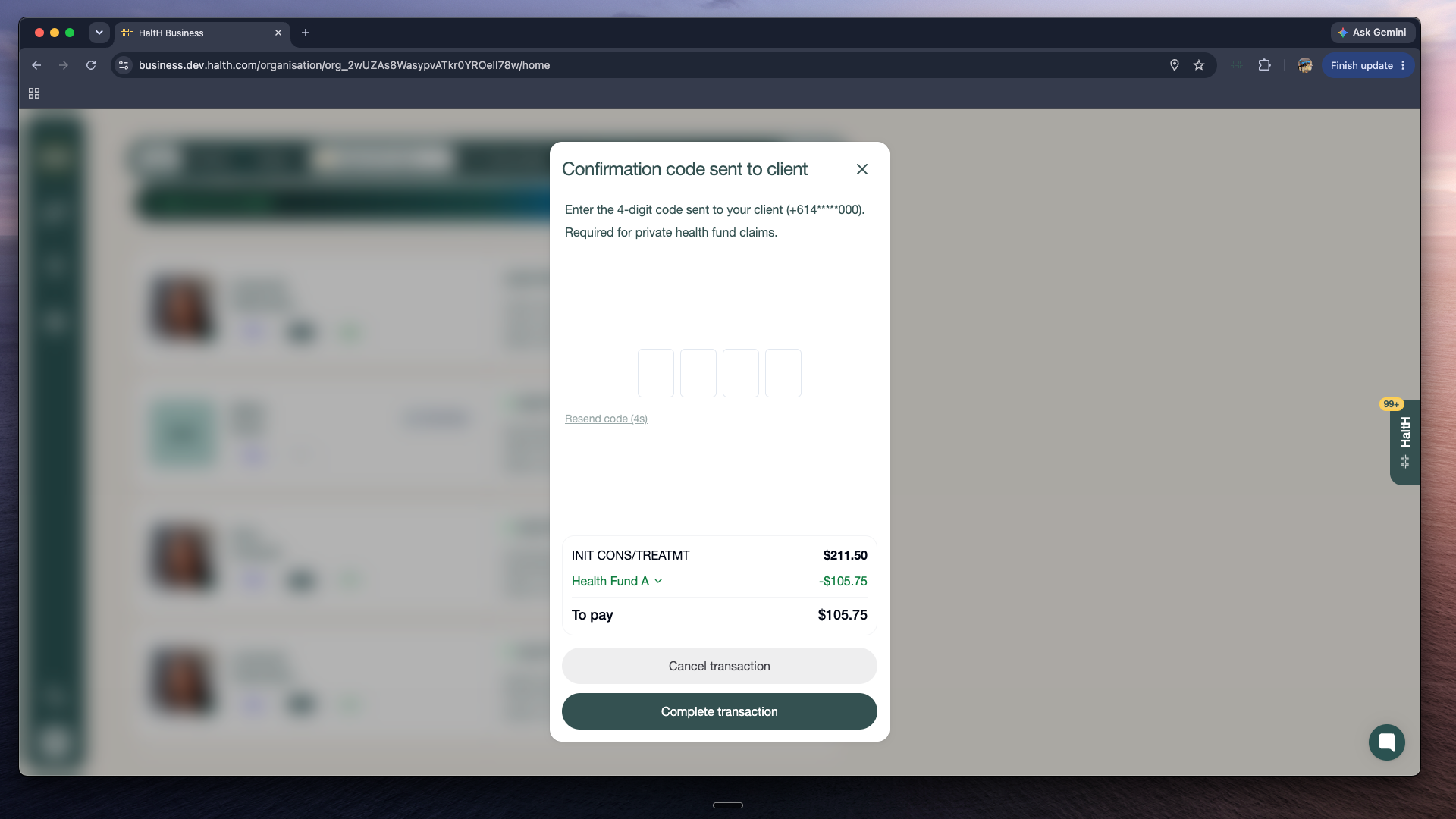
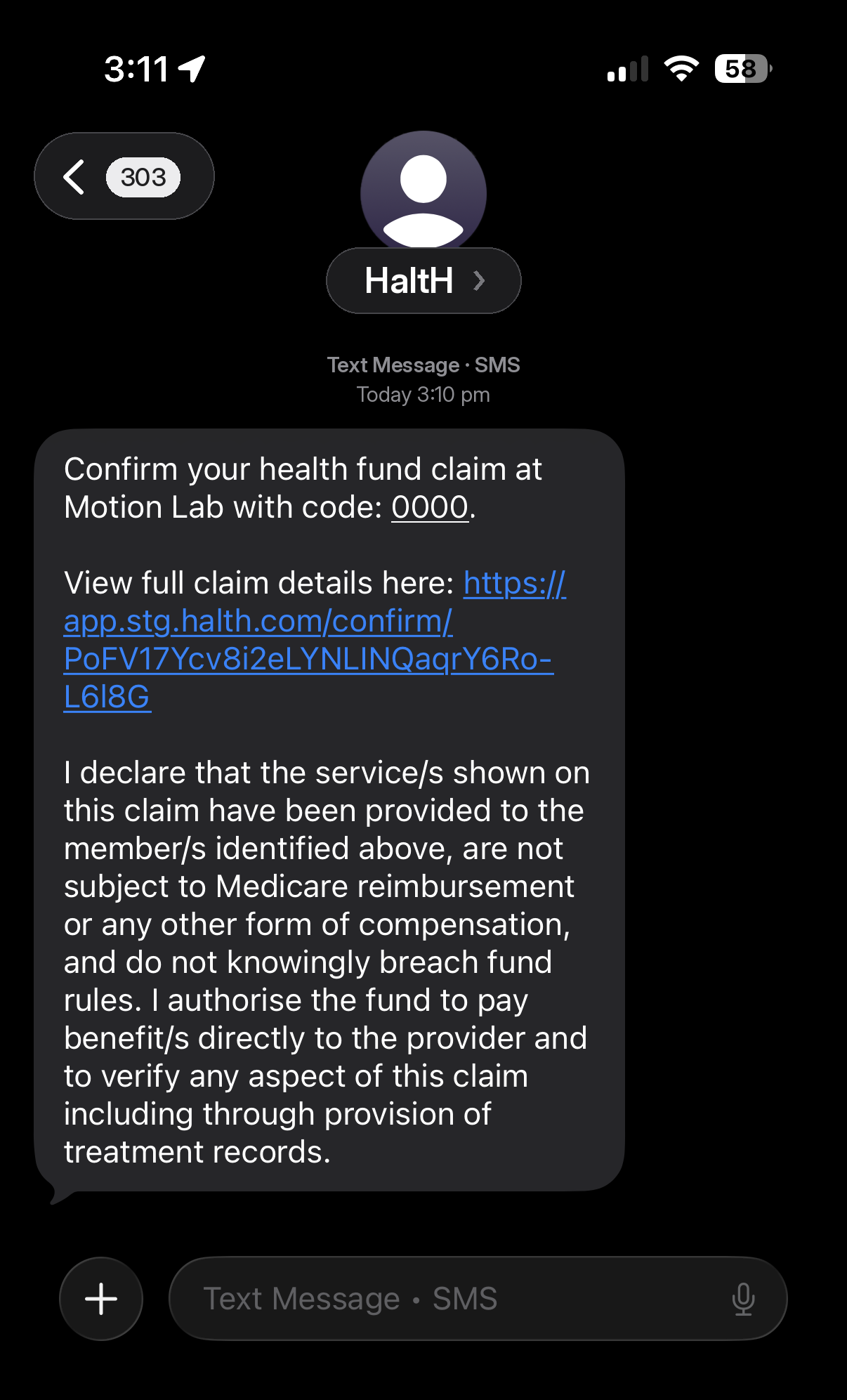
Select Confirm funding with client. HaltH texts a 4-digit code to the client's mobile.
Ask the client to read the code out, enter it and select Complete transaction.
Done. The claim and payment go through together, and the client gets a digital receipt automatically. You can download it too.
Cliniko: open the appointment again and select Reconcile with HaltH before you open the invoice. HaltH fills in the invoice and marks it paid.
Nookal: with auto-reconciliation turned on, the invoice is created for you shortly after the appointment.
That's your setup complete. Questions? Message us from the chat bubble.
