Welcome to HaltH. This guide is for practitioners whose practice already uses HaltH. Setting up the practice itself? Start with Getting started for businesses instead.
Getting ready to take payments and claim takes three steps:
Set up your provider profile (this guide)
Open the invite email from your practice and follow the link. Log in with the code we send to your email. There's no password: you'll get a new code each time you log in.
No invite? Ask your practice owner to invite you from Settings → Team. Or sign up at halth.com with your work email and select Request access next to your practice.
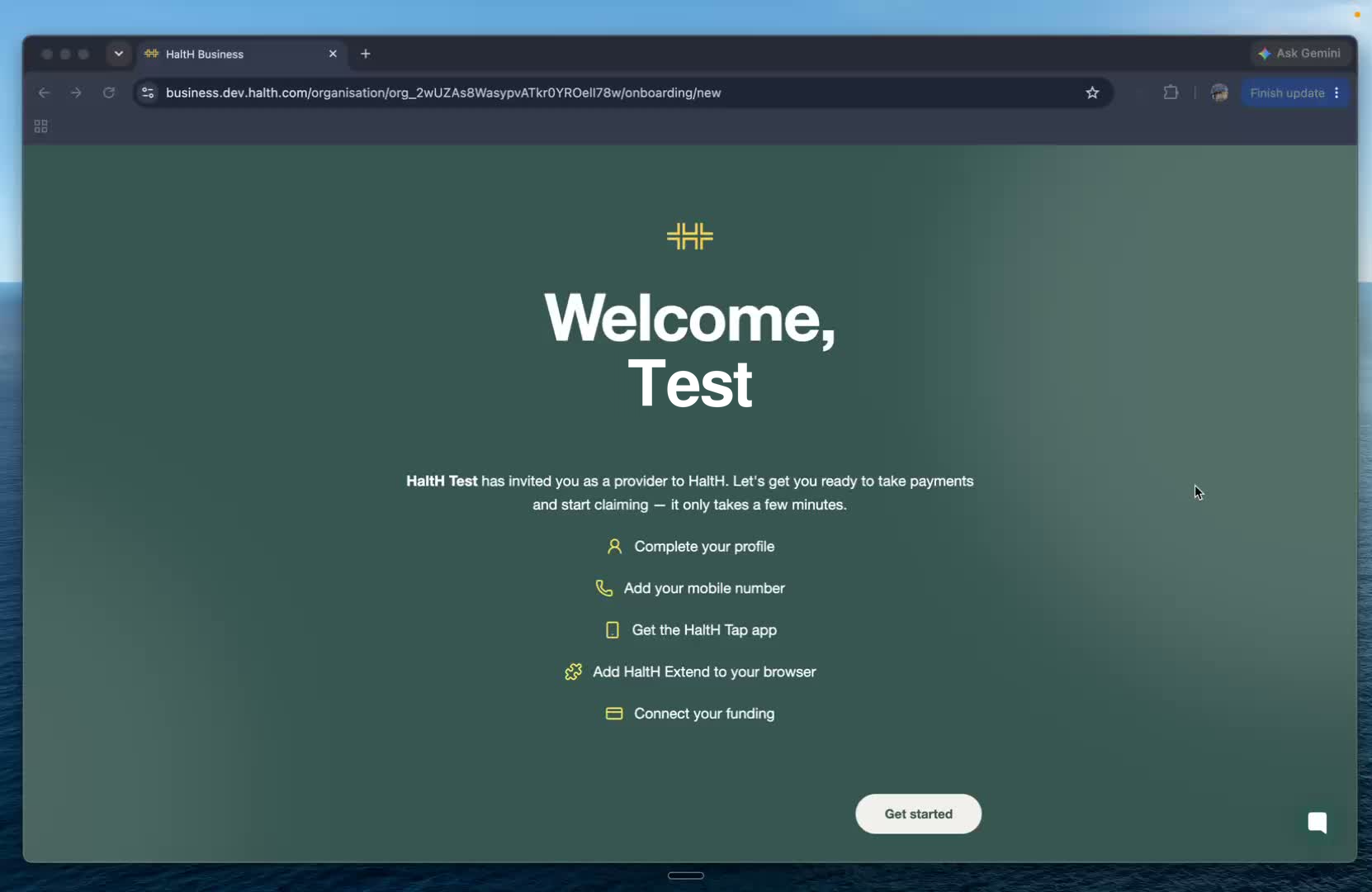
You'll see what's involved. Select Get started.
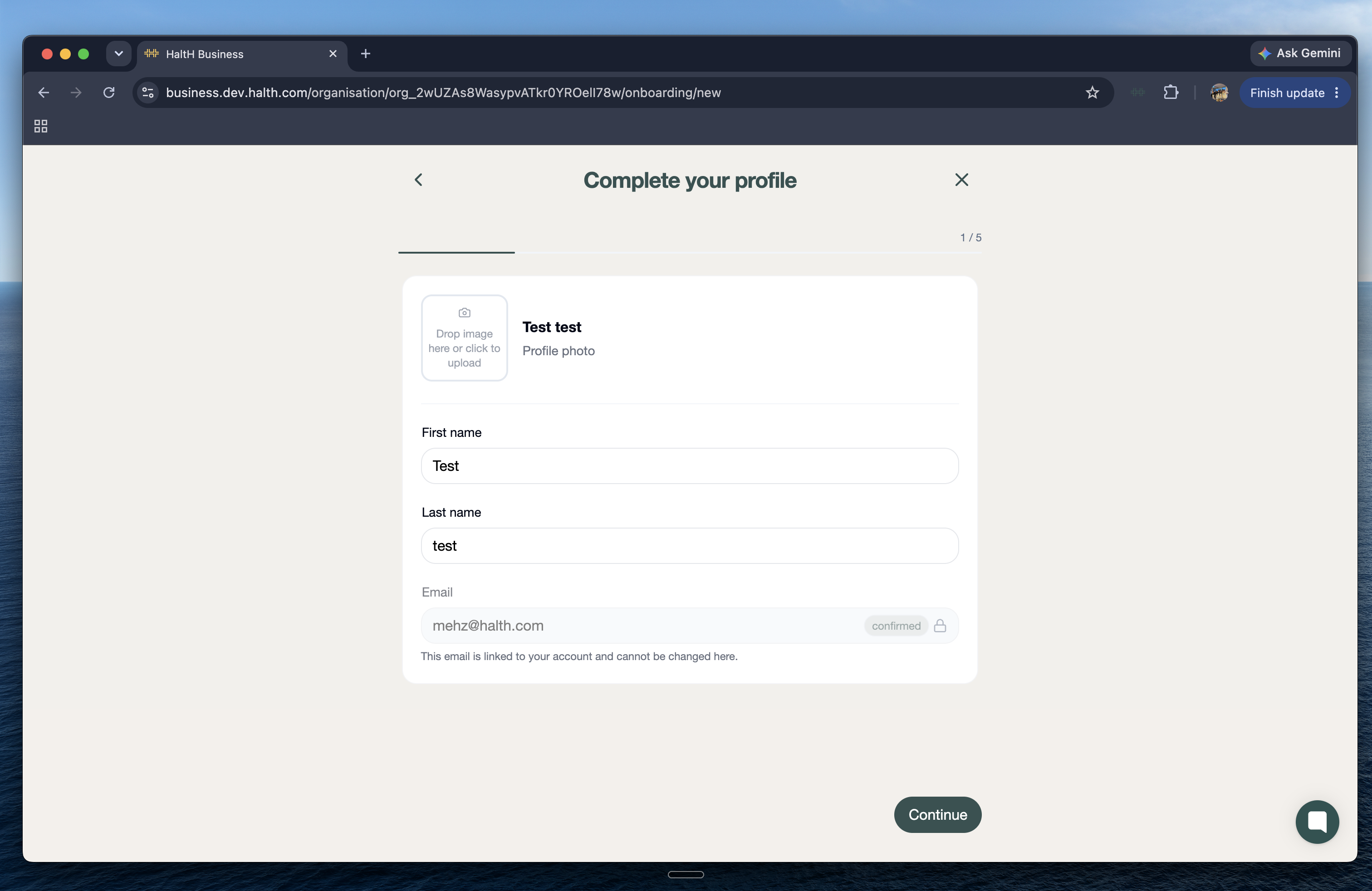
Check your first and last name and add a profile photo, then select Continue. Your email comes from your invite and can't be changed here.
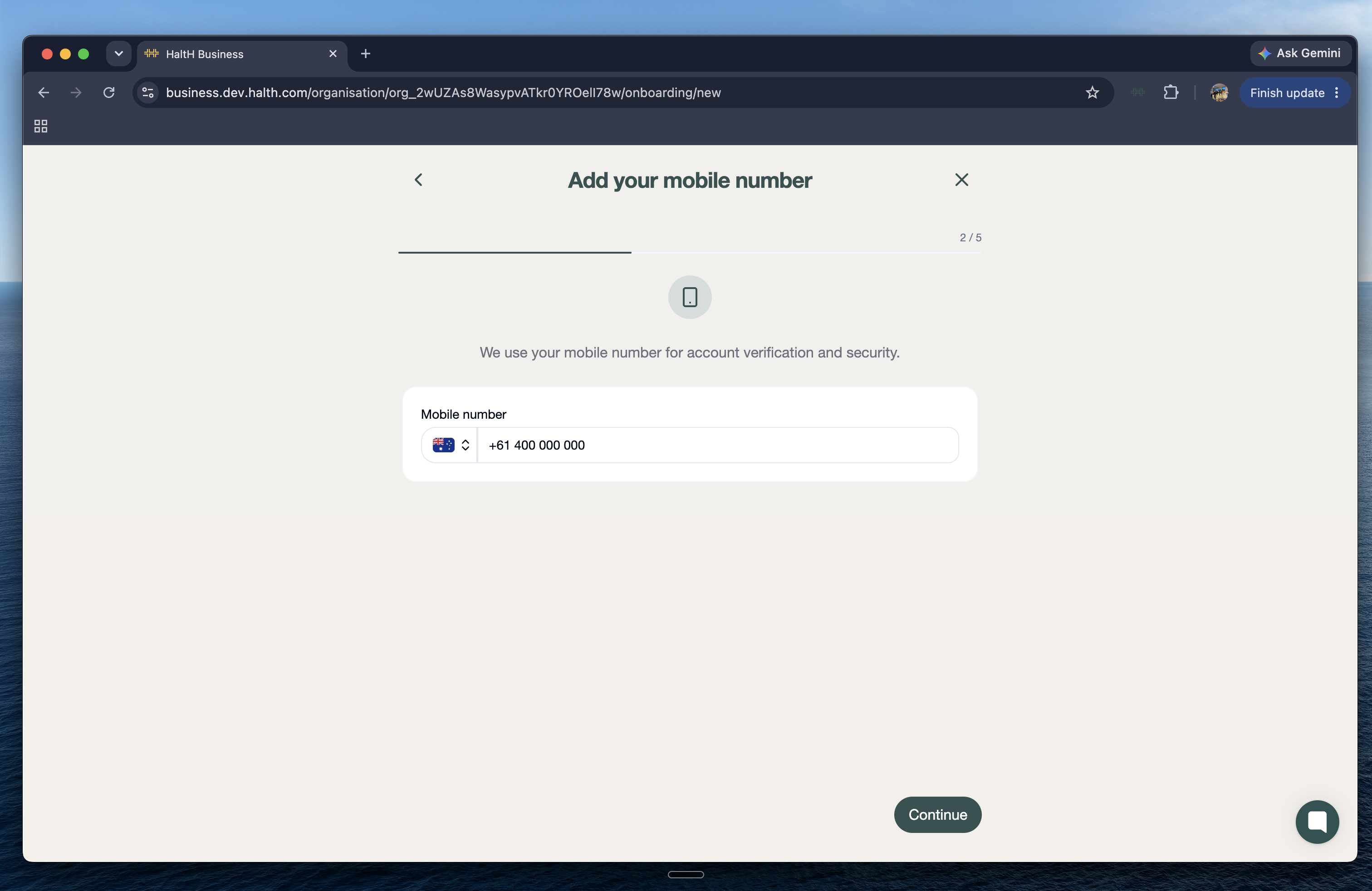
Enter your mobile number. It's used to verify your account and keep it secure. Select Continue.
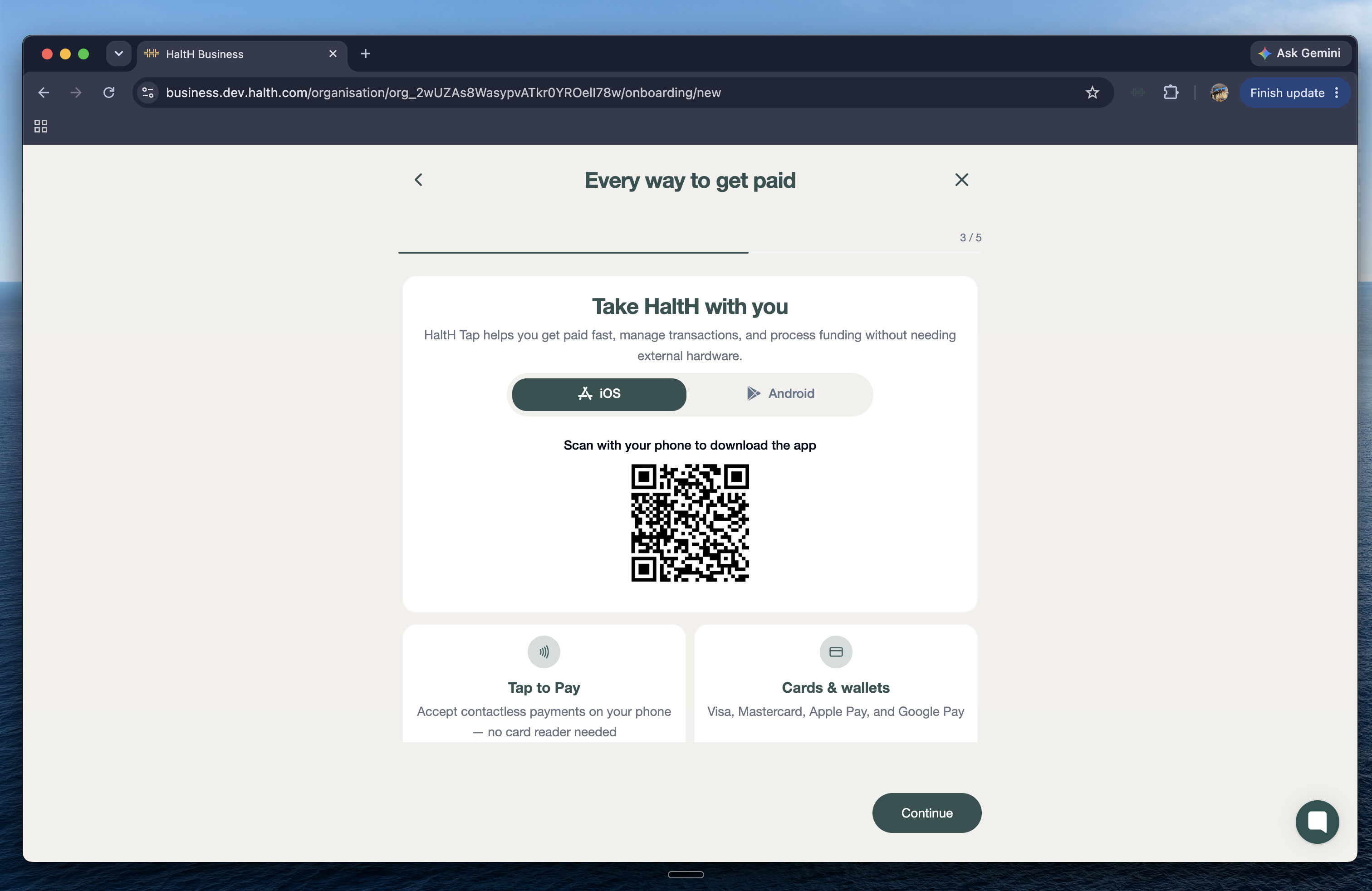
Scan the QR code with your phone to install HaltH Tap for iPhone or Android. It turns your phone into a card reader and lets you claim private health and Medicare from anywhere in the clinic. Select Continue.
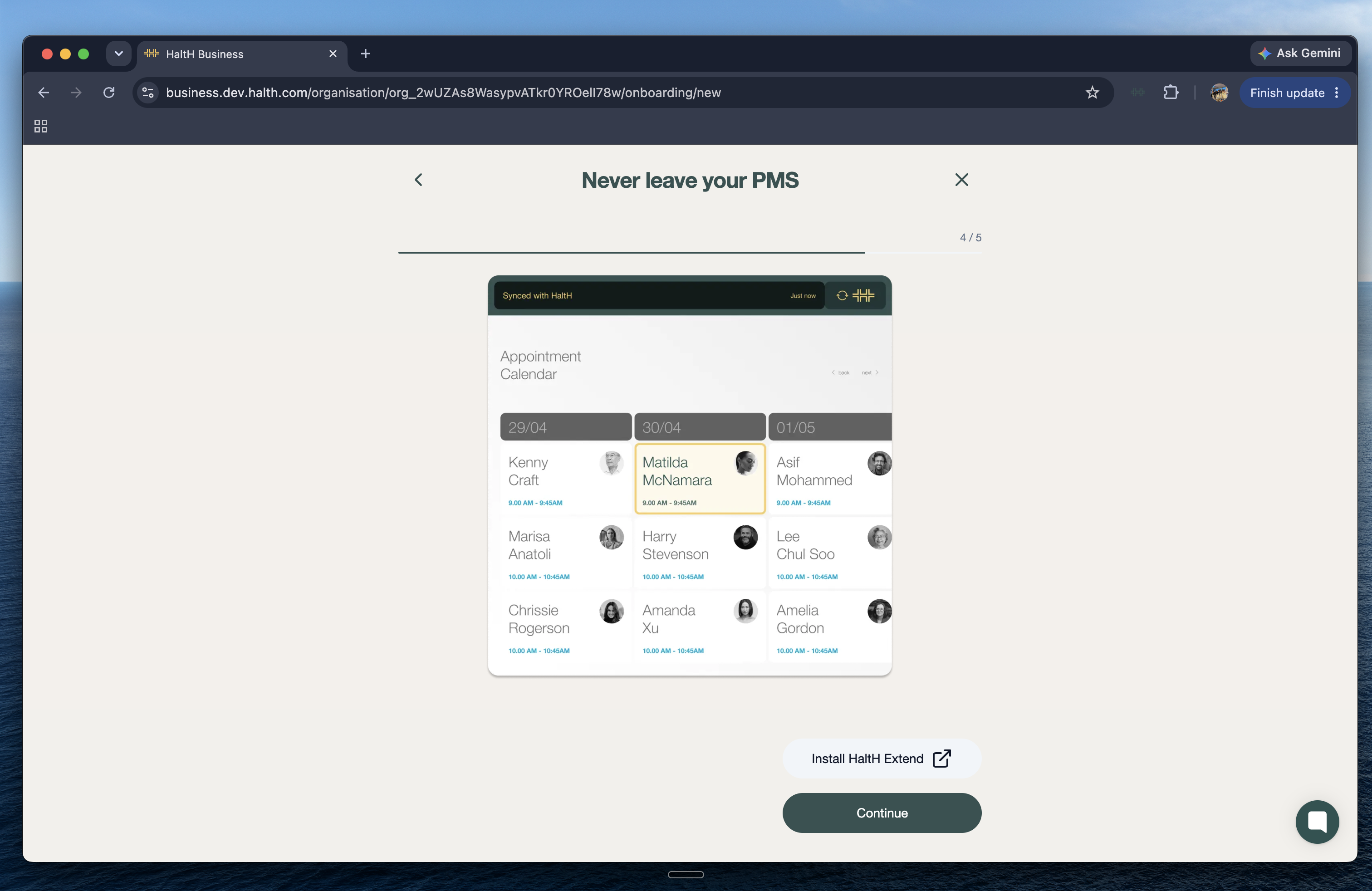
Select Install HaltH Extend to add it to Chrome. It puts a Pay with HaltH button inside your practice software, so you can check out without switching tabs. Not at your work computer? Select I'll do this later. See HaltH Extend.
The last screen asks you to register for claiming. Select Set up private health claiming to do it now (it's Step 2, below), or I'll do this later if you don't have your registration letter to hand.
If it says "You're not linked to a location", your practice hasn't assigned you to a location in its practice software yet. Ask your practice owner to add you there, then come back to it.
Home shows Finish setting up your profile until you're ready to claim:
Set up your account: done once you finish this guide.
Set up private health claiming and Set up Medicare claiming: covered in Step 2. These stay locked until your practice has connected its practice software and you're linked to a location.
Step 2: Register for private health and Medicare claiming
Add your provider number and registration letter so you can claim at checkout.
