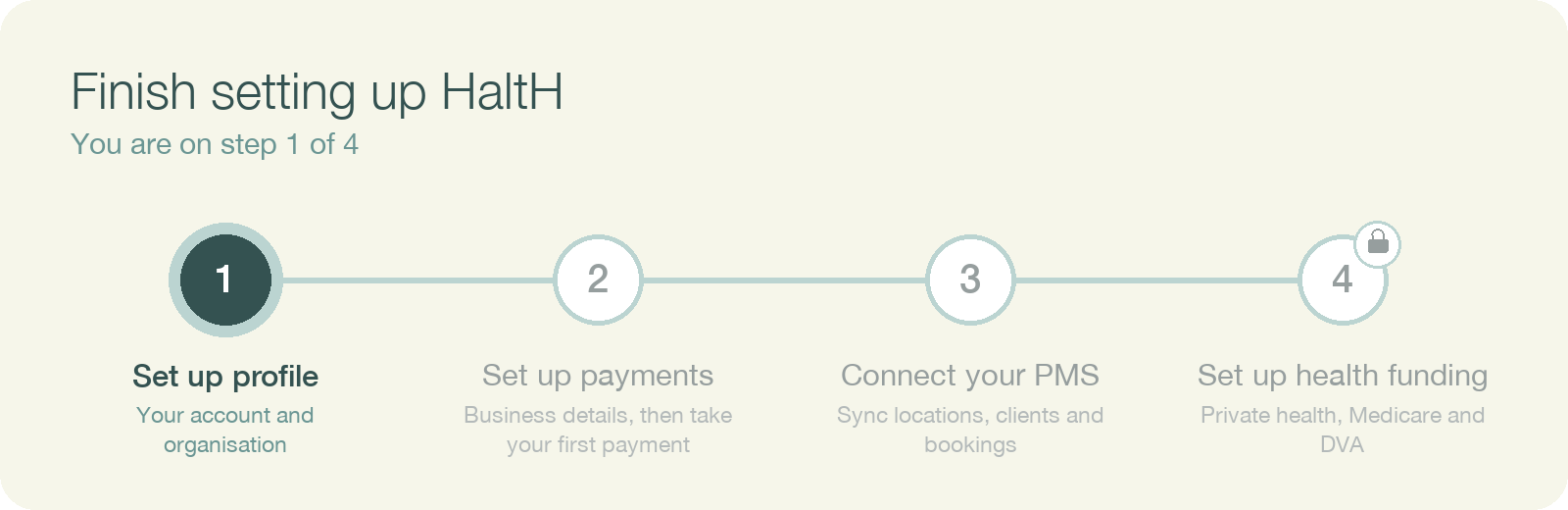
Welcome to HaltH. Getting your practice ready takes four steps, and they match the Finish setting up HaltH checklist you'll see on Home:
Create your account and set up your profile (this guide)
This guide is for the person setting up the practice. Joining a practice that already uses HaltH? Use Getting started for providers instead.
Go to halth.com and select Sign up in the top-right corner.
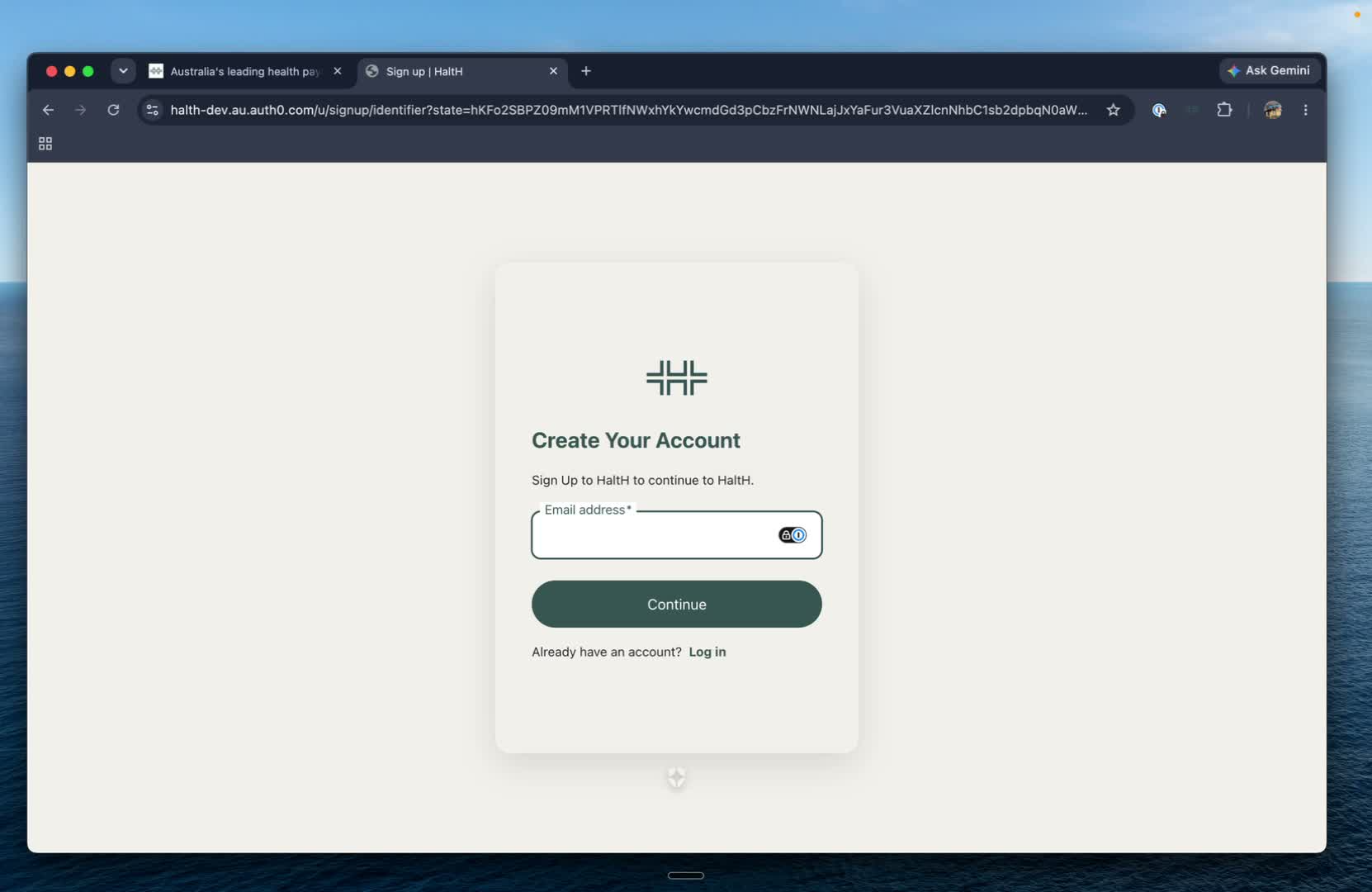
Select Setup in minutes, enter your work email and select Continue.
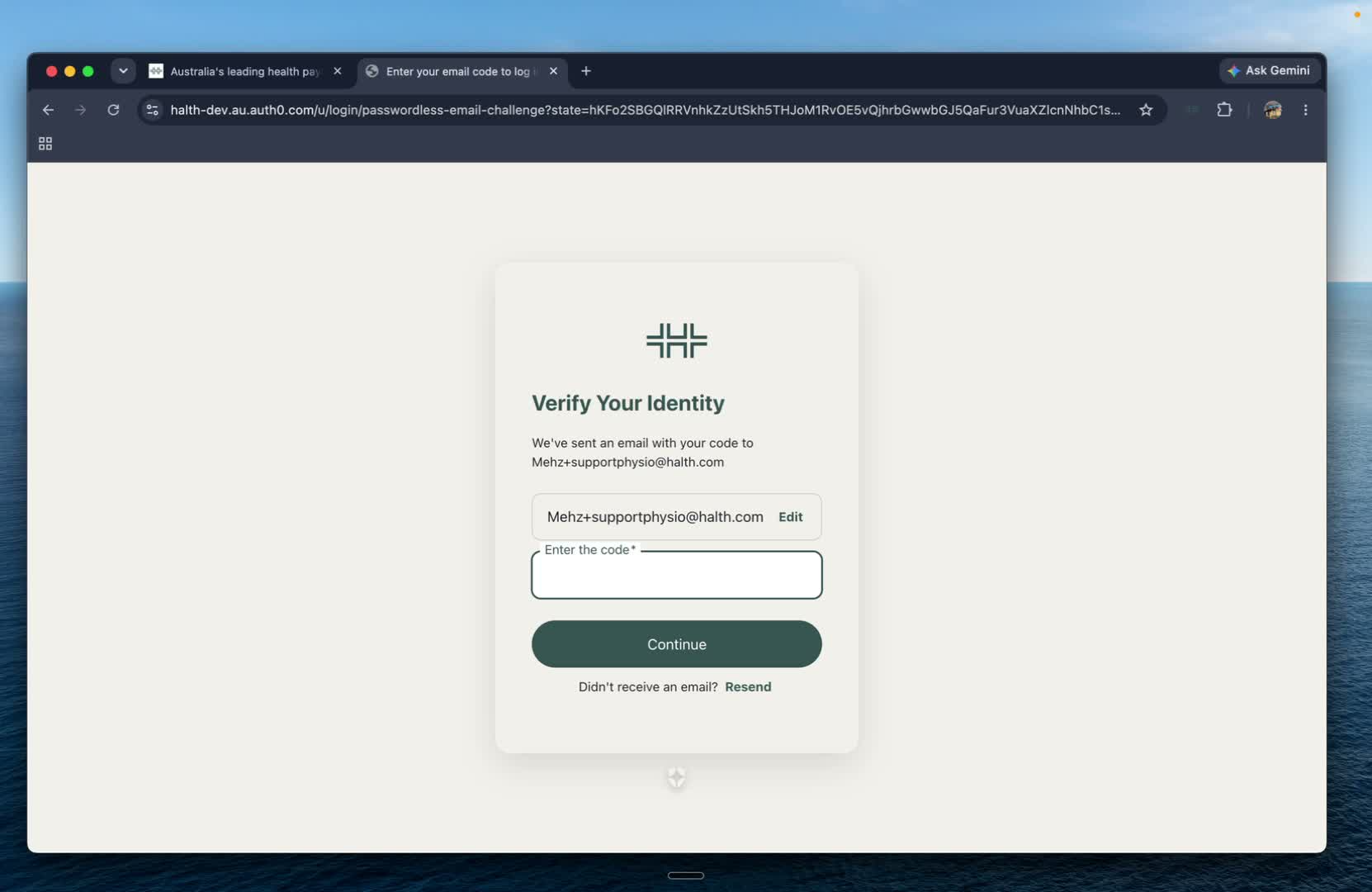
Enter the code we email you. There's no password to remember: each time you log in, you'll get a new code by email or text.

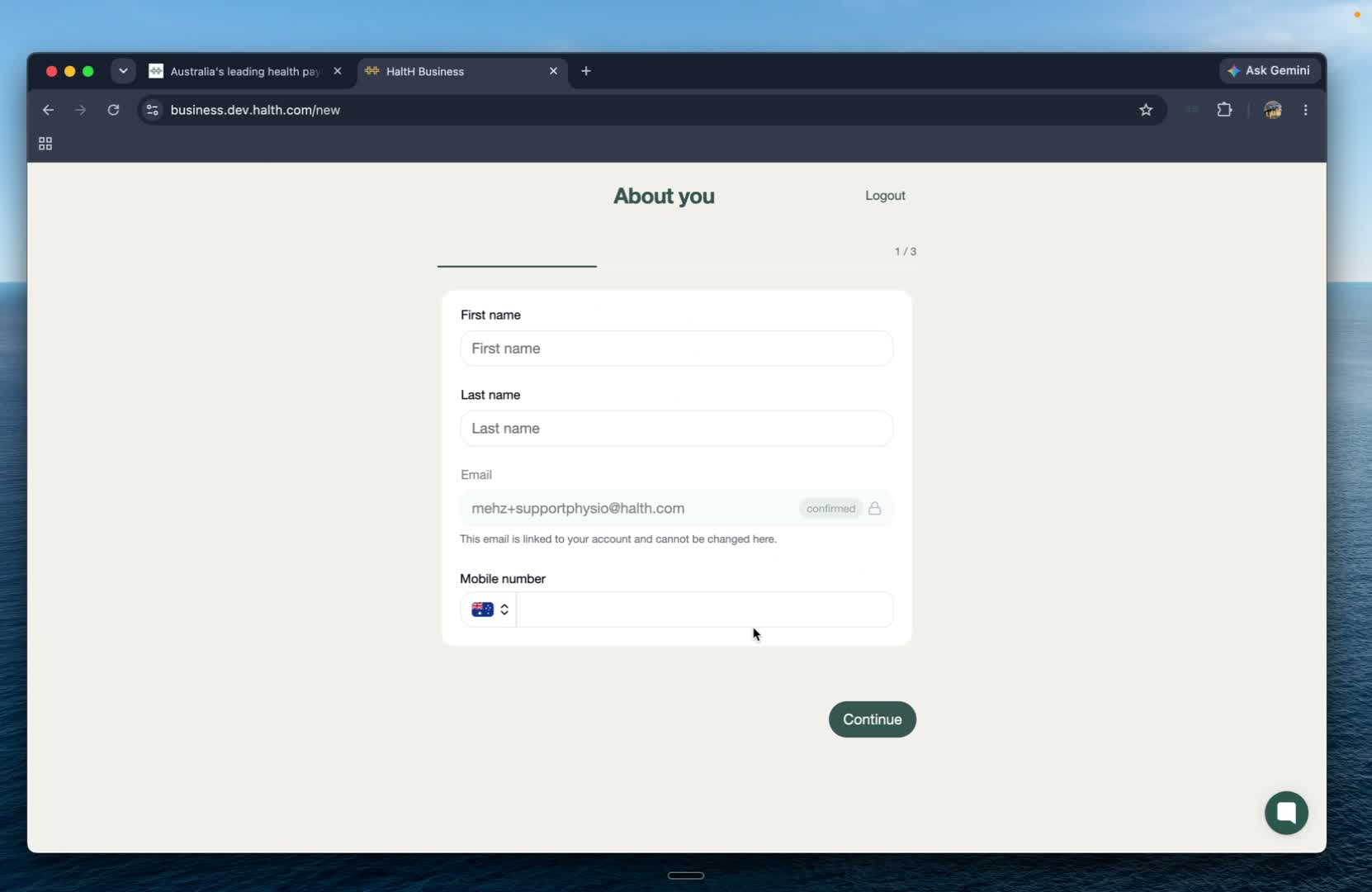
Enter your first name, last name and mobile number, then select Continue.
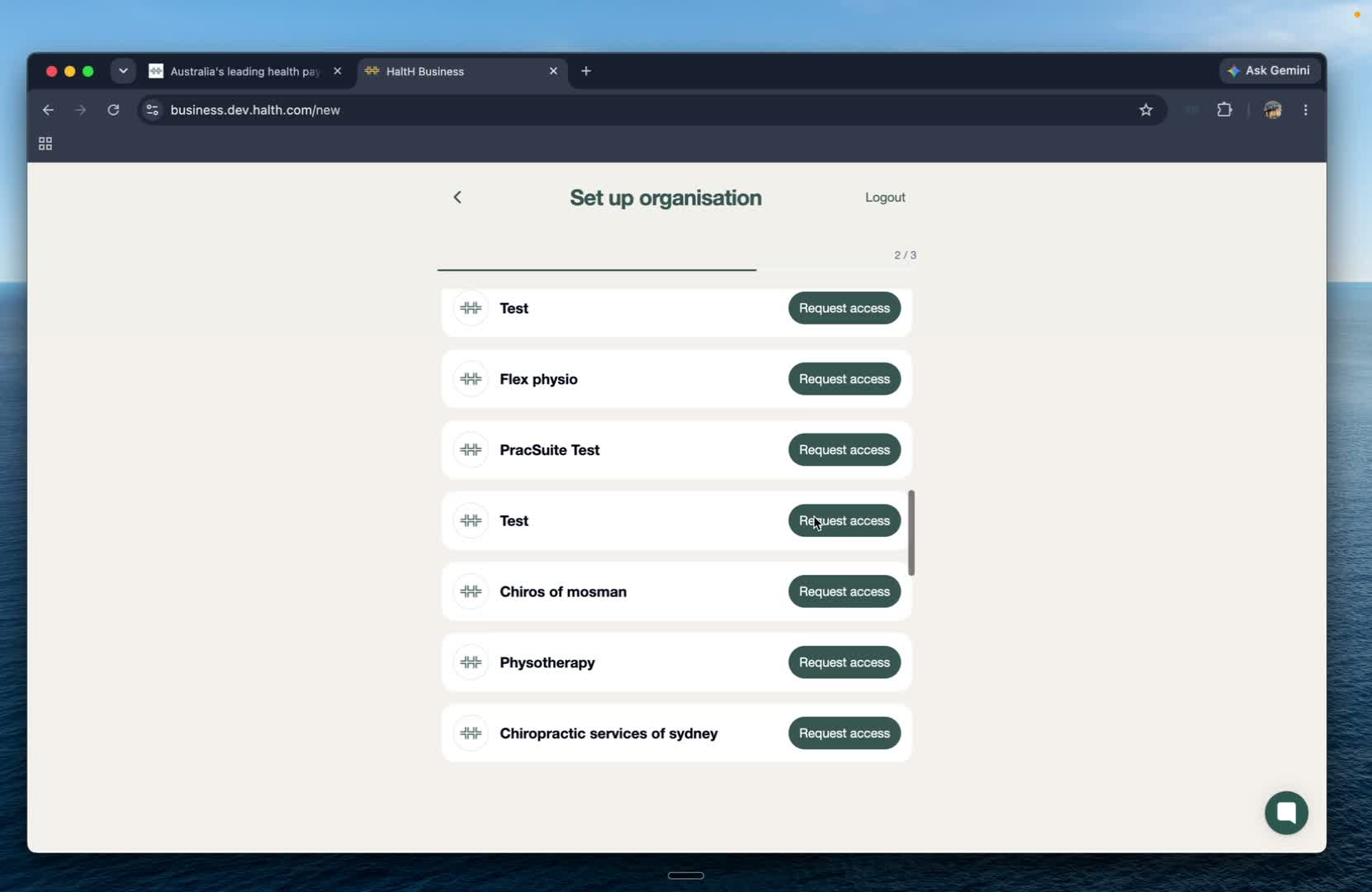
On Set up organisation you'll see any HaltH organisations that match your email:
If your practice is already on HaltH, select Request access. An owner of that organisation approves you, and you can skip the rest of this guide.
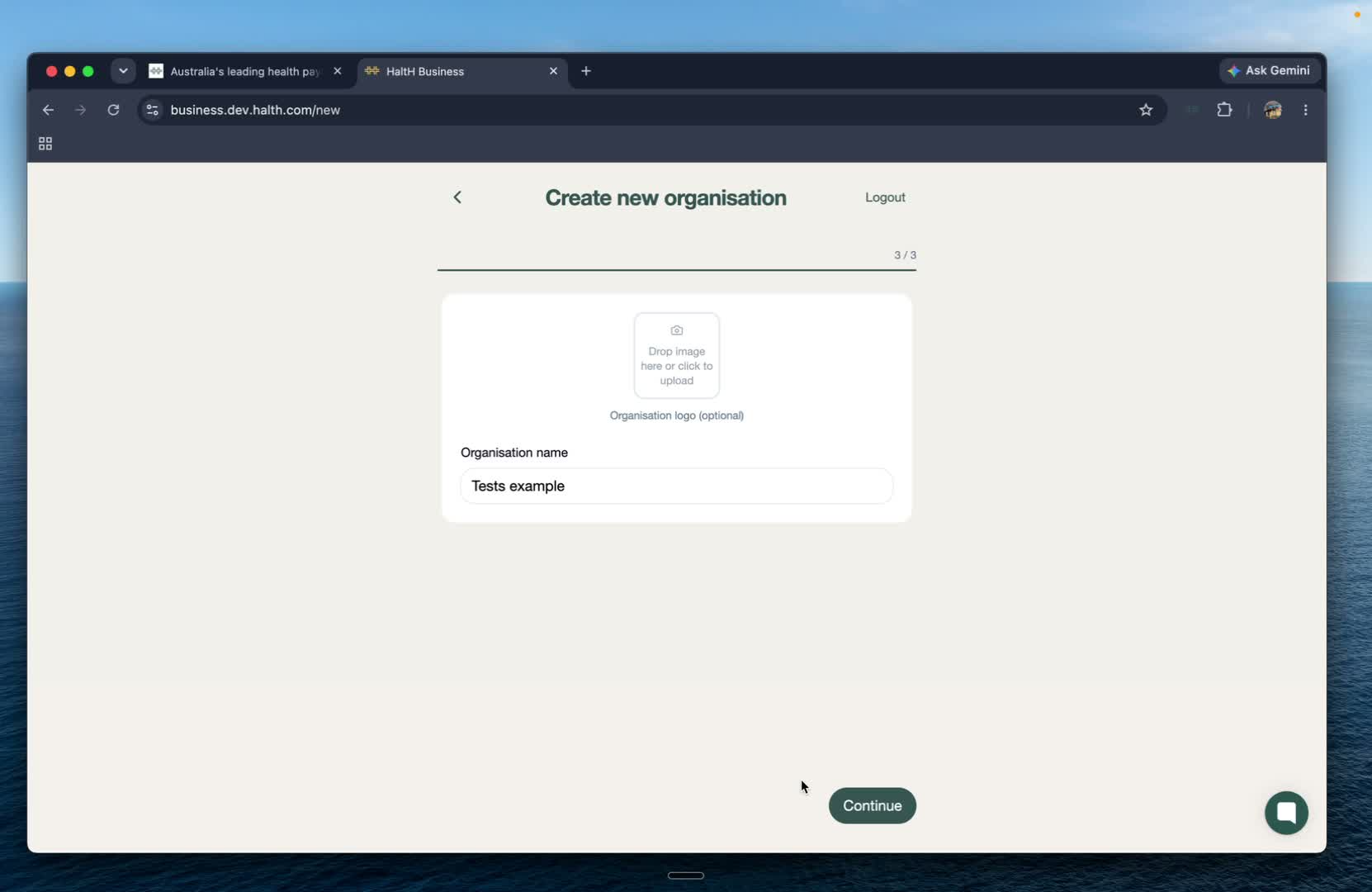
Otherwise, select Create new organisation. Enter your practice's name and, optionally, upload its logo, then select Continue. You'll be the organisation owner.
You'll land on Home, with your setup checklist at the top.
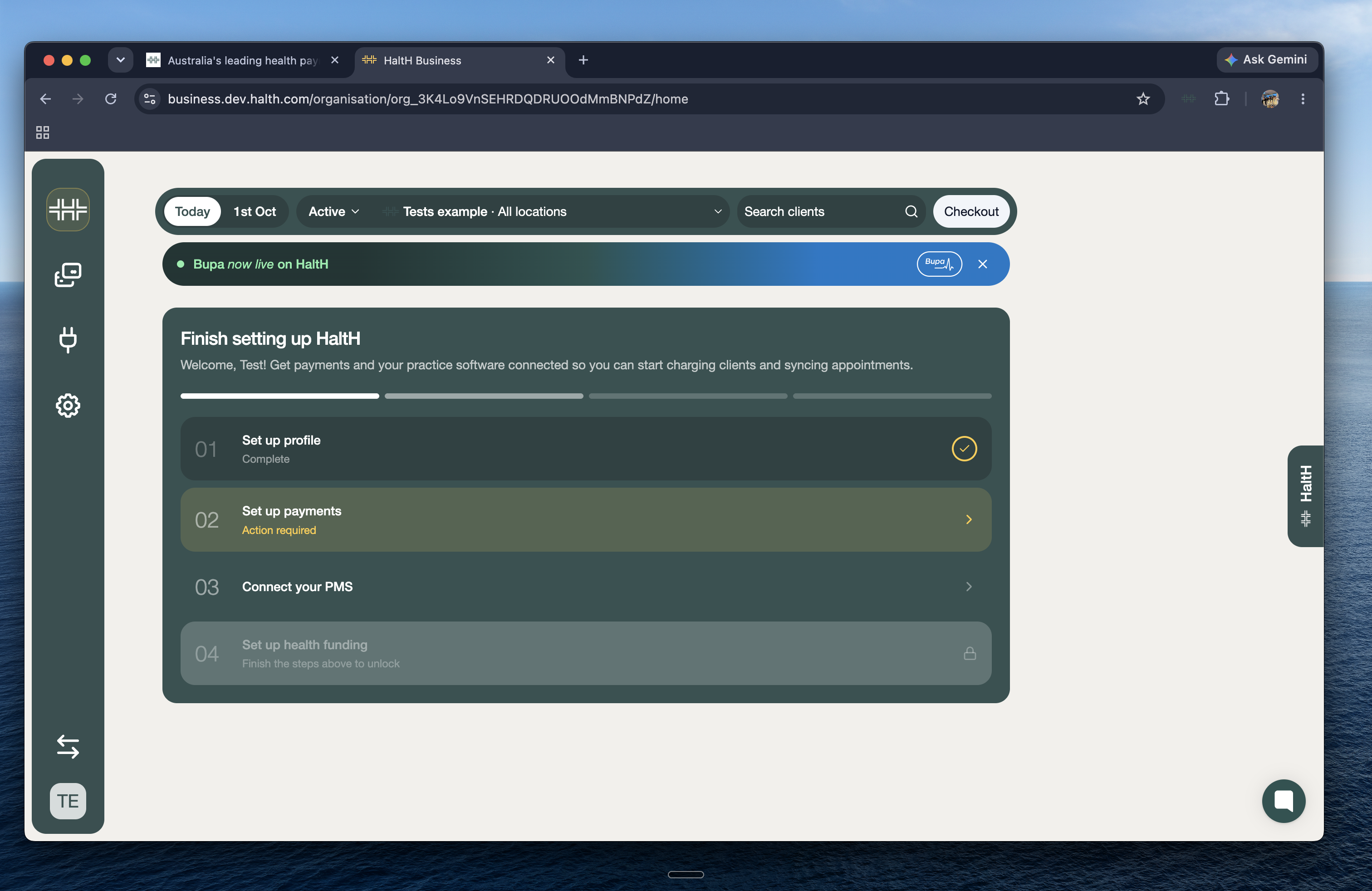
On the checklist, select Set up profile and select Get started. A few short screens follow:
Your profile: confirm your name and add a photo if you like.
Mobile number: used to verify your account and keep it secure.
Get the HaltH Tap app: scan the QR code to take payments on your phone. See HaltH Tap.
Install HaltH Extend: adds HaltH to Cliniko, Nookal and other practice software in Chrome. Select I'll do this later if you're not at your work computer. See HaltH Extend.
Set up private health claiming: select I'll do this later for now. Claiming is turned on in Step 4, once payments and your practice software are connected.
When you see "You're all set up and ready to go", Step 1 is done.
Step 2: Set up payments
Verify your business so you can take payments, then add your bank account after your first payment so you get paid out. About 10 minutes.
